Android Tips
Tip #850
October 13, 2026

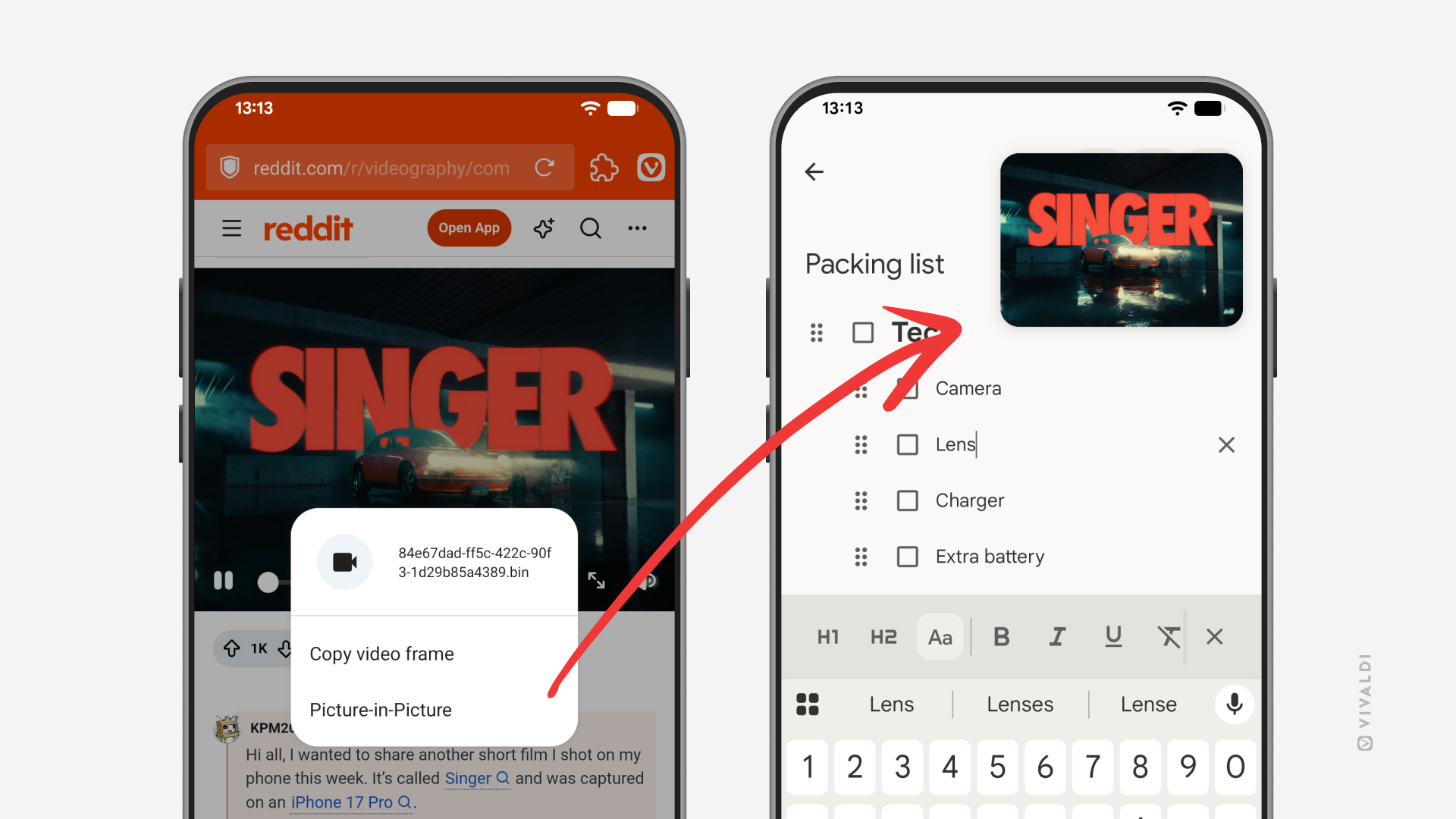
Long-press on a video in Vivaldi on Android to open it in a pop-out video player.
Picture-in-picture (PiP) displays a video in a small floating window, allowing you to multitask across tabs or apps while it continues playing.
There are a few ways to enable Picture-in-Picture in Vivaldi on Android. Some video players have a special button for PiP, in full screen mode you can go to the home screen to trigger the PiP video player, but on many websites, there’s also a third option.
To open a PiP window from a context menu:
- Long-press on the video.
- Select “Picture-in-Picture”.
Tip #845
September 24, 2026
Pin important Extensions to the Address Bar in Vivaldi on Android.
Extensions allow you to enhance your browsing experience in Vivaldi on Android with clever features. For easier access, you can pin your most used extensions to the Address Bar.
To pin an extension:
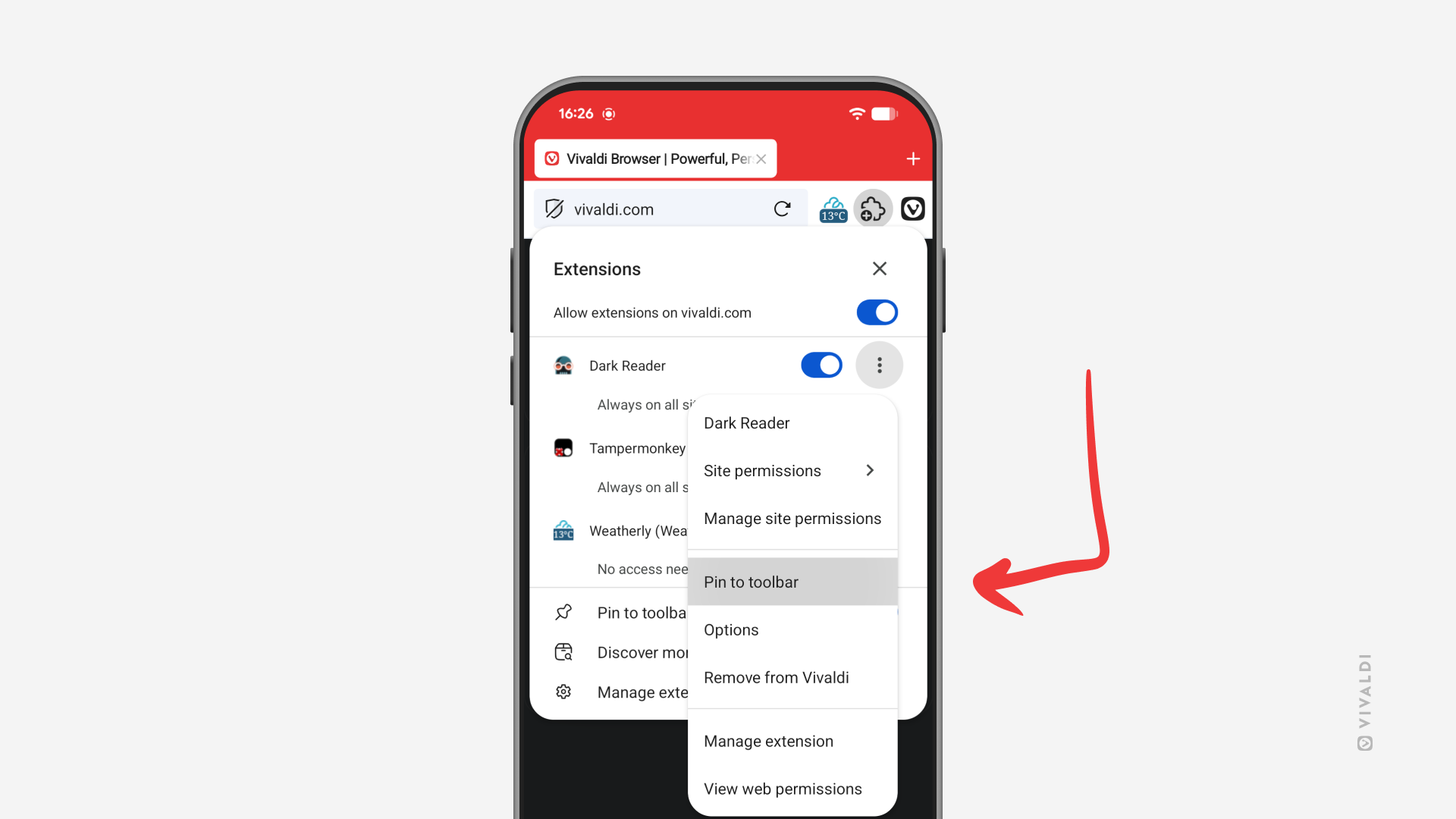
- Open the Extensions menu.
- Tap on the 3-dot menu after the extension you want to pin.
- Select “Pin to toolbar”.
The space on the Address Bar is limited, so only pin the most important ones.
Tip #843
September 15, 2026
Solve a quick math problem using the Calculator in the Address Field.
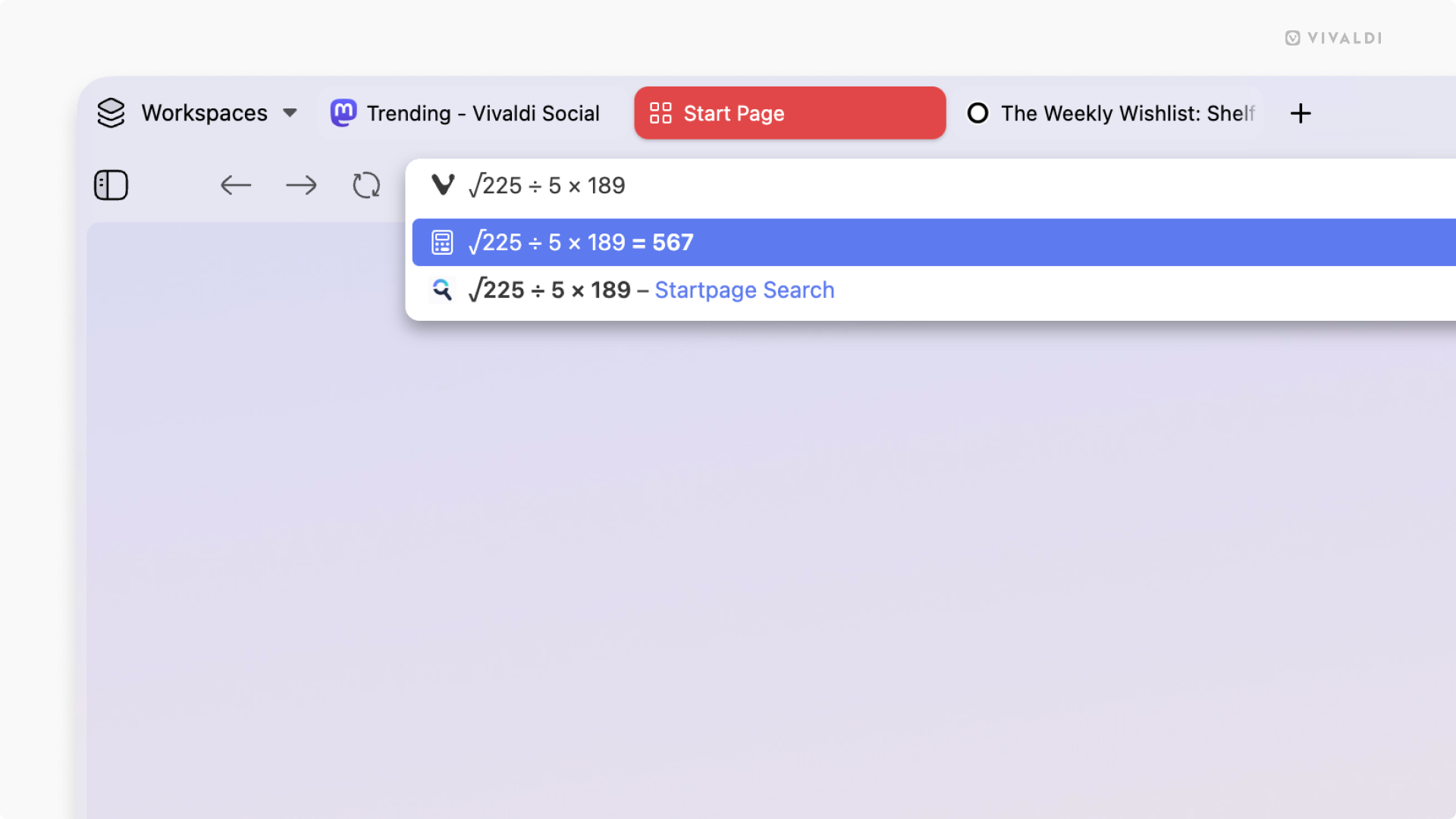
With the Vivaldi browser on desktop, Android and iOS, you don’t need to switch apps or go to a website with a calculator to do a quick calculation. Simply use the calculator built into the browser’s Address Field.
To calculate something:
- Focus on the Address Field.
- Start typing the equation. For example, “888/37”, “sqrt 1764”, etc.
The result will be displayed automatically in the Address Field’s drop-down menu. If you need to use the result, press Enter or click the Copy button on the right side.
Tip #842
September 10, 2026
Get more from Vivaldi on Android with Extensions.
An extension is a small software program that can be installed to give added functionality to your browser. To Vivaldi on Android, you can add Extensions from the Chrome Web Store.
To install an extension:
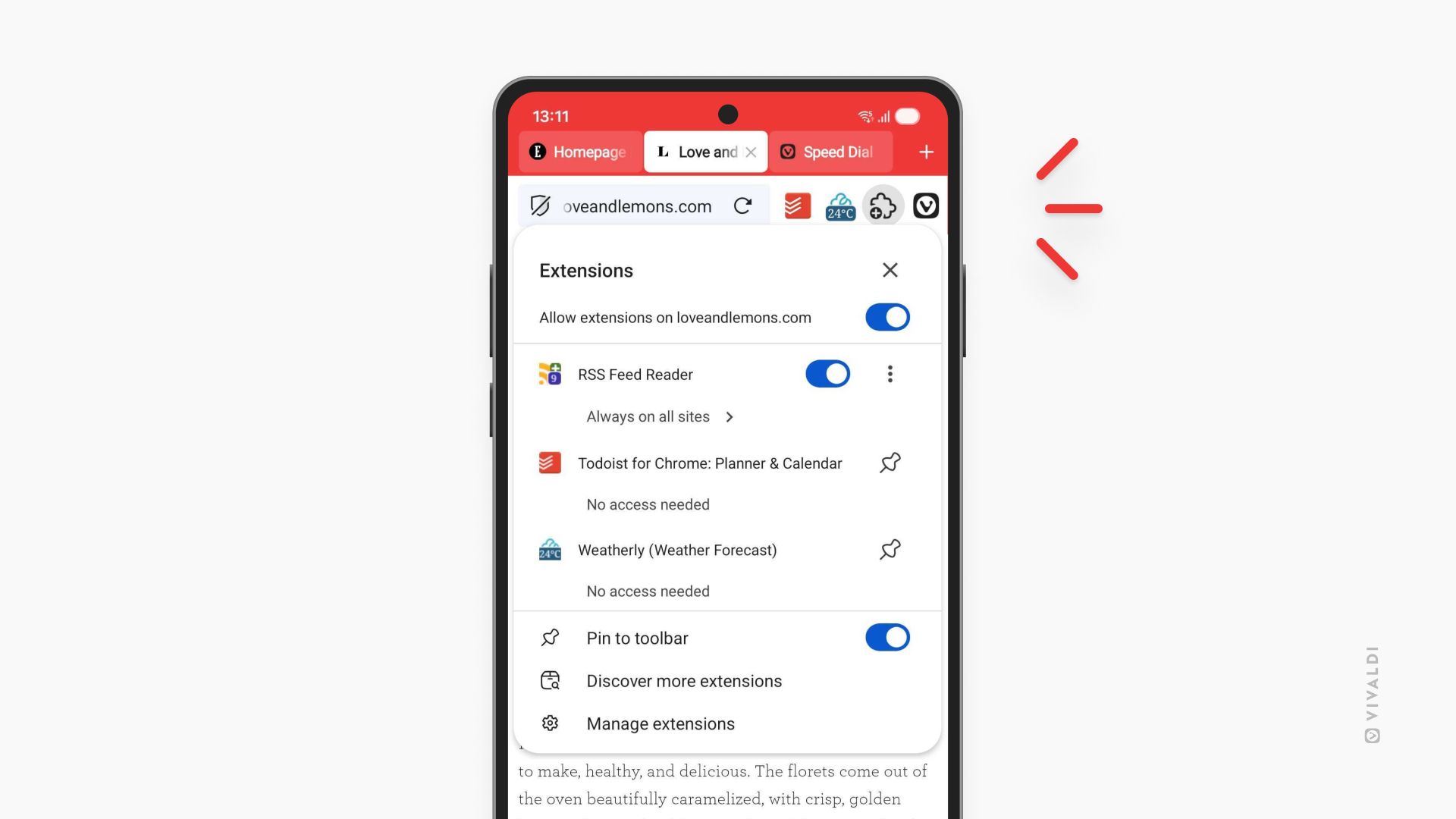
- Tap the Extensions button on the Address Bar.
- Tap on “Open Chrome Web Store” in the menu. If you already have some extensions installed, tap “Discover more extensions”.
- Browse or search for extensions.
- On the extension’s profile, tap “Add to Vivaldi”.
- In the confirmation dialog, tap “Add extension”.
Tip #836
July 30, 2026
Find more images from the authors of Daily Images.
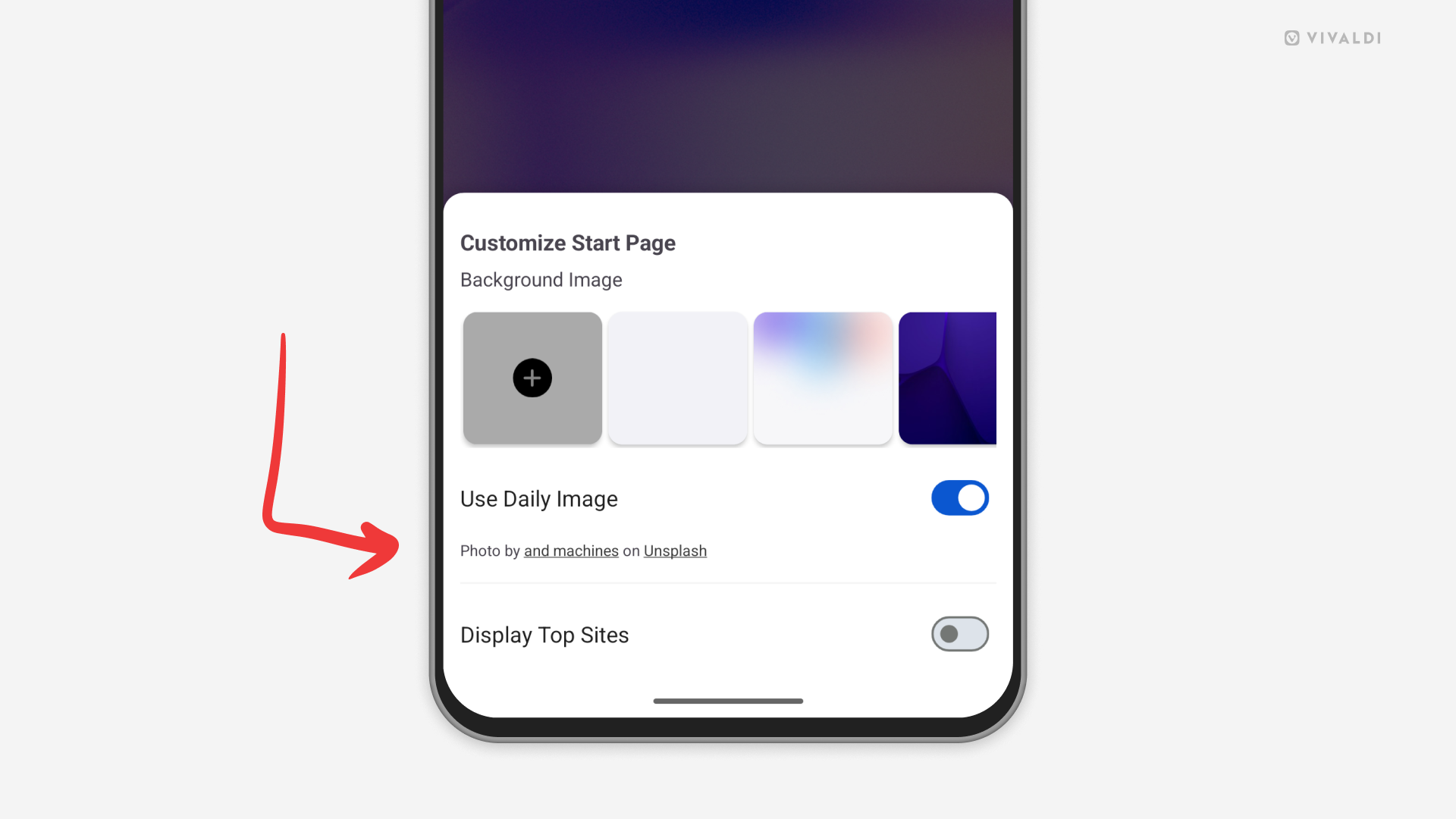
When you enable Daily Images as Start Page background images in Vivaldi, you’ll be treated with a new wallpaper every day. If there’s a picture that catches your eye and you want to see more works from the same author, check the image credits.
To view more images from the same author:
- On desktop, look in the bottom right corner of the Start Page and click on the author’s name.
- On Android and iOS, open the Customize menu (from the button at the bottom of the Start Page or from the 3-dot menu in the top right corner of the Start Page). Tap on the author’s name below the setting.
Tip #834
July 23, 2026
Choose whether to open PDF files in Vivaldi on Android or a third-party app.
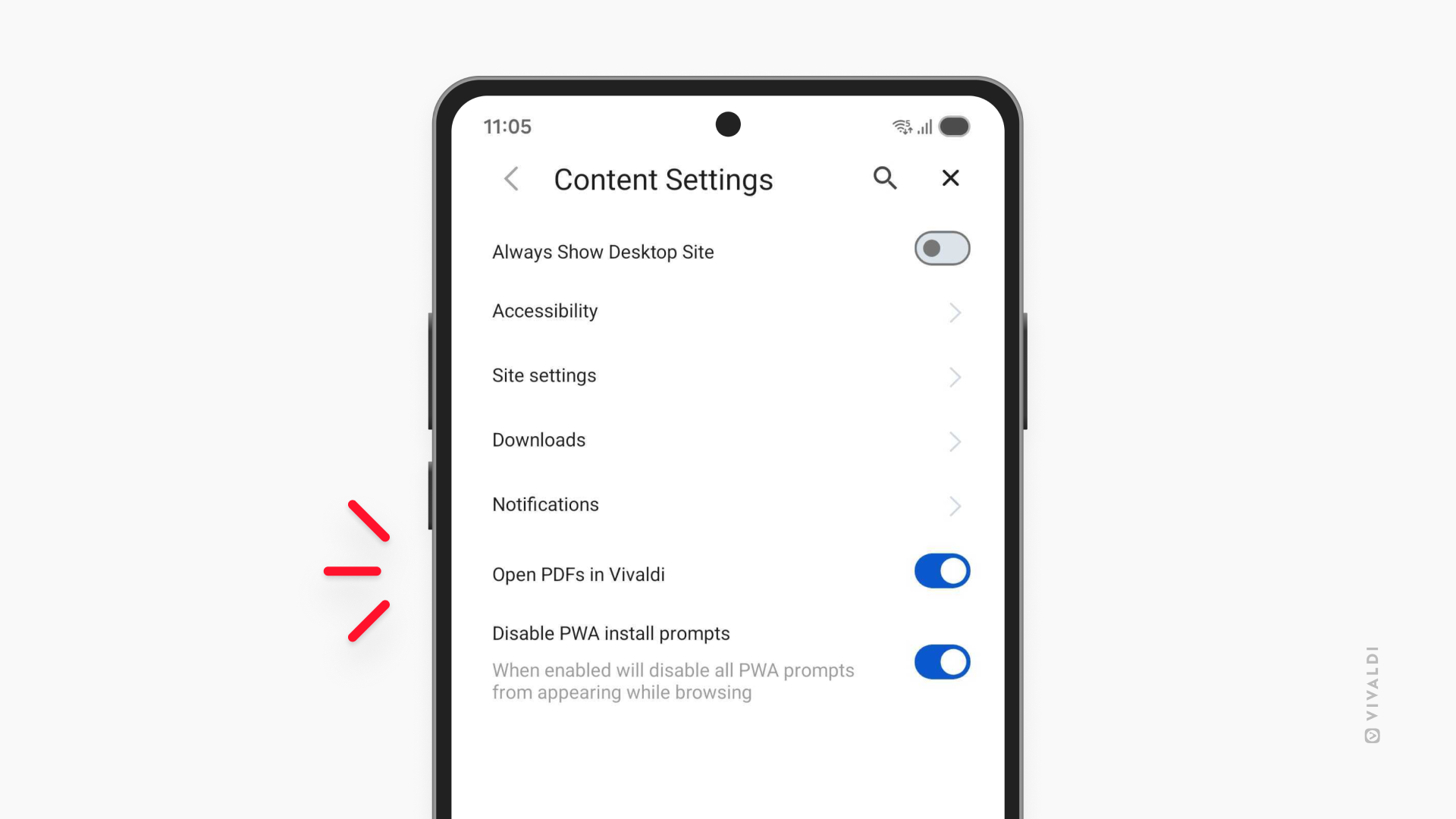
Depending on how you work with PDF files, you can choose how Vivaldi on Android handles PDFs you encounter on the web. If you usually just need to skim a document, you can open it directly in a Vivaldi tab. If you need more advanced features, you can download the file and open it in your preferred PDF reader.
To pick your preference:
- Go to Settings > Content Settings.
- Keep the “Open PDFs in Vivaldi” setting enabled, if you want to open the files in Vivaldi.
Toggle it off, if you want to download PDFs and open them in a third-party app.
Tip #832
July 16, 2026
Customize Vivaldi’s app icon to match your Android phone or tablet’s aesthetic.
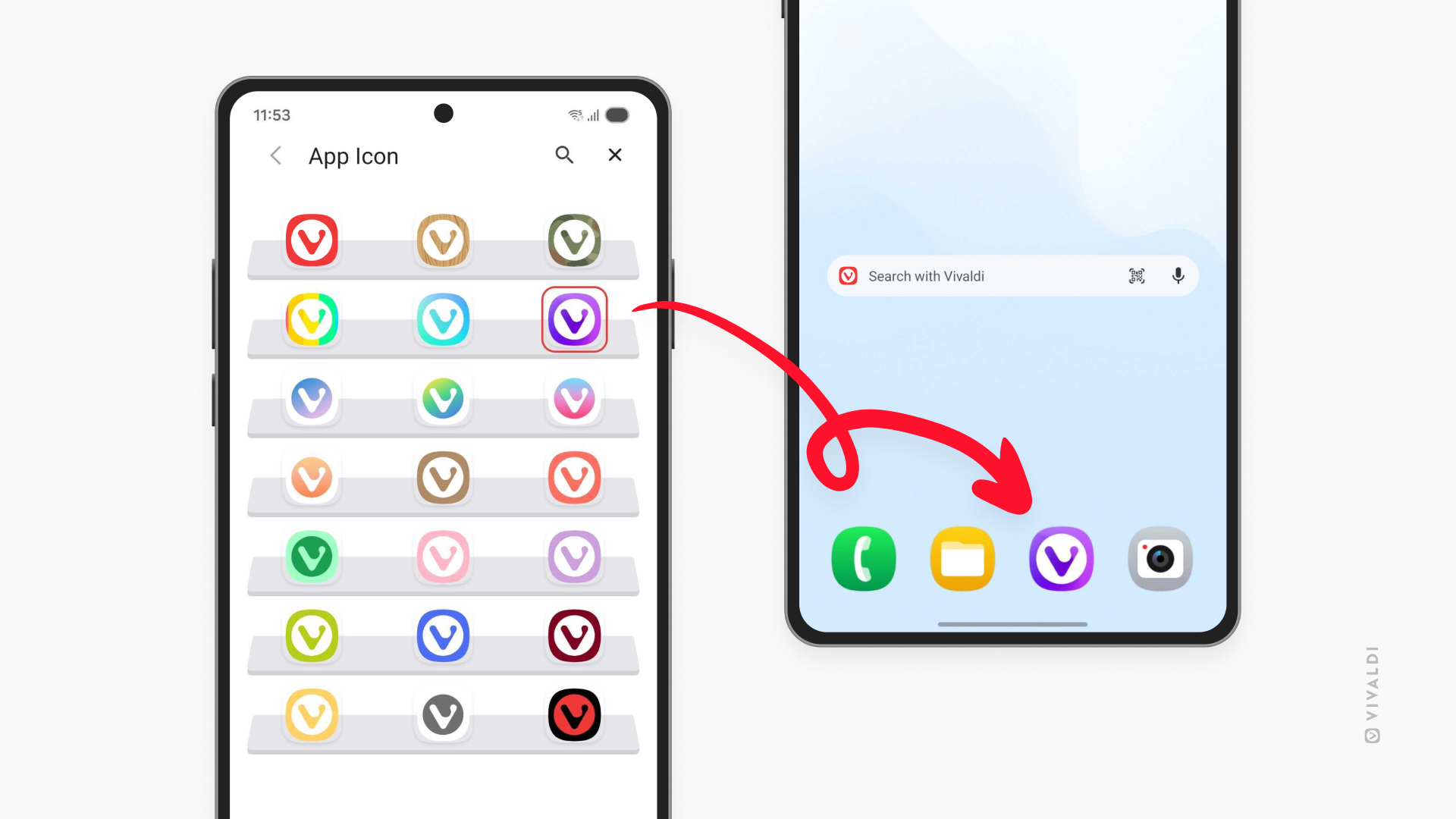
Vivaldi on Android offers a selection of App Icons for you to choose from, allowing you to match Vivaldi with your phone or tablet’s style. Your chosen App Icon will be displayed on the home screen, in the App Library, and elsewhere where Vivaldi is displayed.
To choose a custom App Icon:
- Go to Settings > App Icon.
- Tap on the icon you’d like to set for Vivaldi.
- Exit Settings.
Tip #828
July 2, 2026
Make reading more comfortable by adjusting Reader View settings on mobile.
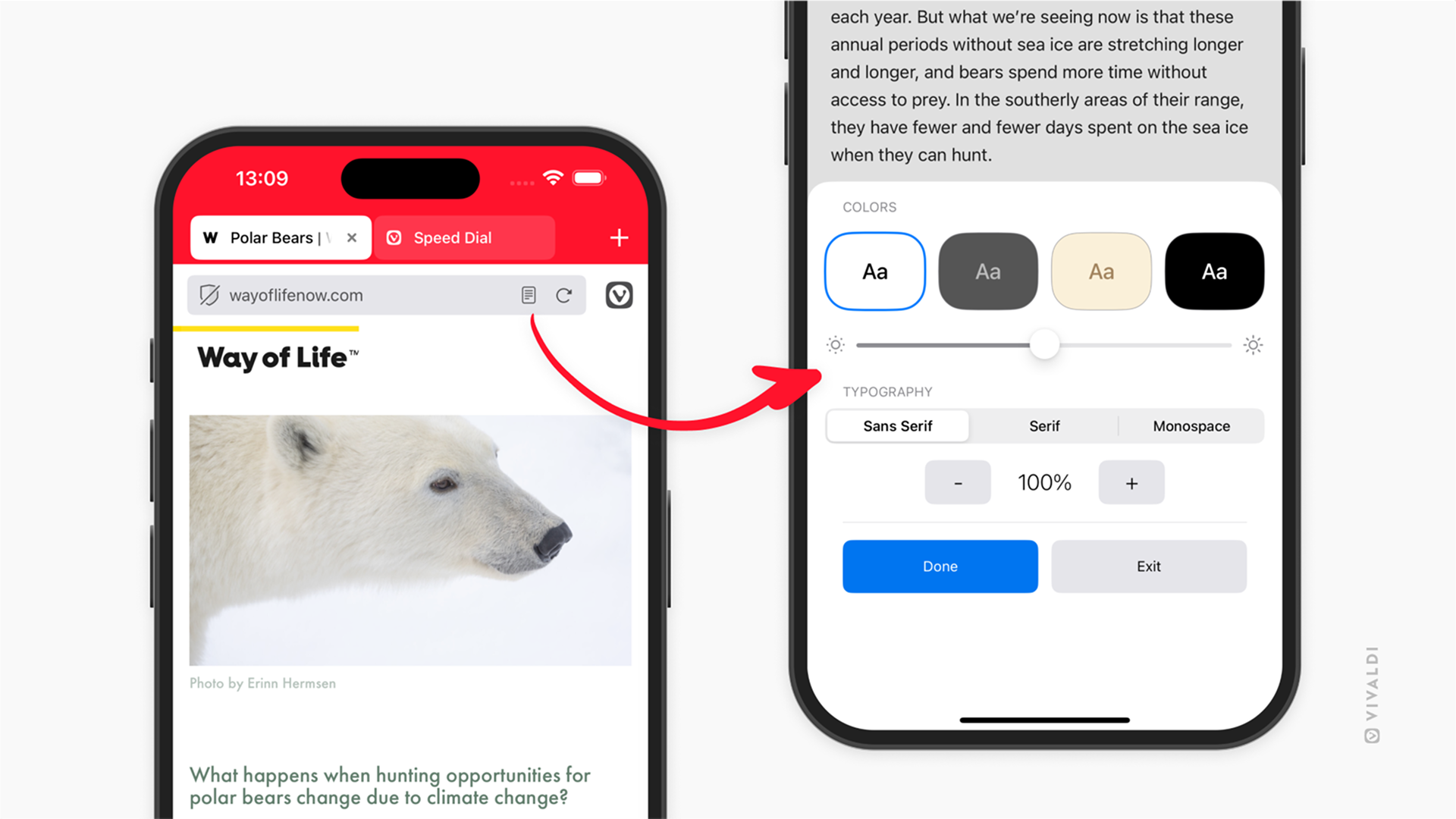
Reader View in Vivaldi on Android and iOS is a feature that allows you to remove all distractions and focus solely on the article at hand. To make reading easier on the eyes, we recommend reviewing the settings. For example, you can switch to a dark theme and increase the text size.
To adjust Reader View settings:
- Enable Reader View.
- Tap the Settings button in the bottom right corner.
- Change the color scheme, font and text size. On iOS, you can also adjust screen brightness.
- Tap outside the dialog to close the settings.
Tip #823
June 11, 2026
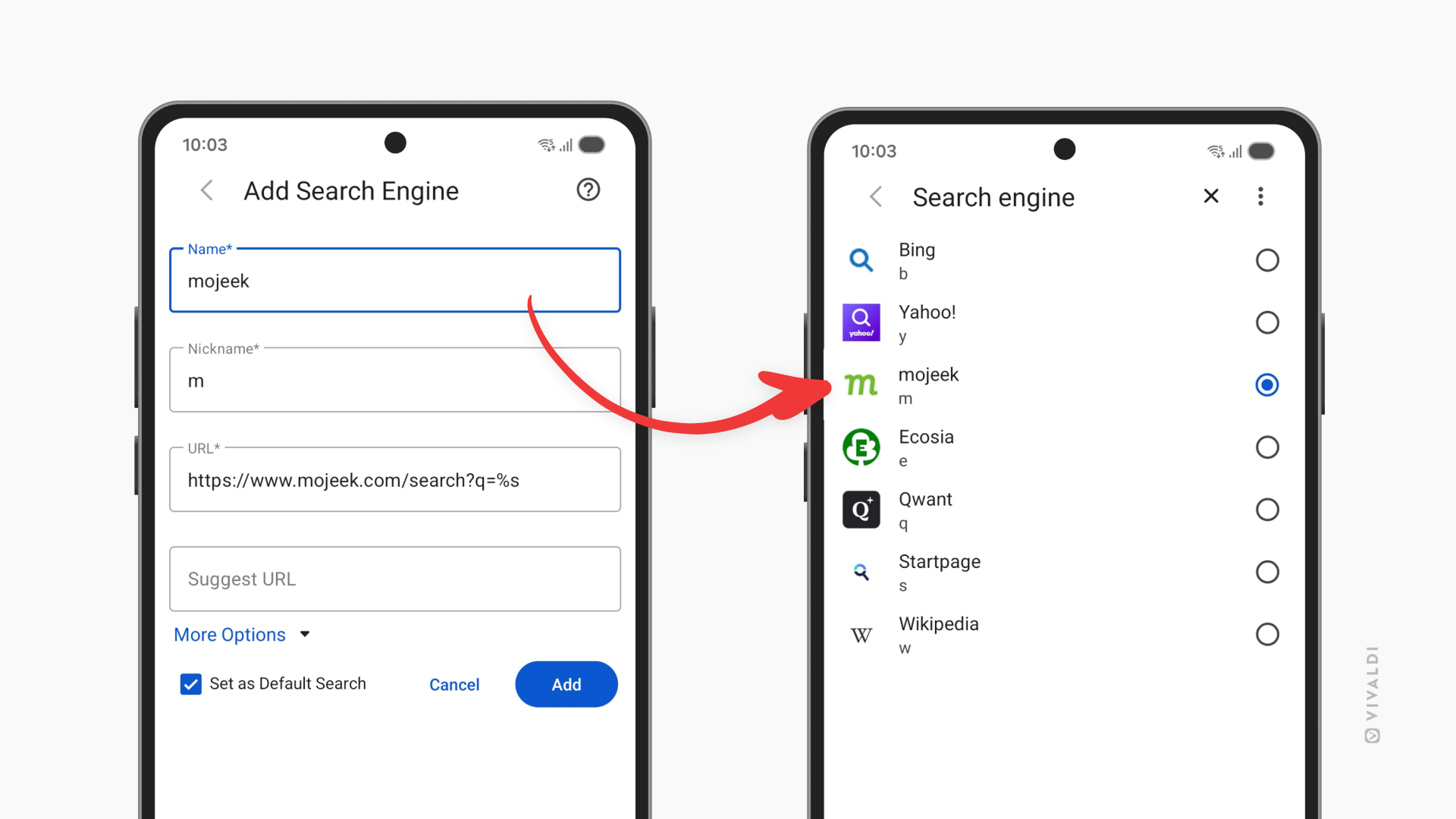
Find things faster in Vivaldi on Android with Custom Search Engines.
A lot of what we do on the web involves searching for information. Whether doing a generic search or looking things up on a frequently visited website, using the right search engine can help you get to the right search results in no time. In Vivaldi on Android, you can add your own search engines, give them nicknames, and even make the one you love your default.
To add a custom search engine in Vivaldi on Android:
- Go to Settings > Search Engine > Add Custom Search Engine.
- Enter the name of the new search engine.
- Type in a short and unique nickname.
- Insert the search URL, and if you wish to receive suggestions from the search engine as you type, also the Suggest URL.
- Optionally, expand the More Options section to enter POST parameters and, in case the search engine offers reverse image search, also the Image Search URL.
- Tap Add.
To get the Search URL, either:
- Look for it in the search engine’s documentation.
- Do a test search on the search engine’s website, copy the URL and replace the search keyword with %s.
Tip #821
June 4, 2026
Download PDFs in Vivaldi on Android.
While it’s convenient to check PDFs in the browser without downloading them first, occasionally you may need to save one for later.
To download a PDF when the file is open in a tab:
- Go to the main Vivaldi menu > Share > Print.
- In the Print Preview, select “Save as PDF” as the output.
- Tap the PDF button.
- Select the download location and tap “Done”/”Save”.
To download a PDF that’s linked on a web page:
- Long-press on the PDF link.
- Select “Download link”.
- If prompted, tap “Download” in the pop-up.
Tip #814
May 12, 2026
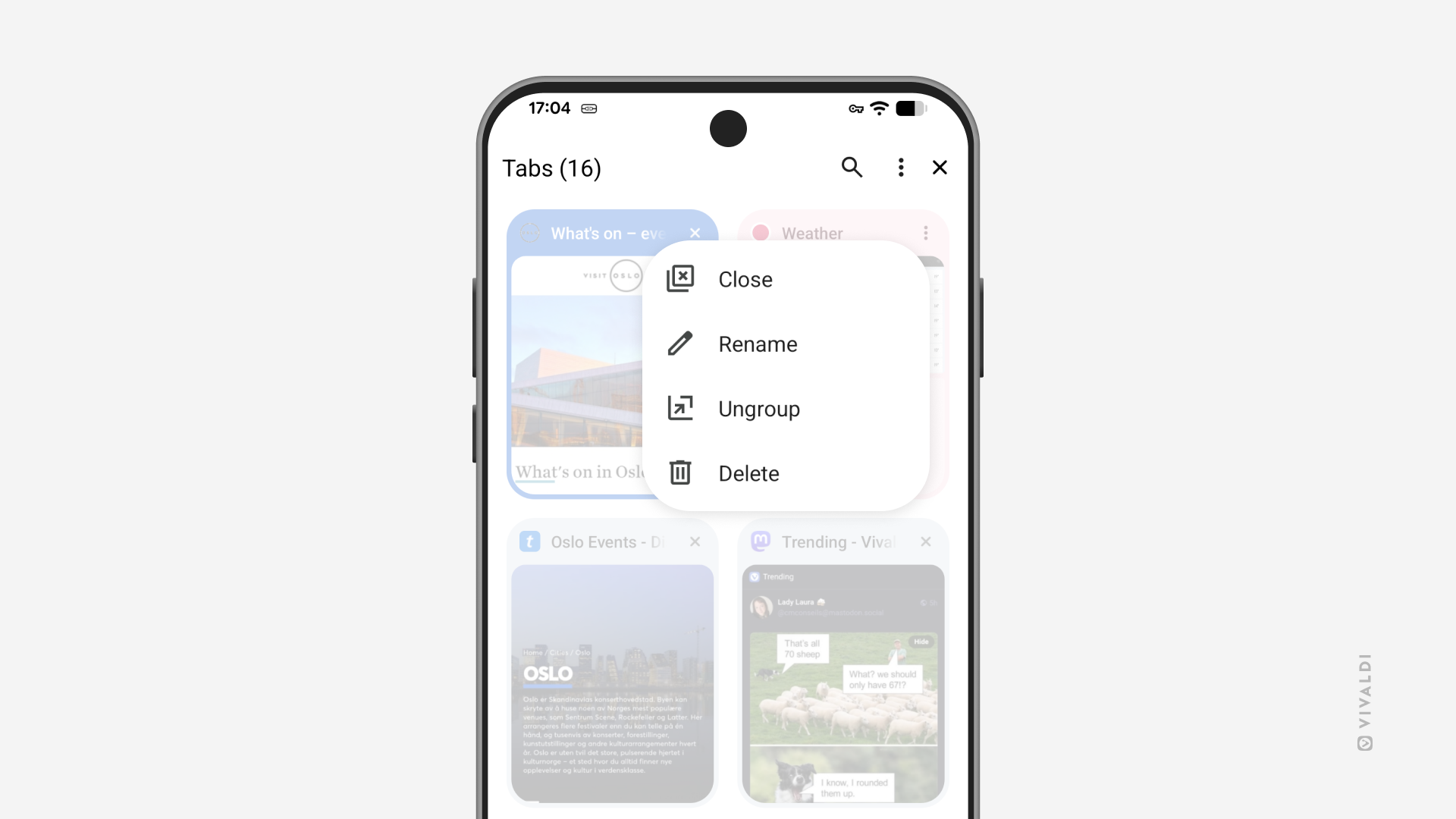
Make the right choice between closing and deleting Tab Stacks on mobile.
Tab Stacks in Vivaldi on Android and iOS can be both closed and deleted. Though it sounds like they should do the same thing, there is an important differences between them.
Closing a stack will remove the group of tabs from the Tab Bar and the open tabs view in the Tab Switcher, but it will keep the stack available in the Tab Stacks view in the Tab Switcher. That way you can declutter your actively used tabs view, but easily access the stack again whenever you need it.
Deleting a stack, expectedly, will actually delete the stack and close all tabs in it. But if you deleted the stack when you meant to close it, you can still recover the tabs for a while from the Closed Tabs view in the Tab Switcher or from History.
Tip #812
April 30, 2026
Drag-and-drop links on your Android tablet to open them in new tiled windows.
Tiling web pages for a side by side view is a quintessential feature on the desktop version of Vivaldi. But it’s not limited to desktop. Though a little different, you can achieve the same thing also on your Android tablet. Here’s how!
To open a link in a new tiled window:
- Long-press on a link on a web page and start dragging it.
- Drag the link to the left or right edge of the screen.
- When you see a gray box with the text “Drop here to open”, lift you finger.