Community Services Tips
Tip #849
October 8, 2026

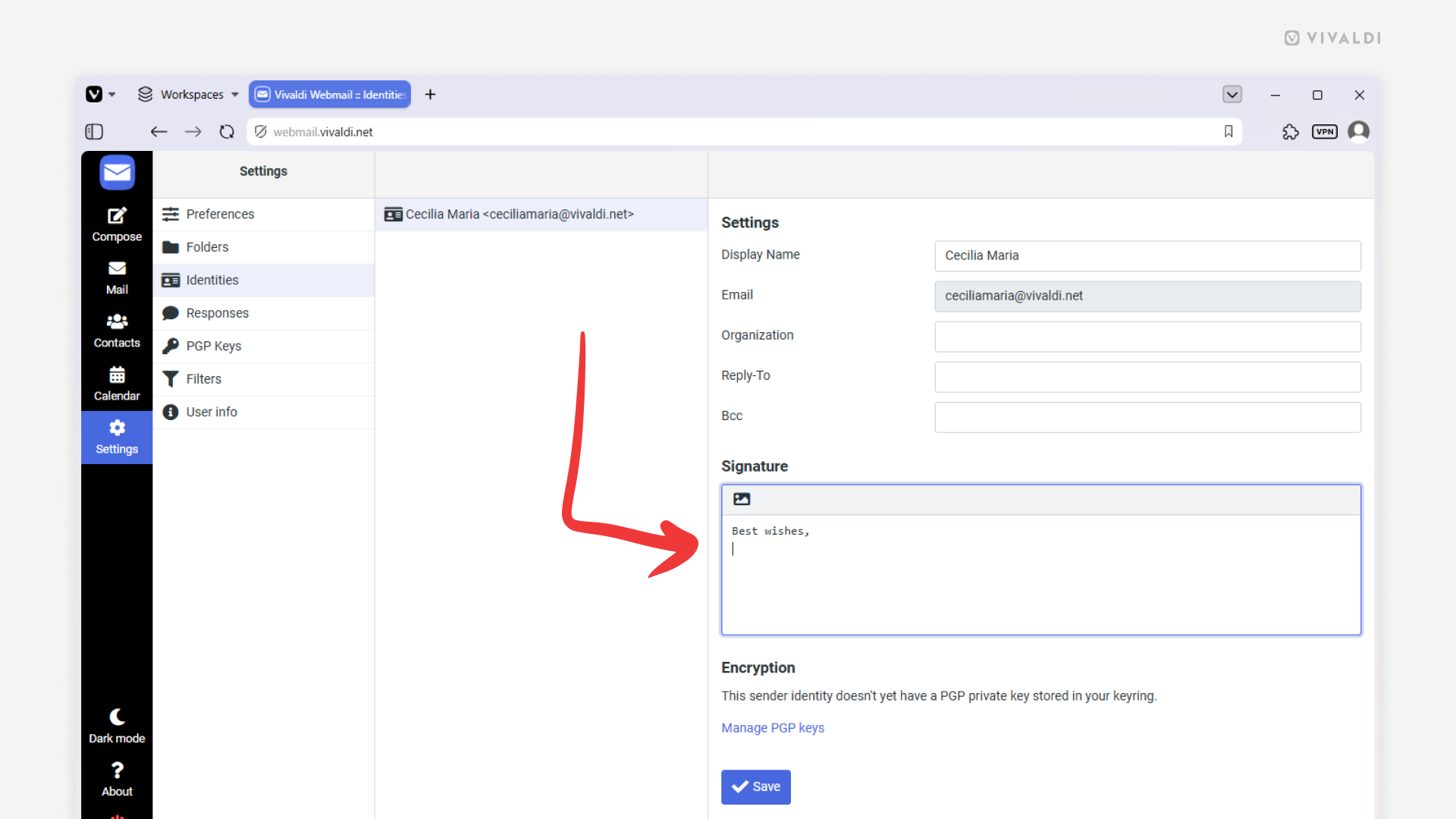
Add a signature to your account in Vivaldi Webmail.
Prefer to send emails from Vivaldi Webmail instead of the browser’s mail client, Vivaldi Mail? Whatever works best for you! Make emailing even more convenient by adding a signature that’s automatically included in every message you send from Vivaldi Webmail.
To add a signature:
- In Vivaldi Webmail, go to Settings > Identities.
- Select your email address.
- Enter the signature.
Click the little icon in the top left corner of the input field to display HTML formatting options. - Click “Save”.
Tip #847
October 1, 2026
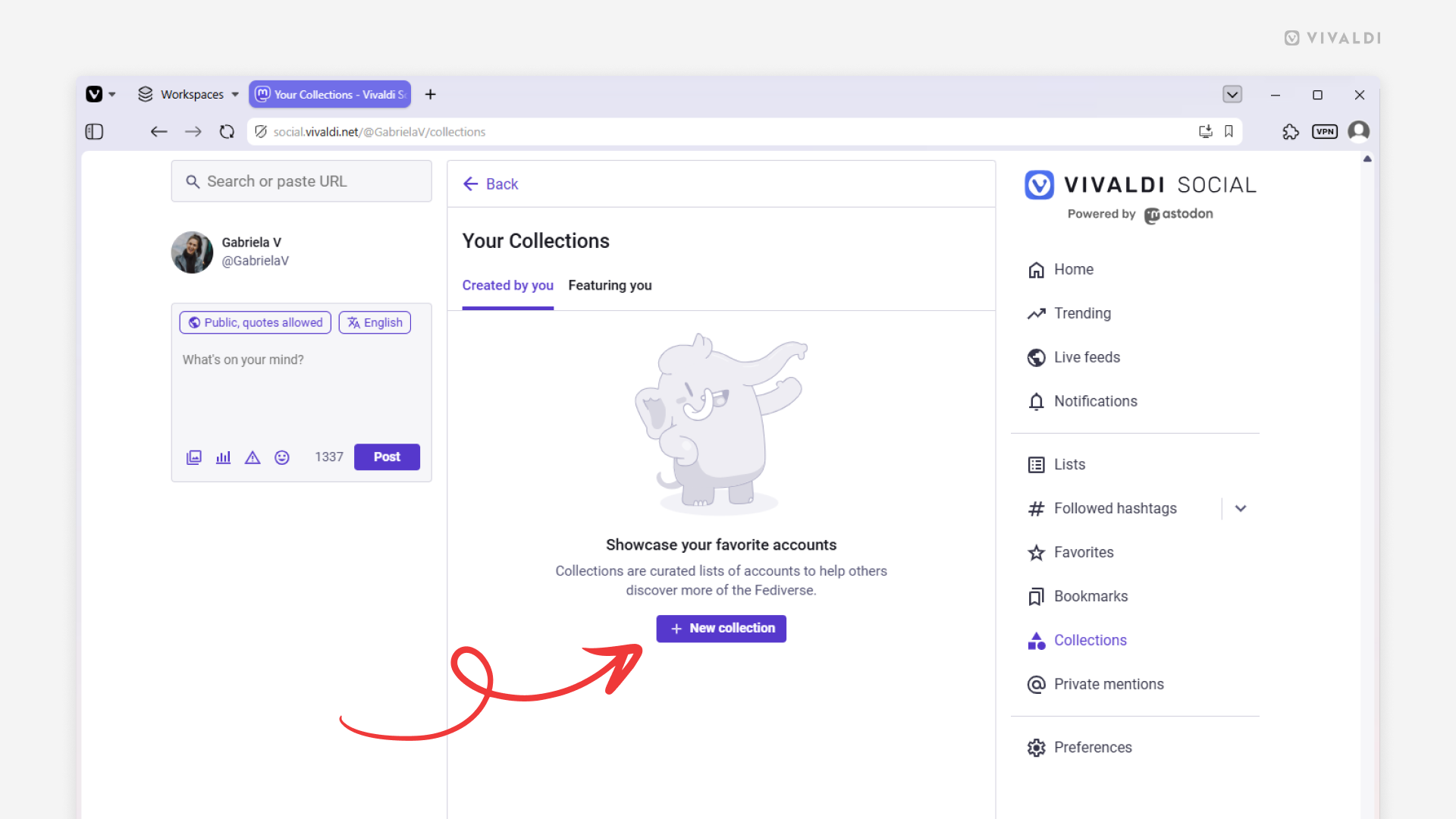
Create collections on Vivaldi Social to help others find interesting accounts more easily.
There are no algorithms on Vivaldi Social that would suggest accounts for you to follow based on your usage habits. Instead, people can create curated collections, thus helping (new) people in the community discover interesting accounts.
To create your own collection:
- Go to the “Collections” page from the vertical menu on the side of the page.
- Click “New collection”.
- Search for accounts you want to add to the collection.
- Click “Continue”.
- Give the collection a name, add a description and a hashtag.
- Choose the language, collection’s visibility, and if needed, hide the collection behind a content warning.
- Click “Create collection”.
Tip #841
September 8, 2026
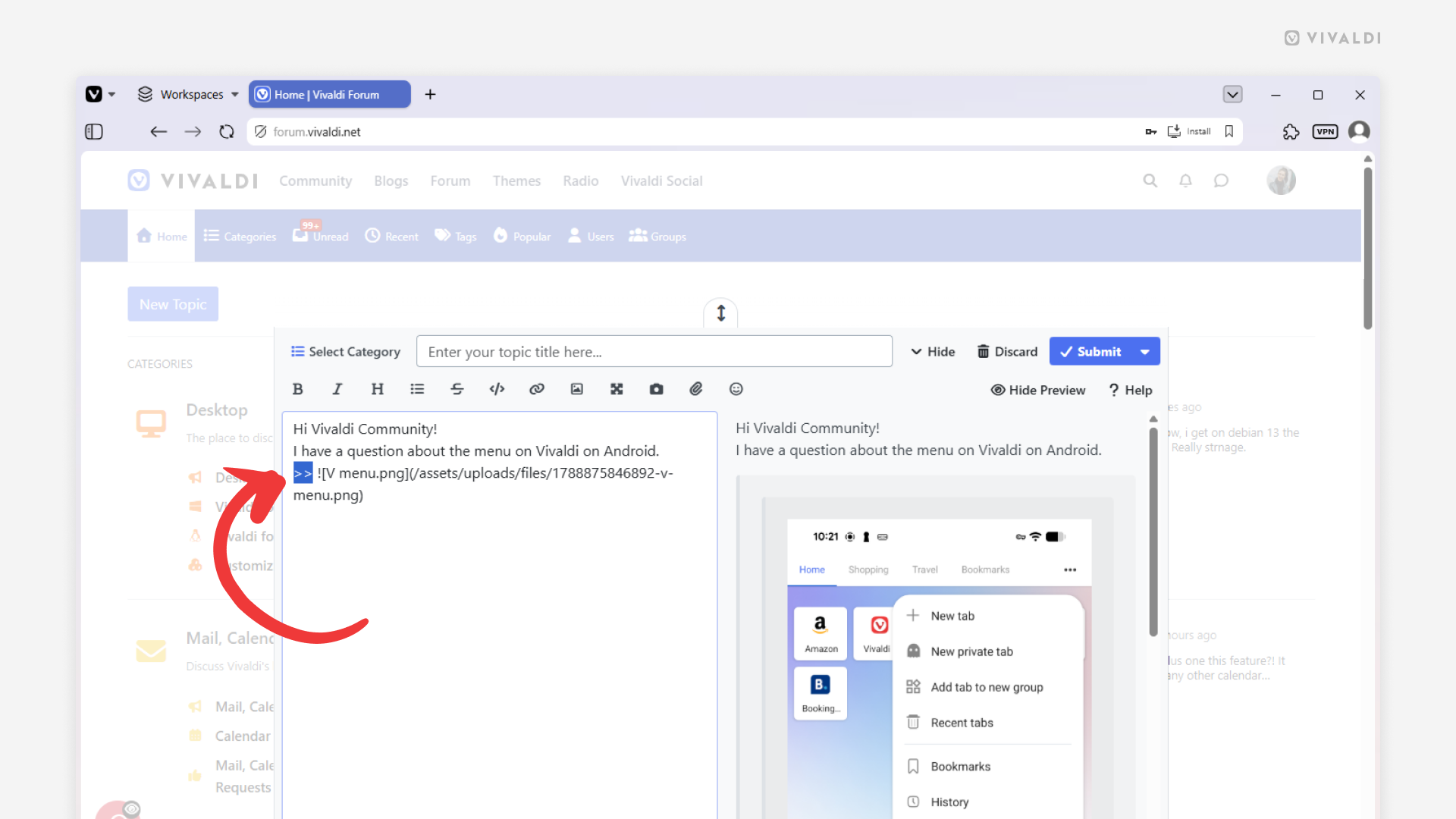
Make long Forum posts more compact by hiding some content behind a click.
When you’re posting on the Vivaldi Forum and want to add a large image or paragraphs of text that take up a lot of space, you can hide it in a nested quote. That way, the topic thread will look neat and easy to read and the hidden content can be viewed with a quick click.
To hide content behind a click:
- Write your post.
- In front of the section that you want to hide, type >>.
- Check the preview to confirm that the content is in two nested gray boxes (black boxes with a dark theme).
To display the hidden content in a published post, click on the ∨ arrow on the gray/black box. Click ^ to hide it.
Tip #838
August 27, 2026
Customize how your profile is displayed on Vivaldi Social.
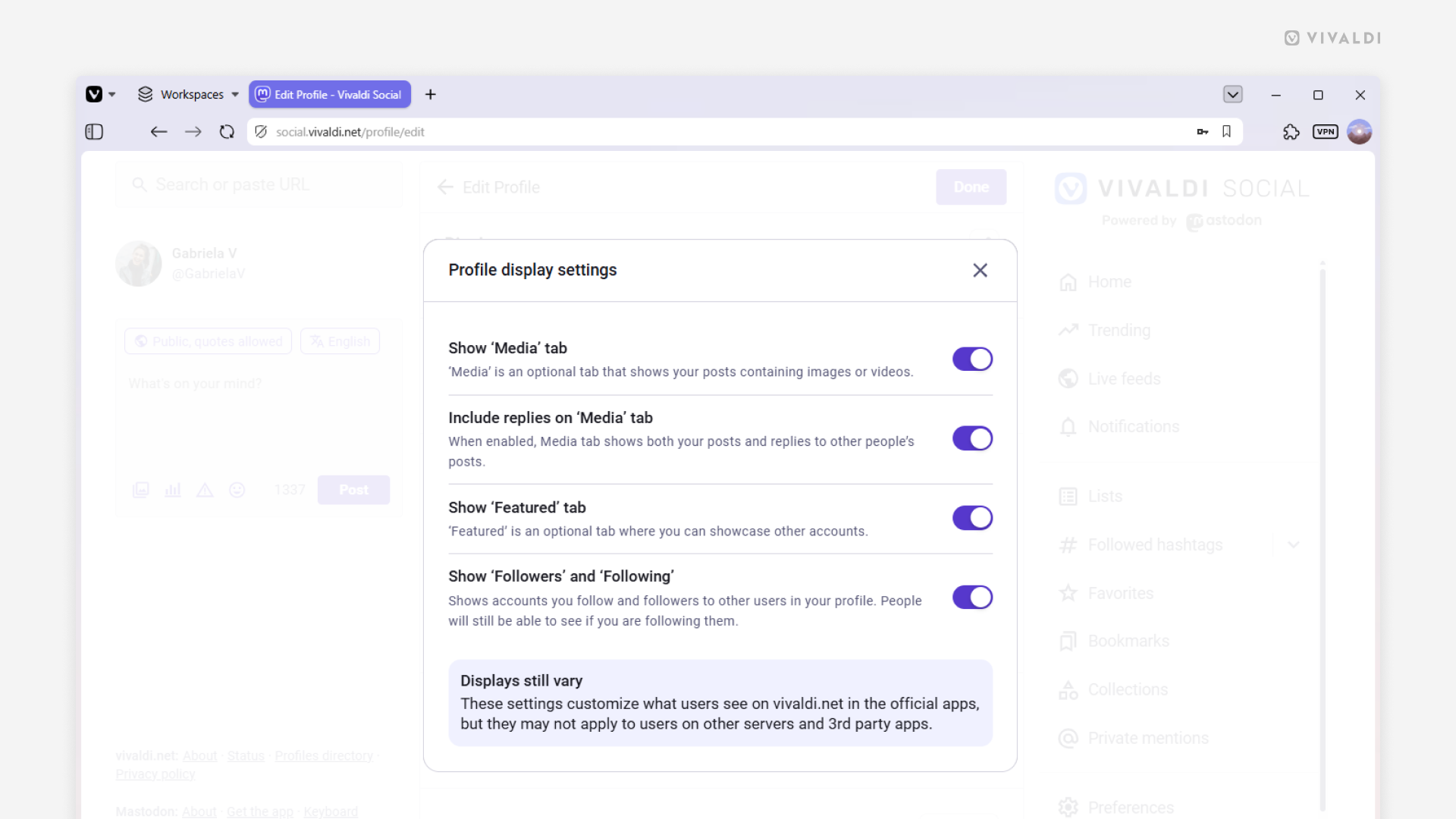
To make your Vivaldi Social profile fit your Mastodon usage habits, there are several useful settings you can adjust. For example, you can hide the Featured tab, if you haven’t highlighted any posts, or, in the Media tab, only display images and videos you’ve uploaded in your own posts and leave out all the reaction GIFs you add to your comments to other people’s posts. Furthermore, you can make your follower and following lists private (people will only see how many people you follow or follow you).
To customize your profile:
- Go to your profile on Vivaldi Social.
- Click “Edit Profile”.
- Click “Customize” in the Profile display settings section.
- Click the toggle buttons to hide/display Media, Featured posts, and Followers and Following.
- Close the settings window.
- Click “Done”.
Tip #825
June 18, 2026
Import your posts from your old blog to your Vivaldi Community blog.
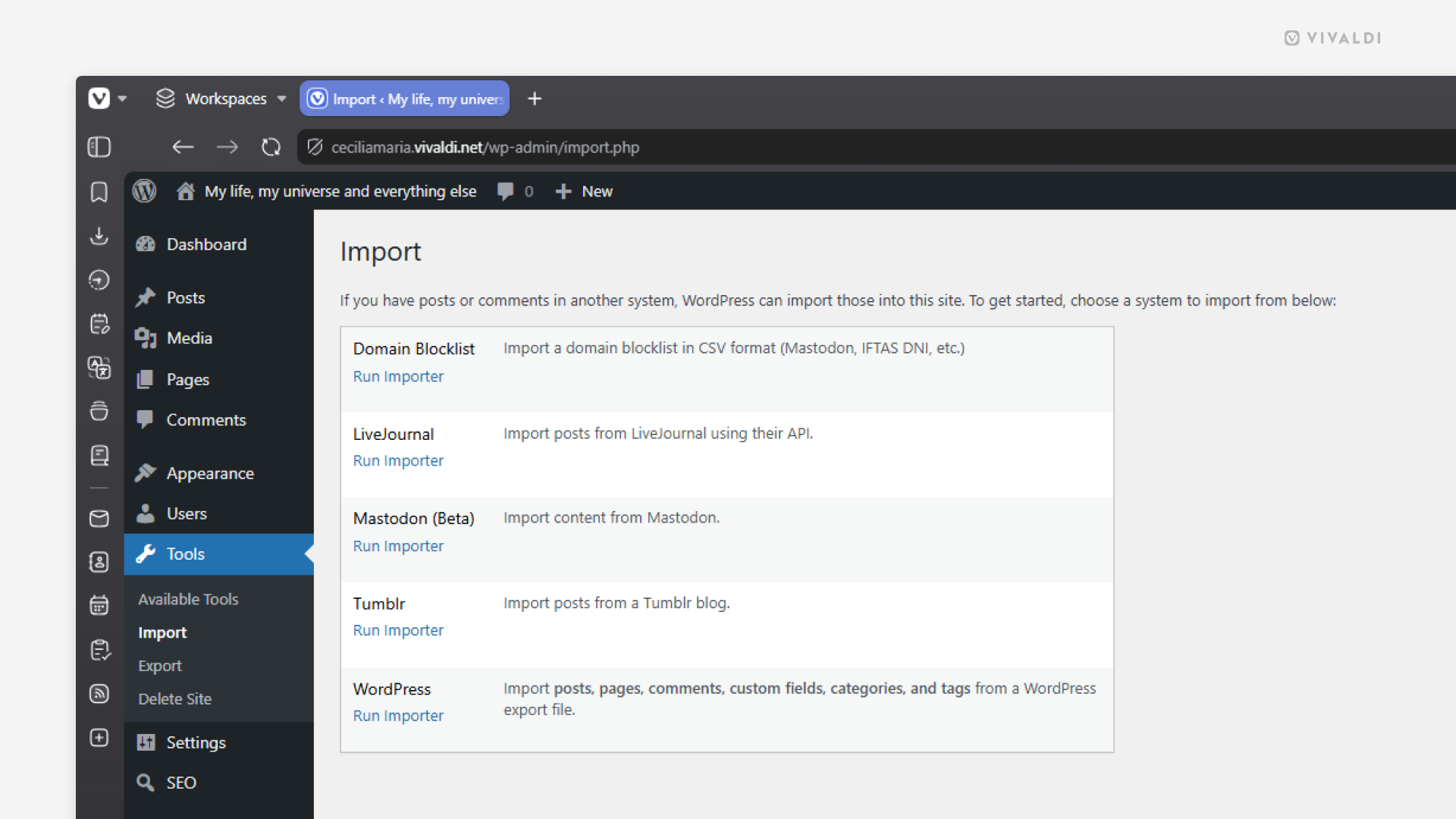
If you’re moving your blog from another WordPress, Tumblr or LiveJournal blog to Community Blogs on vivaldi.net, you can bring your posts with you. That way you don’t need to copy things over one by one or start from zero.
To import your content:
- Go to your blog’s Dashboard > Tools > Import.
- Click “Run Importer” for the platform you want to import content from.
- Fill in the required information or upload an .xml file with your posts.
Tip #813
May 5, 2026
Browse and download themes with animated backgrounds from Vivaldi Themes.
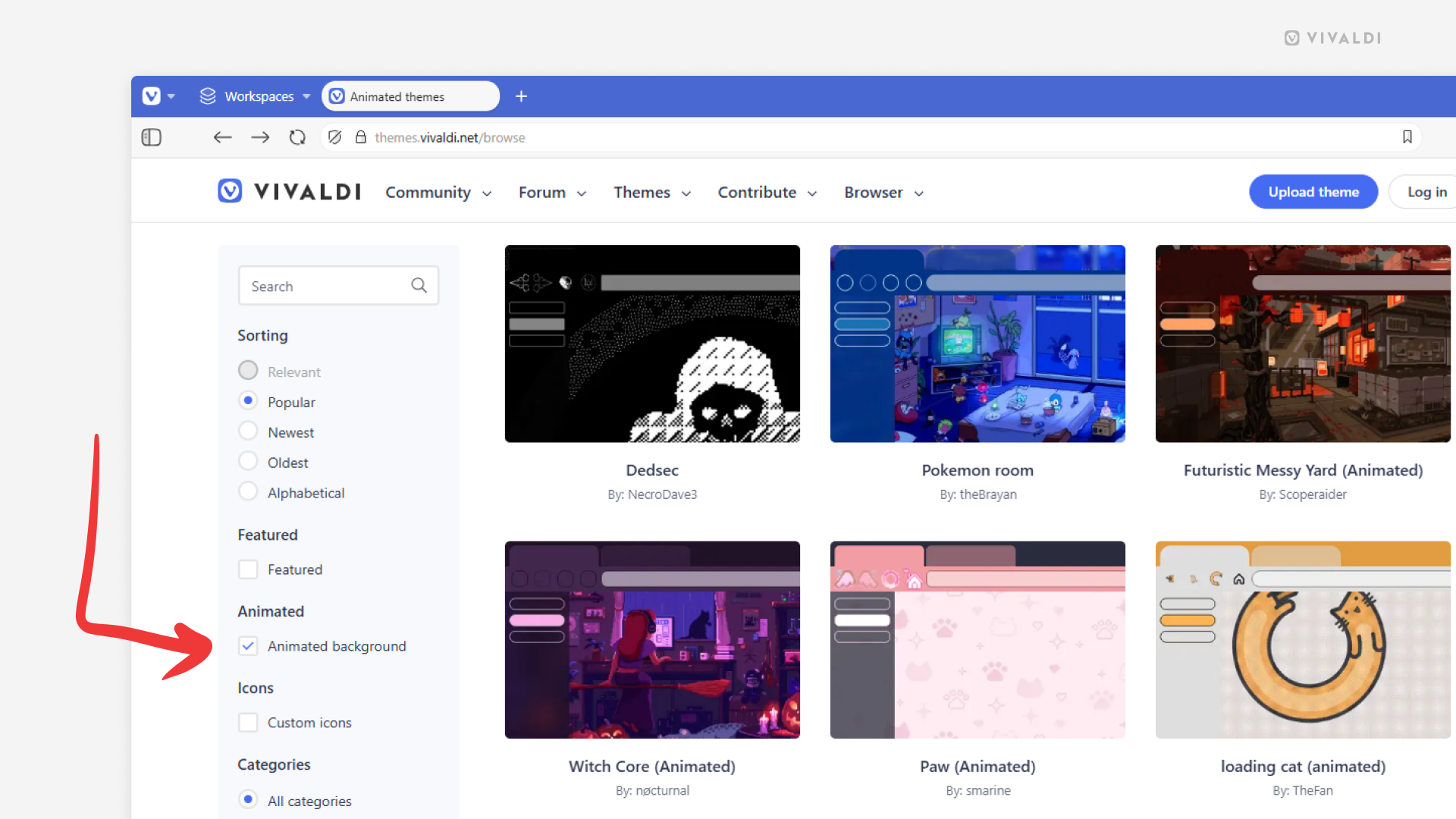
If you want to bring some life onto your Start Page, you can do it with an animated background. You can add your own file to a custom theme in Vivaldi’s Settings > Themes > Editor > Background > Select Image, or download a complete theme with a matching animated background from Vivaldi Themes.
To find and install animated themes:
- Go to https://themes.vivaldi.net.
- Go into one of the categories (Featured, Popular, Latest, etc.).
- In the menu on the left, tick the box for “Animated background”.
- Click on a theme you like.
- On the theme’s profile, click “Download” to preview the theme.
- If you want to use the theme, click “Install” in the dialog window. If not, click “Cancel” and keep browsing.
Since large animated backgrounds can affect the browser’s performance, choosing lighter, smaller files is usually a better option.
Tip #807
April 14, 2026
View only unread Vivaldi Forum notifications.
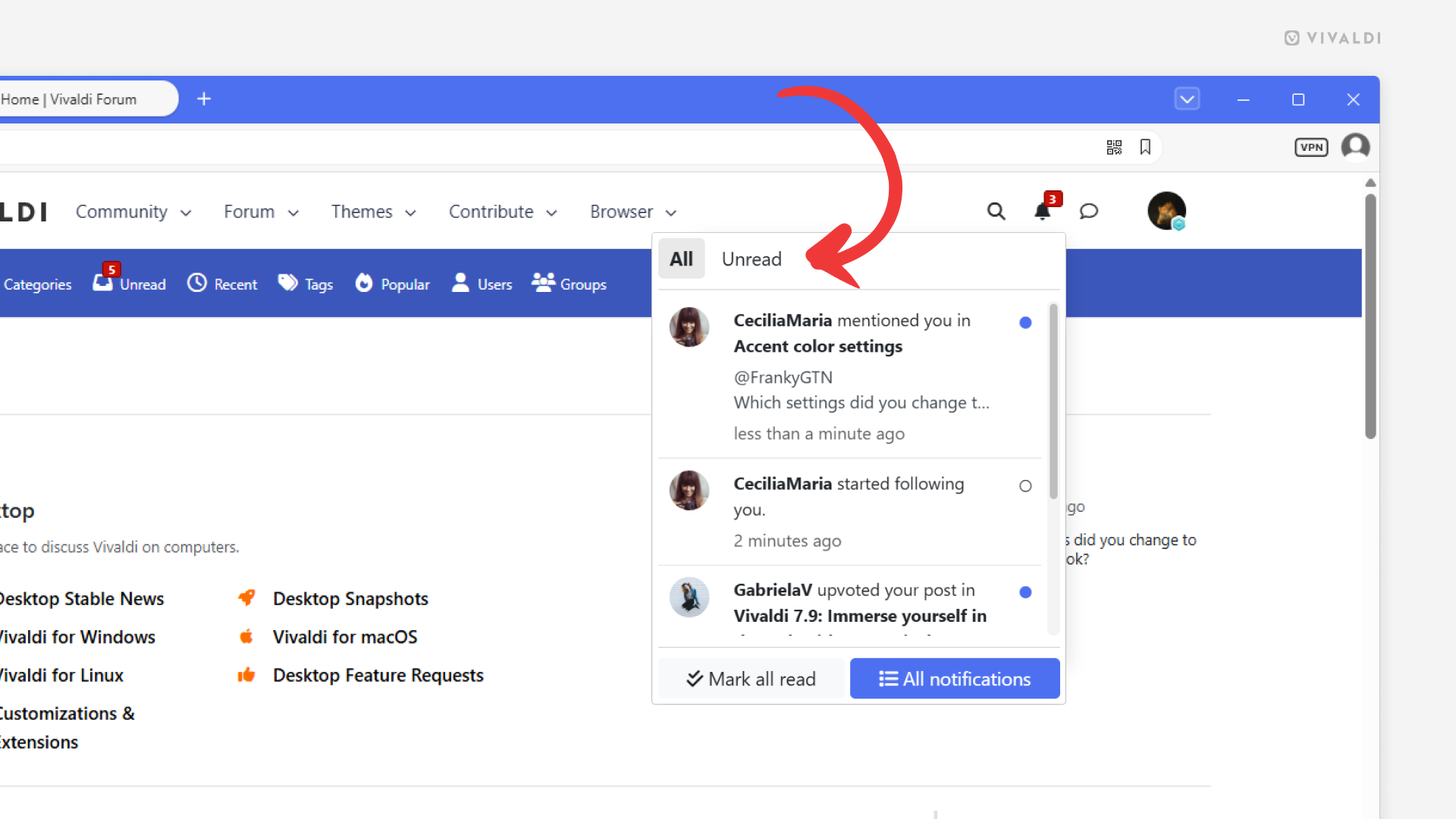
New comments, upvotes, mentions, etc. – there are many different notifications you can receive on the Vivaldi Forum. If there are many, switching to the Unread view in the notifications menu helps to go through your notifications faster.
To view unread notifications:
- Click the Notifications’ bell icon in the top right corner of the page.
- Click “Unread” on the notifications menu.
Tip #806
April 9, 2026
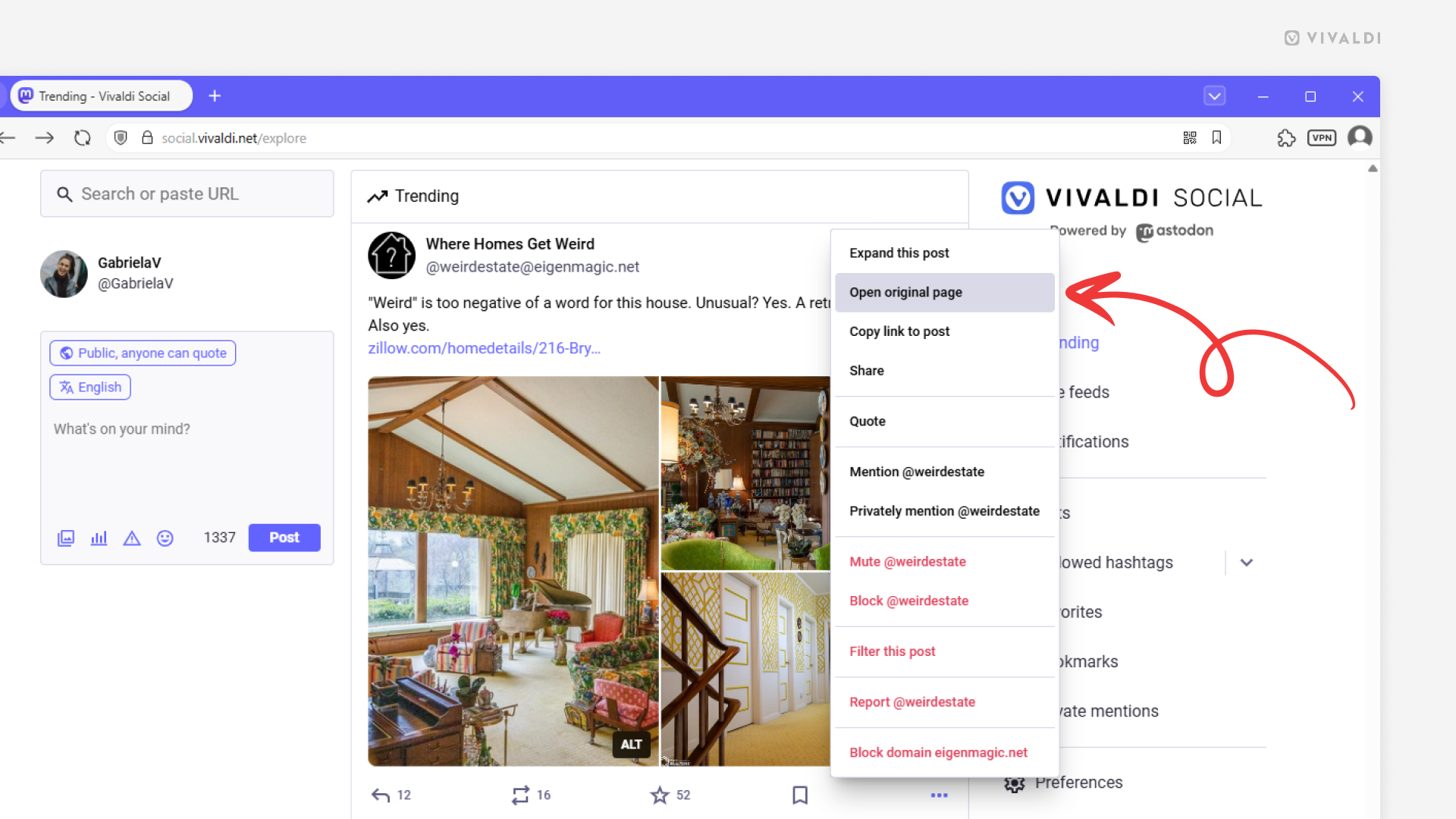
Open posts on Vivaldi Social on their original page.
Most of the posts you see on Vivaldi Social are from accounts on other federated servers. Either you follow the users or the hashtags they’re using, they come up in search results, or they’re trending in the Vivaldi community. To see the original version of the post with the latest version of the comment thread, you need to open the post on the author’s host server.
To open a post on it’s original server:
- Click on the 3-dot menu in the bottom right corner of the post.
- Select “Open original page” from the menu.
Tip #794
February 19, 2026
Discover new accounts to follow on Vivaldi Social.
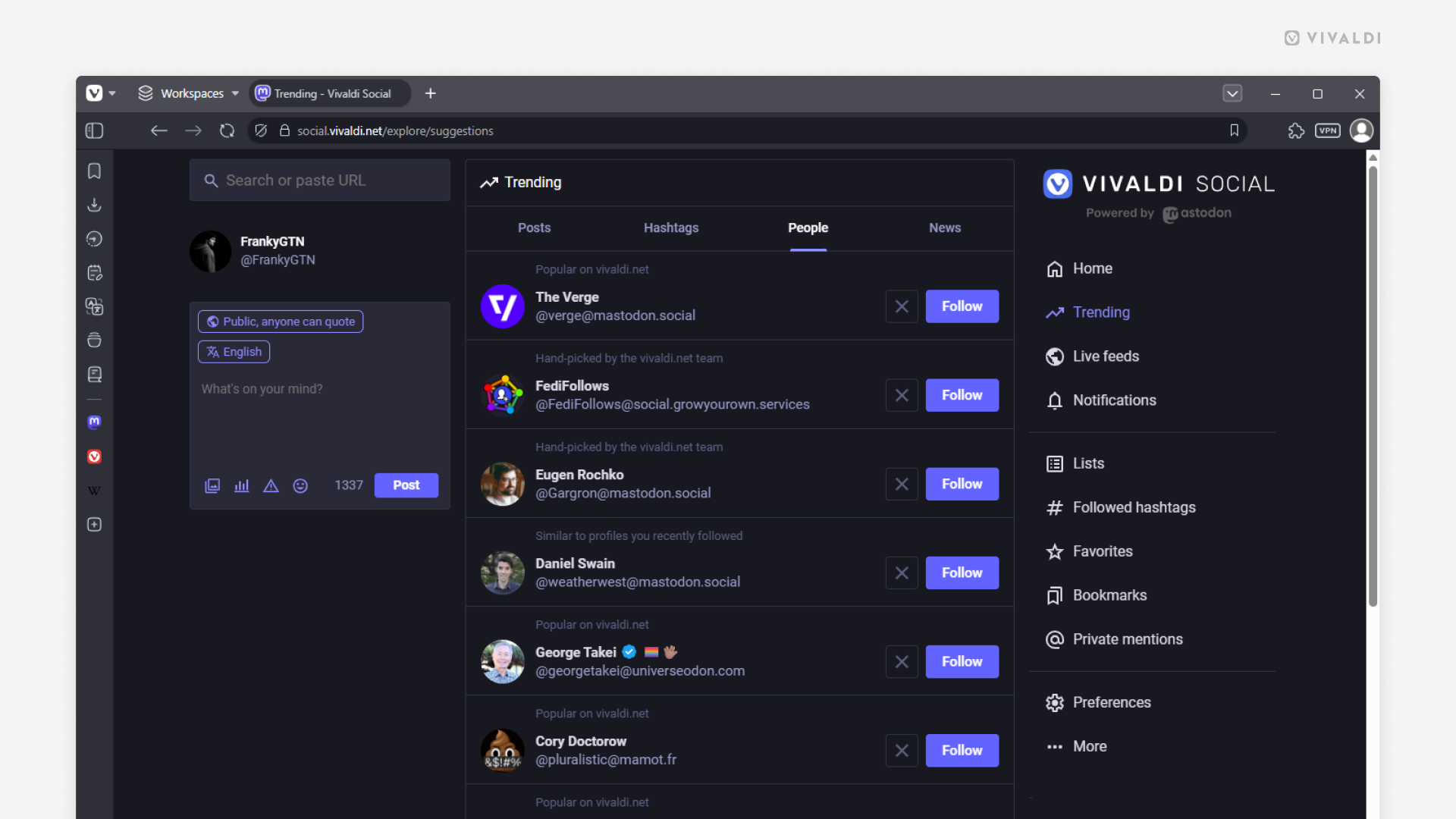
Without any algorithms to fill your Vivaldi Social home feed, it’s up to you to curate it with interesting accounts. There are different ways to approach this. For example, by checking accounts that use topic hashtags that you’re interested in or paying attention to accounts boosted by people you already follow. But there’s also a page on Vivaldi Social listing accounts that you might want to check out.
To view your follow recommendations, go to the Trending > People page.
There you can take a look at the suggested accounts and either give them a follow or remove them from the list.
Tip #779
December 18, 2025
Set up an auto-reply in Vivaldi Webmail.
Whenever you won’t be checking your mailbox for a while, for example, because you’re going on vacation, an automatic reply will inform your contacts of your absence.
To set up an auto-reply in Vivaldi Webmail:
- Log in to your account on https://webmail.vivaldi.net/.
- Go to Settings > Filters.
- Click on “Create” near the top right of the page.
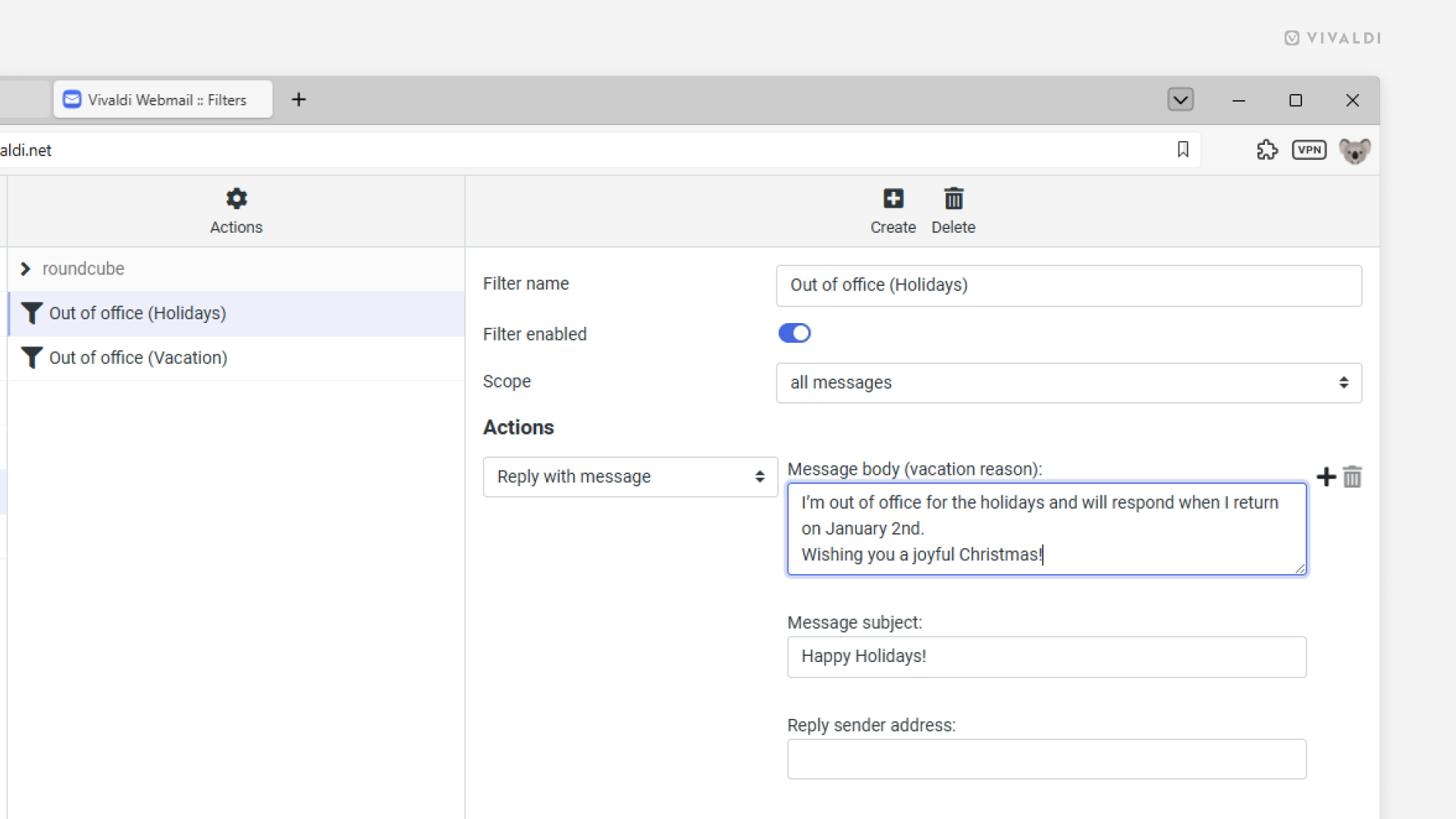
- Give the filter a name.
- Select a scope. Do you want to send the auto-reply to all incoming messages or only to ones matching certain rules?
- Set up rules, if you chose that option.
- From the Actions drop-down menu, select “Reply with message”.
- Enter your reply’s text and give the message a subject.
- Click “Save”.
When you return from your leave, simply open the filter in Settings and toggle off “Filter enabled”. Don’t forget to click “Save”!
Tip #777
December 11, 2025
Share posts on Vivaldi Social with one click by enabling quick boosting.
When you want to share someone’s post on Vivaldi Social, clicking the Boost button will open a menu where you can select whether to share the post without any additional context, i.e. Boost, or with added commentary, i.e. Quote.
If you know that you just want to boost the post, hold down the Shift key, while clicking on the Boost button. That way you can skip the menu selection and confirmation.
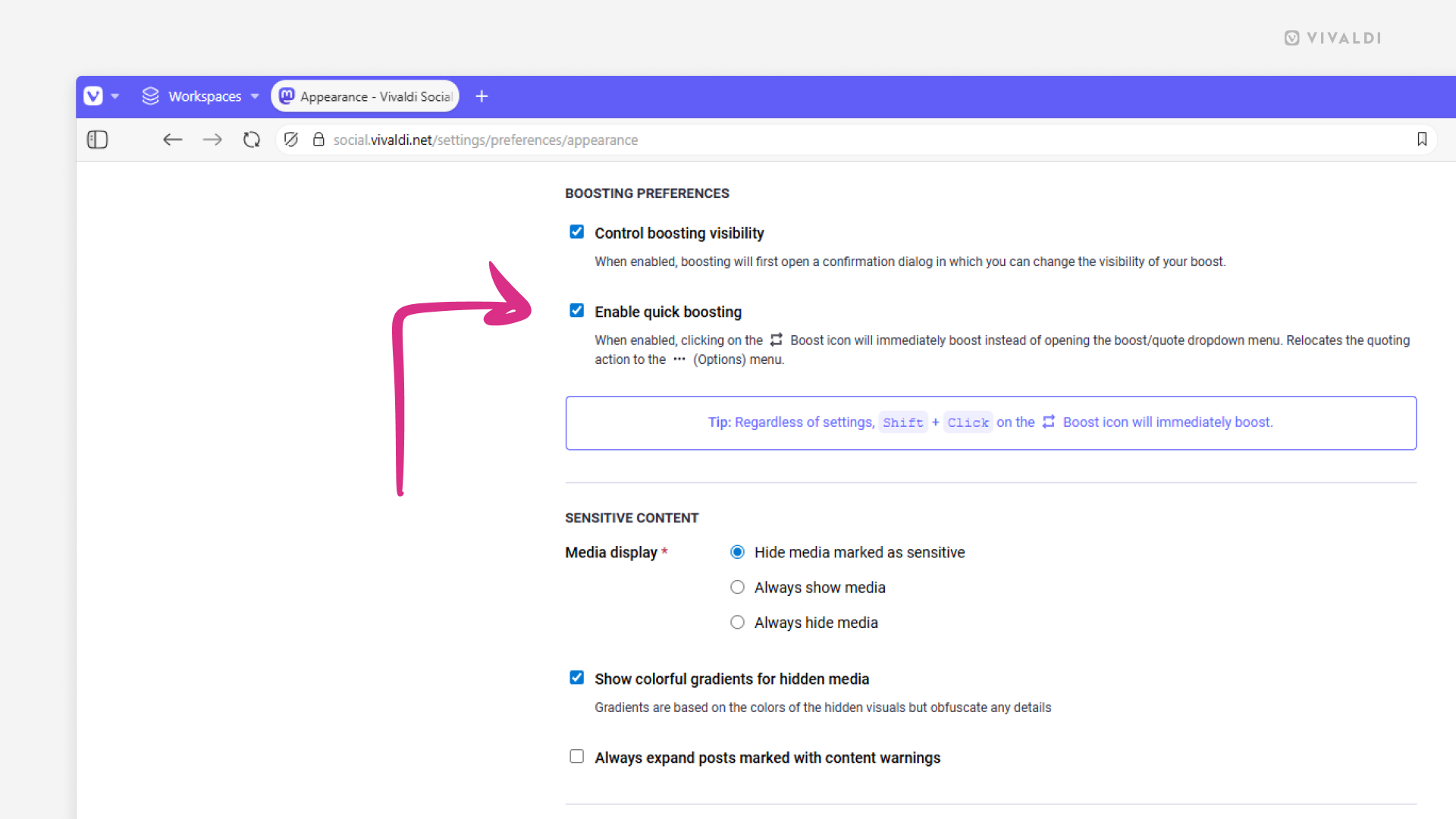
When most of the time you just boost posts, you can also enable quick boosting:
- Go to Preferences > Appearance > Boosting Pereferance.
- Tick the box for “Enable quick boosting”.
To skip the confirmation dialog, which allows you to change the boost’s visibility setting, also untick the box for “Control boosting visibility”. - Click “Save changes”.
Tip #768
November 11, 2025
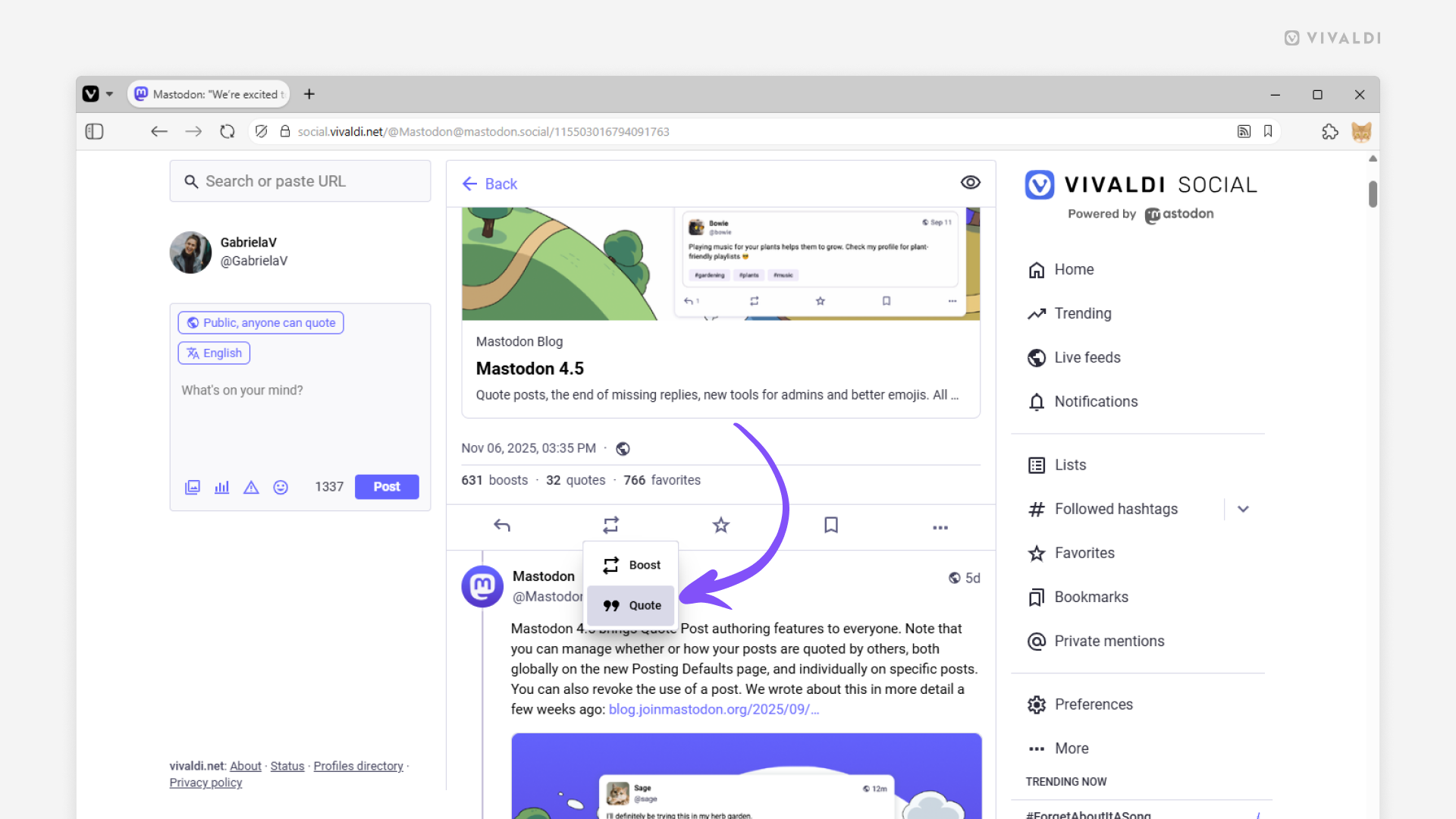
Add commentary to your boosts on Vivaldi Social with quote posts.
With quote posts on Vivaldi Social, you can share something interesting and add your own thoughts – whether that’s a reaction, endorsement, discussion starter, or something else.
To make a quote post:
- Find the post you want to quote.
- Below the post, click on the Boost button.
- Select “Quote”.
- In the post editor, enter your text.
- Click “Post”.