iOS Tips
Tip #848
October 6, 2026

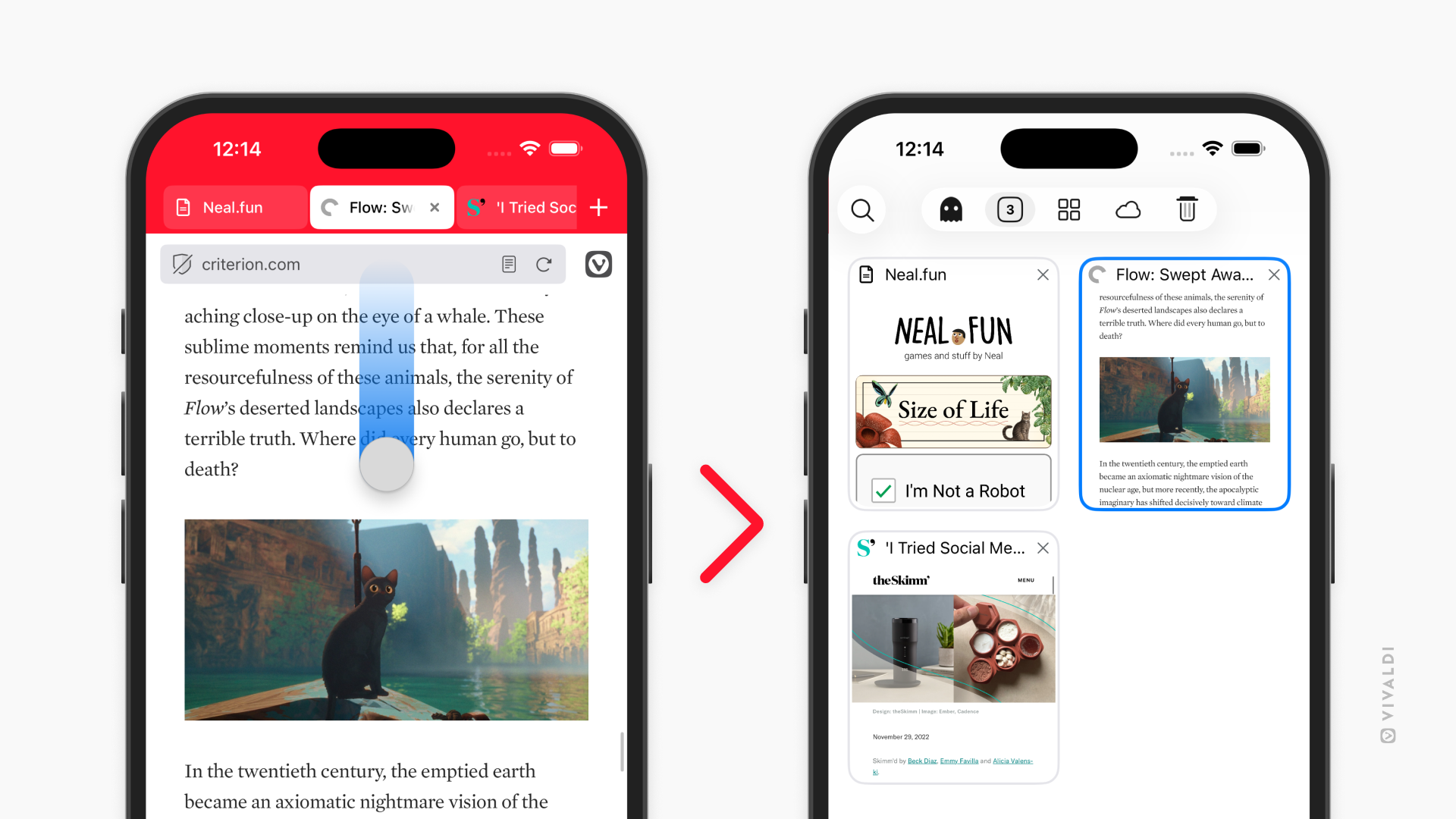
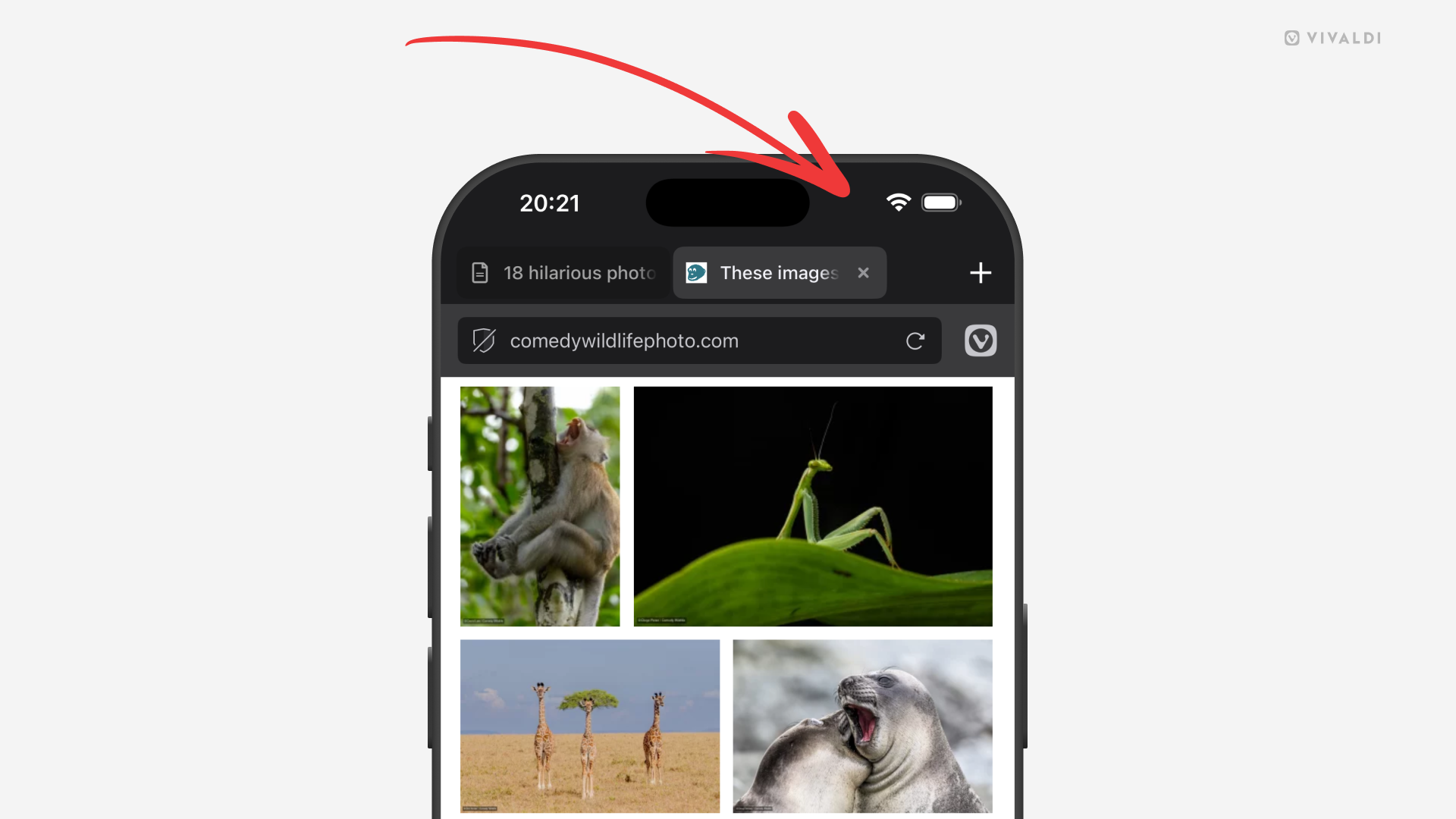
Tap on the iPhone’s status bar to scroll back to the top of the web page.
When you’re deep into a long web page, article, or list in Vivaldi on iOS, you don’t need to spend time swiping all the way back up. Instead, make use of iPhone’s and iPad’s feature and jump back to the top with just a tap or two.
If the Tab and Address Bars are visible, it takes just one tap on the top edge of the screen. If they’re not, the first tap will bring the toolbars back into view and the second tap will take you to the top of the page.
Tip #843
September 15, 2026
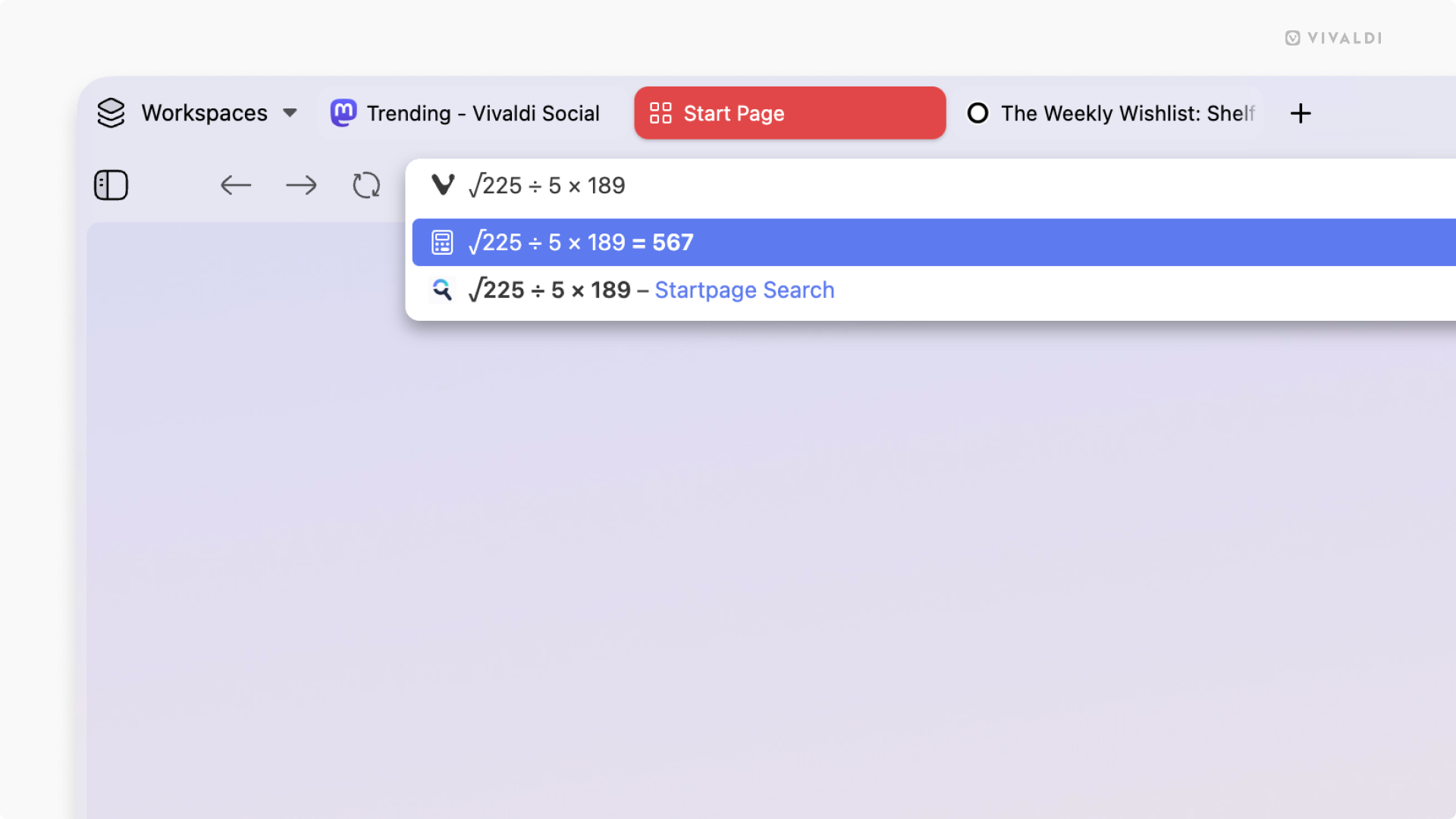
Solve a quick math problem using the Calculator in the Address Field.
With the Vivaldi browser on desktop, Android and iOS, you don’t need to switch apps or go to a website with a calculator to do a quick calculation. Simply use the calculator built into the browser’s Address Field.
To calculate something:
- Focus on the Address Field.
- Start typing the equation. For example, “888/37”, “sqrt 1764”, etc.
The result will be displayed automatically in the Address Field’s drop-down menu. If you need to use the result, press Enter or click the Copy button on the right side.
Tip #839
September 1, 2026
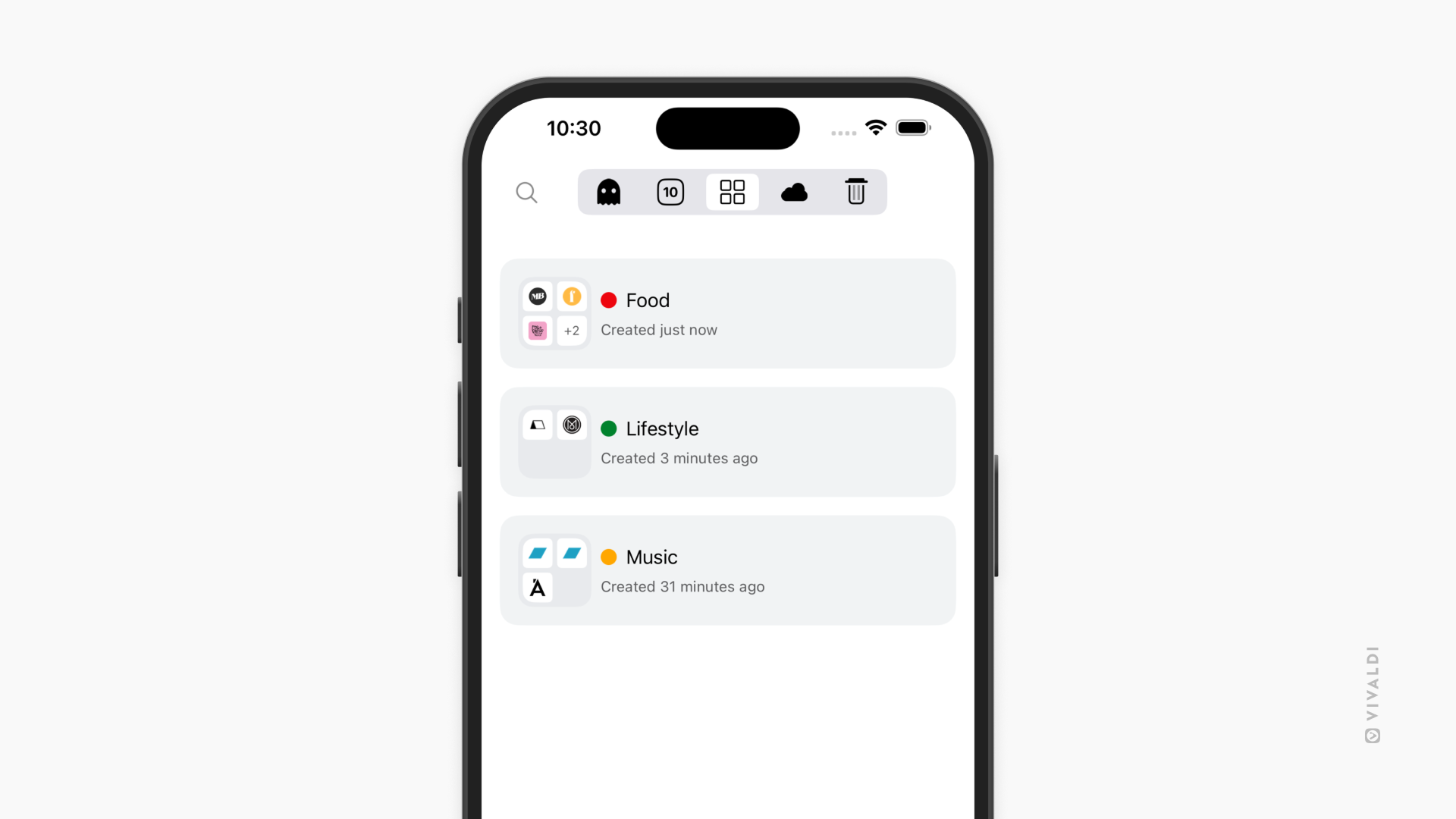
View and manage your Tab Stacks in Vivaldi on iOS from the Tab Stacks pane.
When you group tabs in Vivaldi on iOS you can see the Tab Stacks in a separate section in the Tab Switcher. With this organized view, you can easily switch between the stacks without needing to find them in the mix of tabs and stacks in the main tabs view of the Tab Switcher. It’s perfect for users who manage multiple tasks or projects at once.
In the Tab Stacks pane, you can:
- View Tab Stacks and the tabs in them.
- Add, reorder, remove and close tabs.
- Rename Tab Stacks.
- Edit the stacks’ colors.
- Unstack Tab Stacks.
- Close and delete Tab Stacks.
Tip #836
July 30, 2026
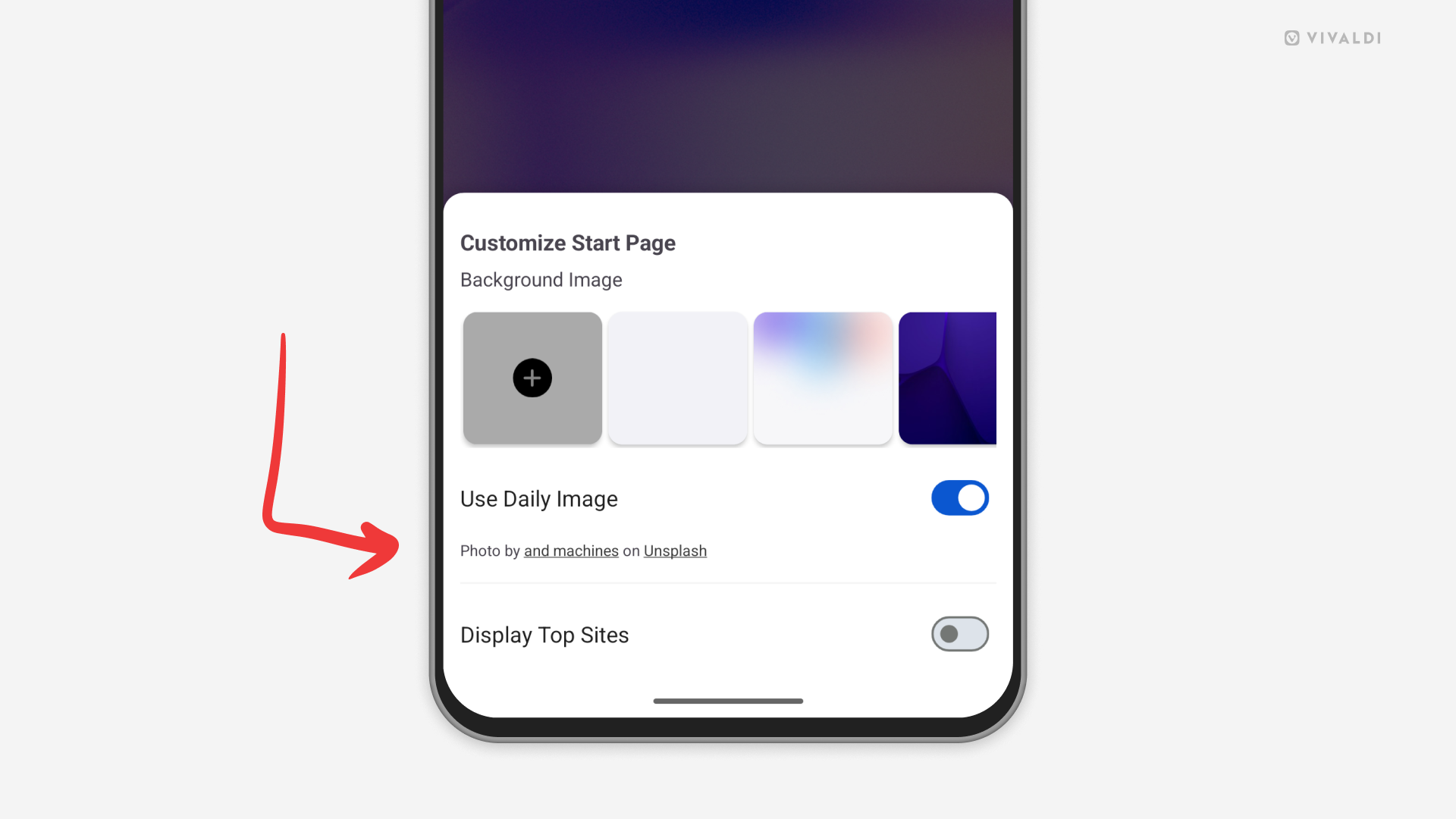
Find more images from the authors of Daily Images.
When you enable Daily Images as Start Page background images in Vivaldi, you’ll be treated with a new wallpaper every day. If there’s a picture that catches your eye and you want to see more works from the same author, check the image credits.
To view more images from the same author:
- On desktop, look in the bottom right corner of the Start Page and click on the author’s name.
- On Android and iOS, open the Customize menu (from the button at the bottom of the Start Page or from the 3-dot menu in the top right corner of the Start Page). Tap on the author’s name below the setting.
Tip #828
July 2, 2026
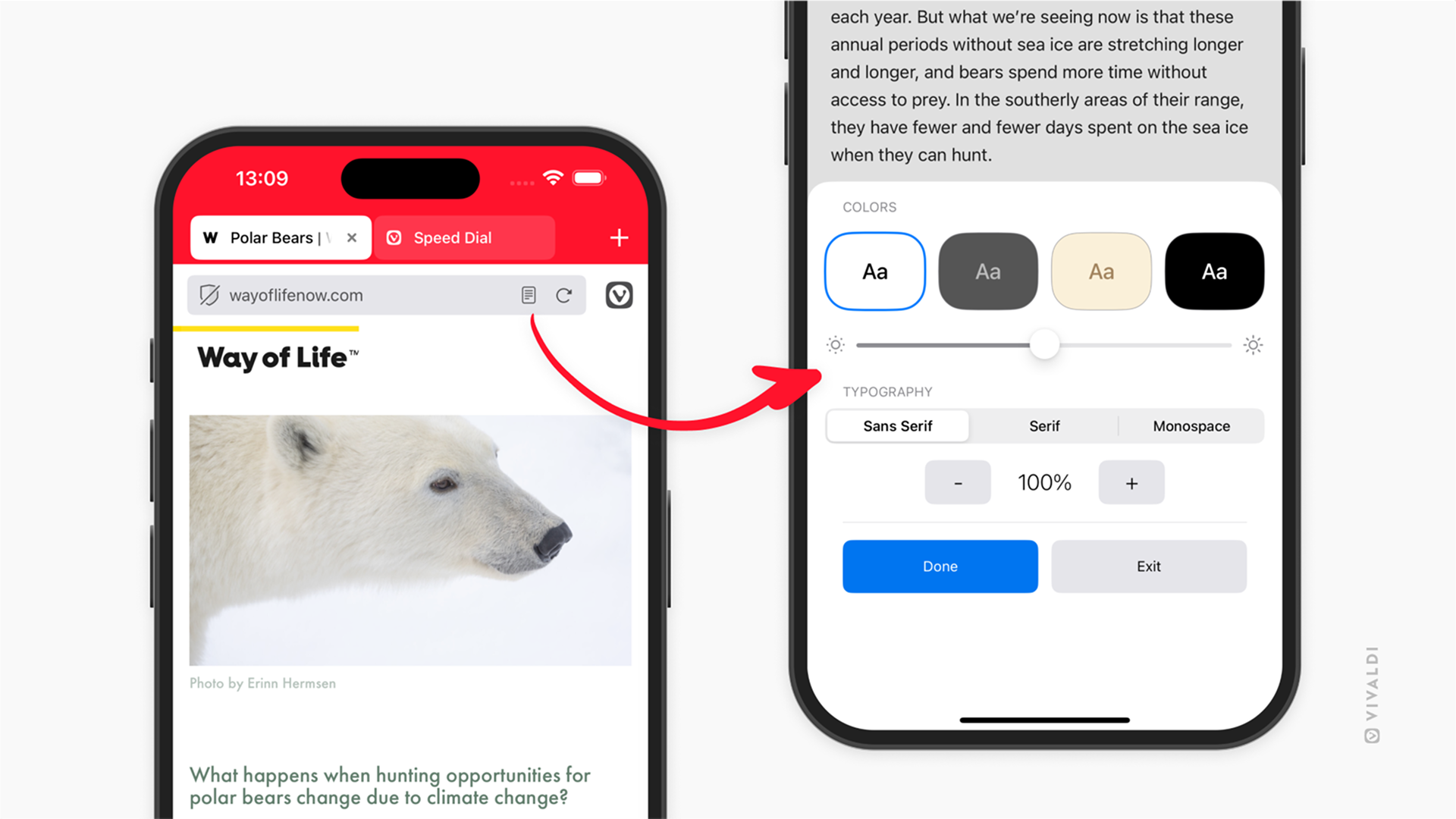
Make reading more comfortable by adjusting Reader View settings on mobile.
Reader View in Vivaldi on Android and iOS is a feature that allows you to remove all distractions and focus solely on the article at hand. To make reading easier on the eyes, we recommend reviewing the settings. For example, you can switch to a dark theme and increase the text size.
To adjust Reader View settings:
- Enable Reader View.
- Tap the Settings button in the bottom right corner.
- Change the color scheme, font and text size. On iOS, you can also adjust screen brightness.
- Tap outside the dialog to close the settings.
Tip #827
June 30, 2026
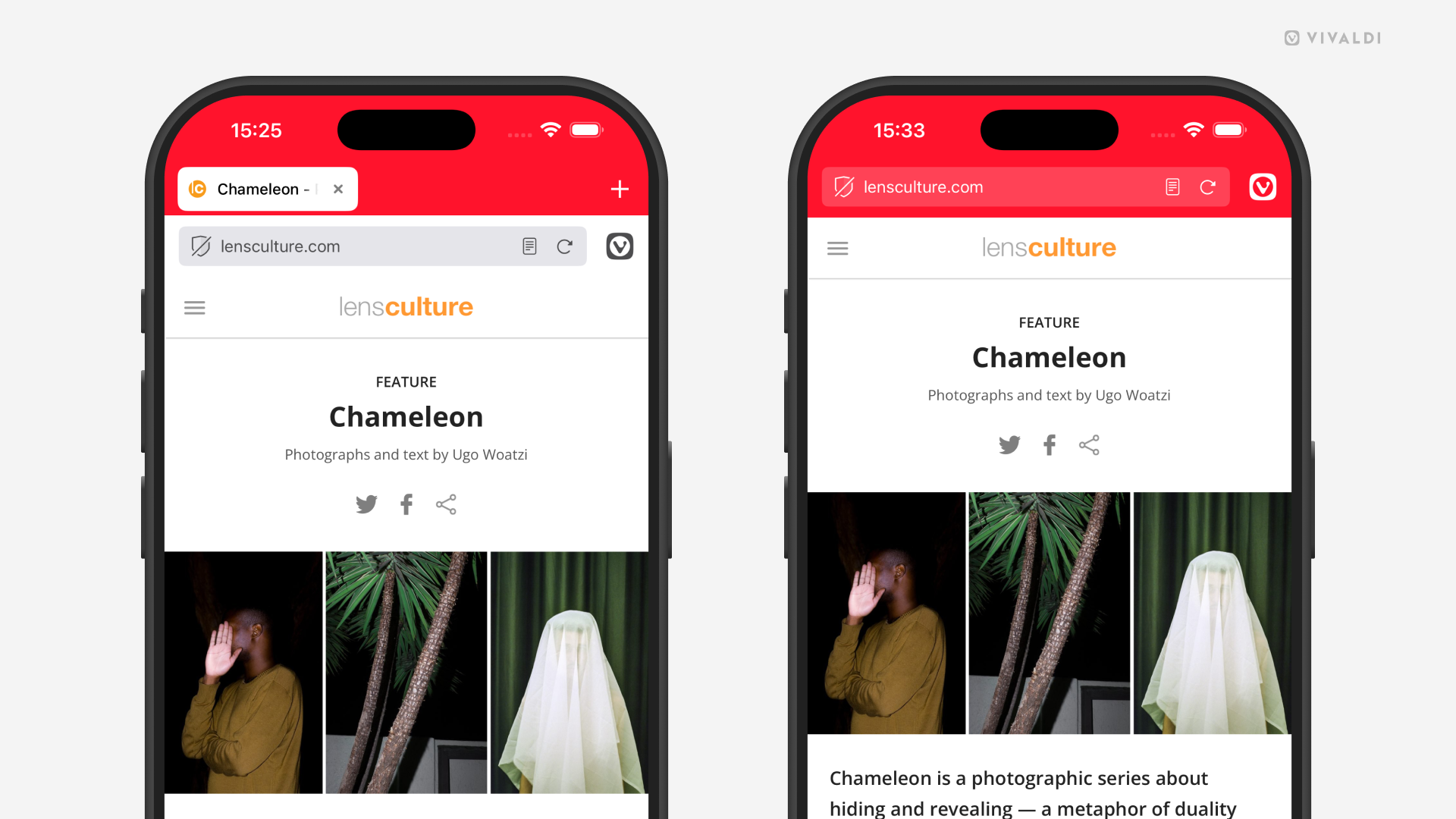
Give more space for page content by hiding the Tab Bar in Vivaldi on iOS.
While the desktop-like Tab Bar is convenient for viewing and switching between your open tabs, for some, being able to see more of what’s going on the web page is more important. That’s why Vivaldi on iOS has a setting for removing the Tab Bar from view.
To hide the Tab Bar:
To switch tabs when the Tab Bar is hidden, either:
- Open the Tab Switcher from the bottom right corner of the browser window (squircle with a number in it).
- Swipe left/right on the Address Bar or bottom toolbar to switch to the next/previous tab.
Tip #819
May 28, 2026
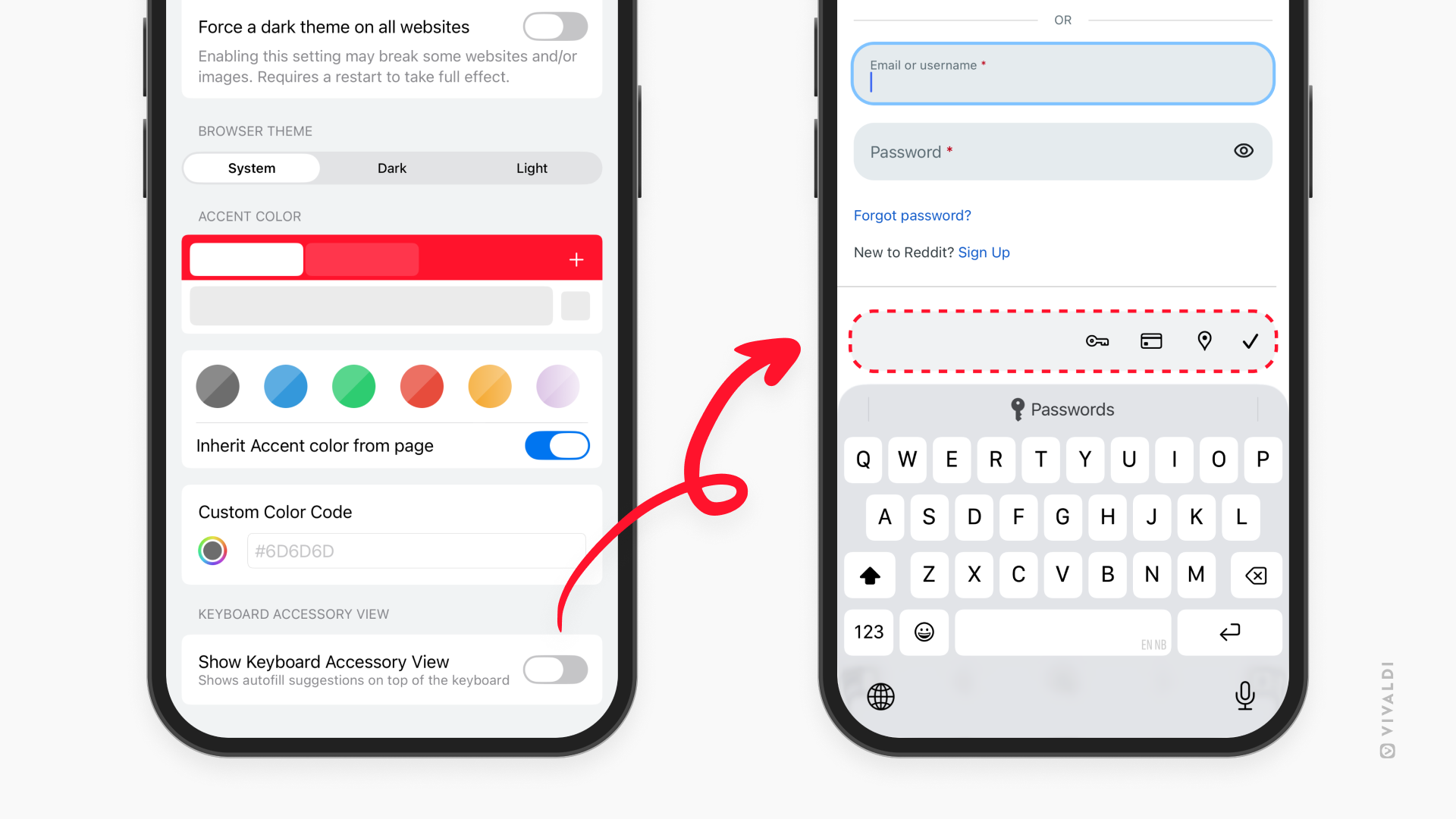
See more of the web page by hiding Keyboard Accessory View on iOS.
While the Keyboard Accessory View toolbar can be super useful for auto-filling passwords, credit card info and addresses, if you don’t rely on that feature, the toolbar just gets in the way. That’s why, in Vivaldi on iOS, you can hide it.
To hide Keyboard Accessory View:
- Go to Settings > Appearance & Theme.
- Toggle off “Show Keyboard Accessory View”.
Tip #814
May 12, 2026
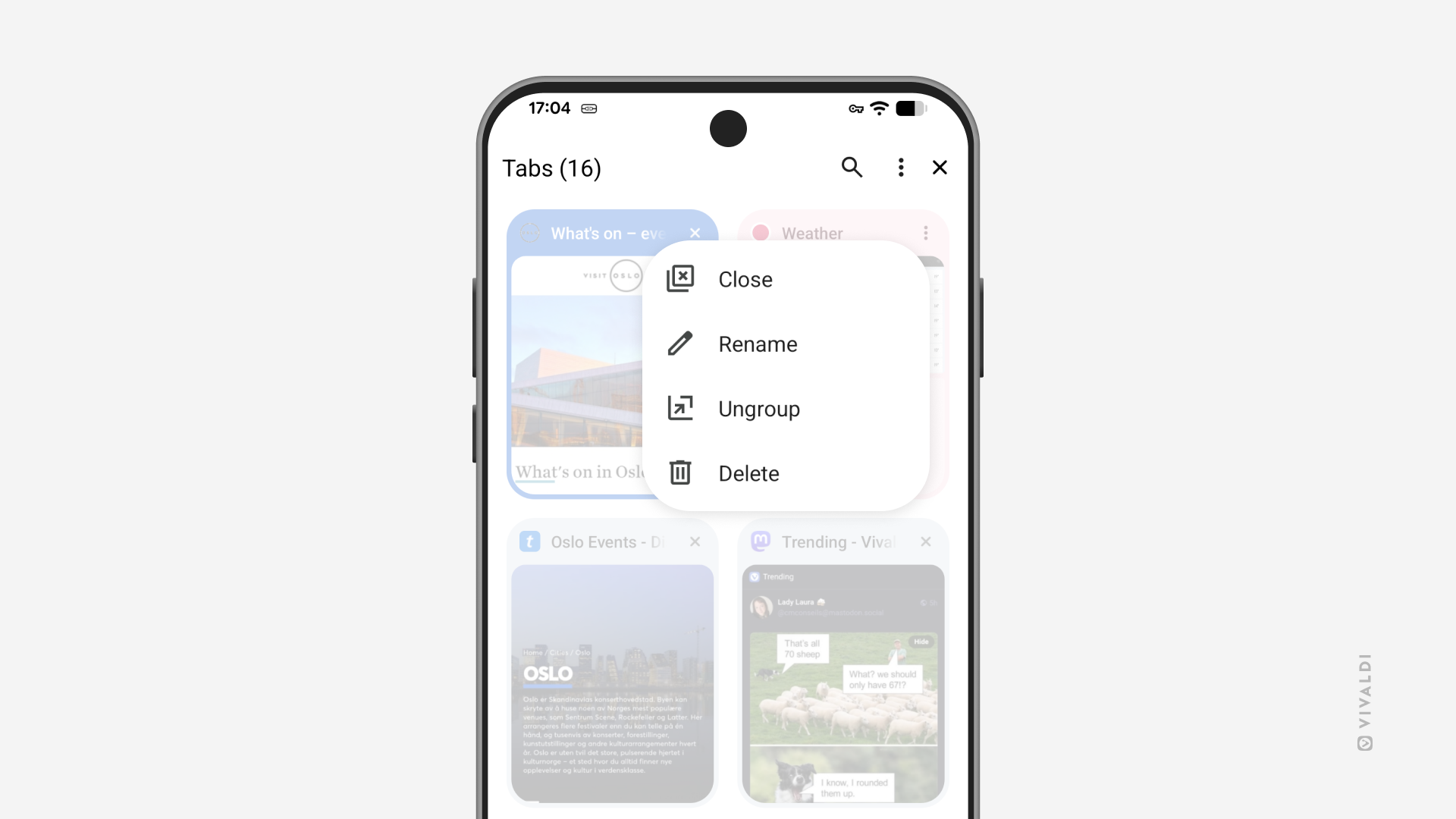
Make the right choice between closing and deleting Tab Stacks on mobile.
Tab Stacks in Vivaldi on Android and iOS can be both closed and deleted. Though it sounds like they should do the same thing, there is an important differences between them.
Closing a stack will remove the group of tabs from the Tab Bar and the open tabs view in the Tab Switcher, but it will keep the stack available in the Tab Stacks view in the Tab Switcher. That way you can declutter your actively used tabs view, but easily access the stack again whenever you need it.
Deleting a stack, expectedly, will actually delete the stack and close all tabs in it. But if you deleted the stack when you meant to close it, you can still recover the tabs for a while from the Closed Tabs view in the Tab Switcher or from History.
Tip #809
April 21, 2026
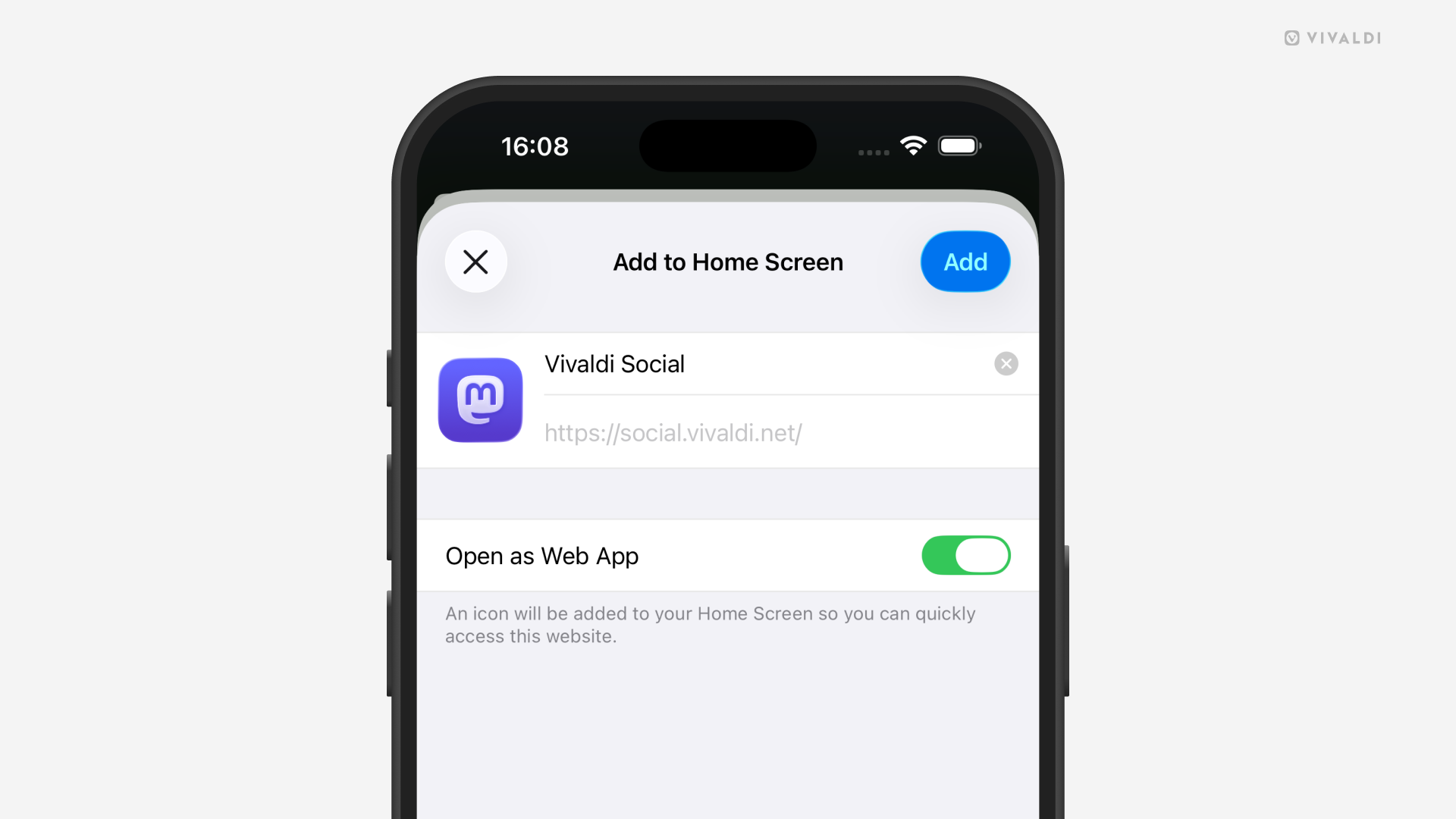
Create standalone Web Apps from websites on your iPhone and iPad.
Instead of installing numerous large apps from the App Store, you can create a lightweight home screen shortcut from any website with Vivaldi on iOS.
To create a web app:
- Open the website in Vivaldi.
- Go to the Vivaldi menu > Share Page.
- From the menu select “Add to Home Screen”.
- Review and, if needed, update the web app’s name.
- Keep “Open as Web App” enabled.
- Tap “Add”.
An icon using the website’s favicon will be added to the Home Screen. When you tap it, it opens the site in its own window, just like a regular app. If you disable “Open as Web App” while creating the shortcut, the website will open in a new tab in the main Vivaldi window.
Tip #805
April 2, 2026
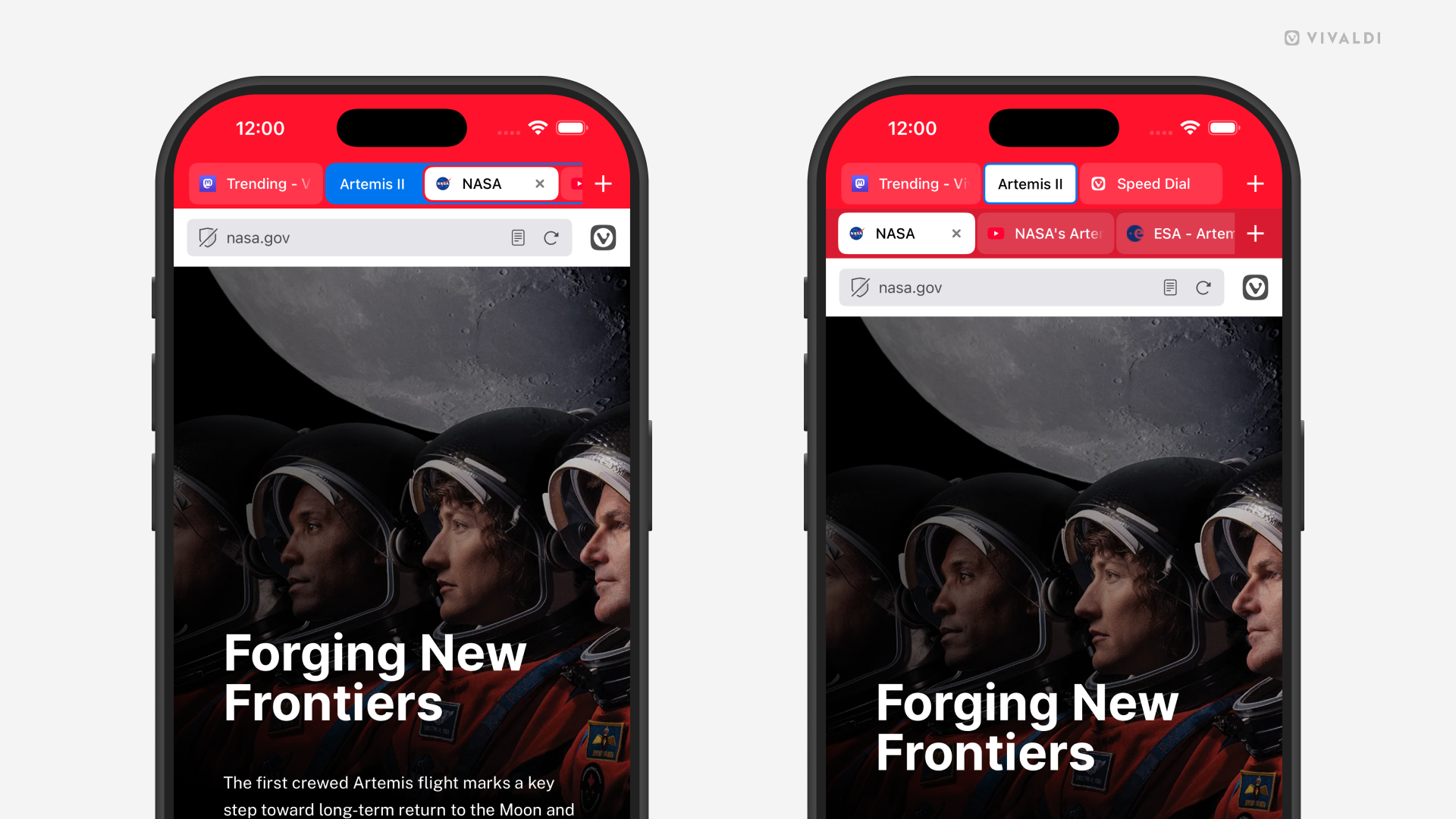
Choose your Tab Stack style for Vivaldi on iOS.
With the Accordion-style Tab Stacks, all stacked tabs are on the same level as regular unstacked tabs and the stack expands as needed to display tabs in it. Alternatively, with Two-Level Tab Stacks, your stacks sit in the top row of the Tab Bar, and the tabs inside that stack appear in the row below. The second row only appears when you’re inside a stack.
To choose your Tab Stack style:
Tip #803
March 26, 2026
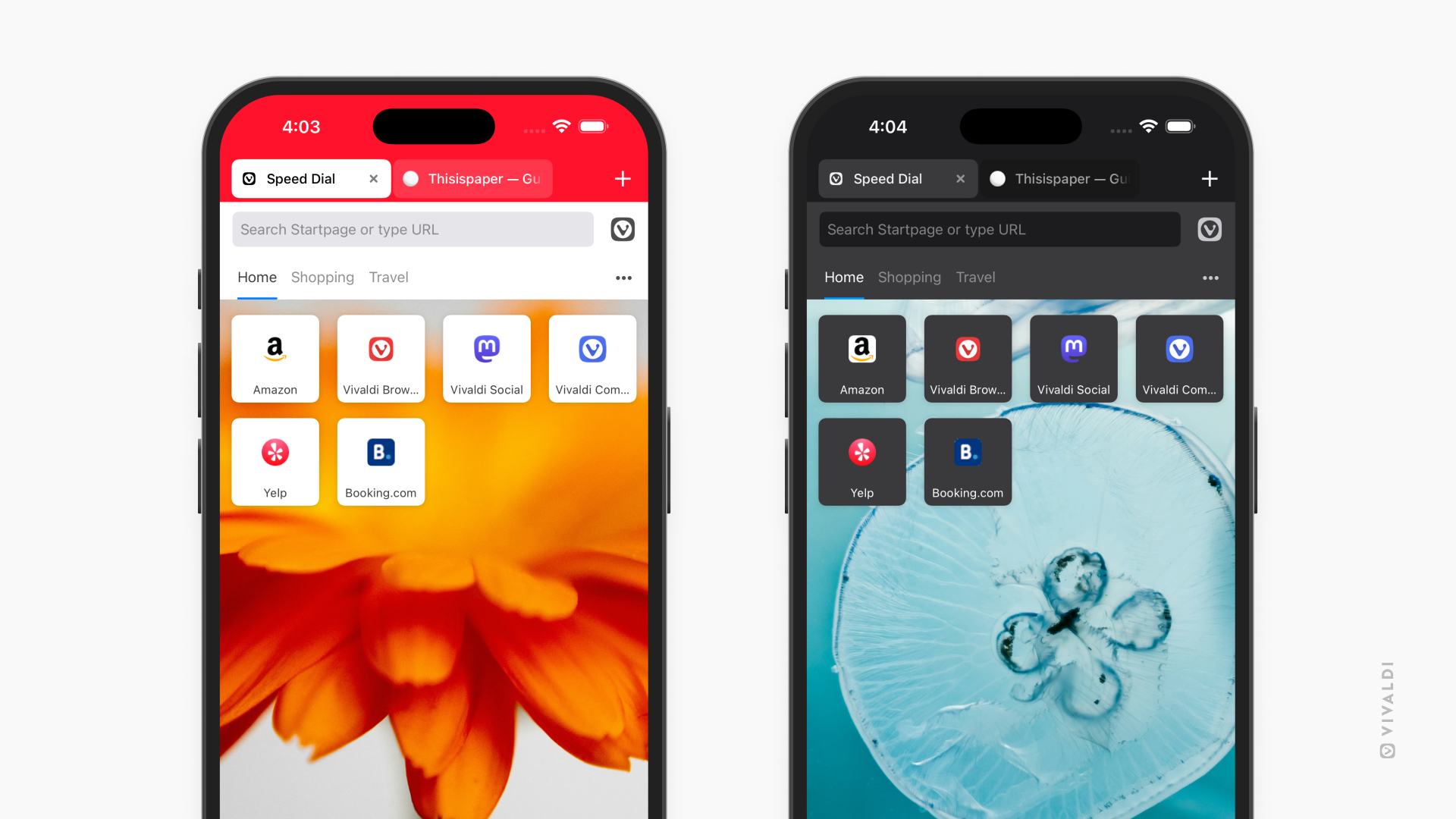
Get a new Start Page look on mobile every day with Daily Images.
When you open a new tab in Vivaldi on Android or iOS, you likely see the Start Page with your favorite Speed Dials. To give the Start Page some character, set a unique background for it. You can go for an image from the defaults, use your own image, or get a new automatically updated photo every day from Unsplash.
To enable Daily Images on mobile, either:
- Go to Settings > Start Page > Wallpaper and enable “Use Daily Image”.
- Tap on “Customize” at the bottom of the Start Page and enable “Use Daily Image”.
Tip #792
February 12, 2026
Open the Tab Switcher in Vivaldi on iOS with a swipe on the Address Bar.
Whenever you want to get a good overview of all your standard, private, synced, etc. tabs, the Tab Switcher is the place to go.
To enable Address Bar swipe gesture:
- Go to Settings > Address Bar > Address Field Options.
- Toggle on “Enable Address Bar Swipe Gesture”.
Once the setting is enabled, all you need to do is swipe from the Address Bar towards the page to open the Tab Switcher. In other words, swipe down when the Address Bar is at the top and swipe up when the Address Bar is at the bottom of the screen.