Desktop Tips
Tip #822
June 9, 2026
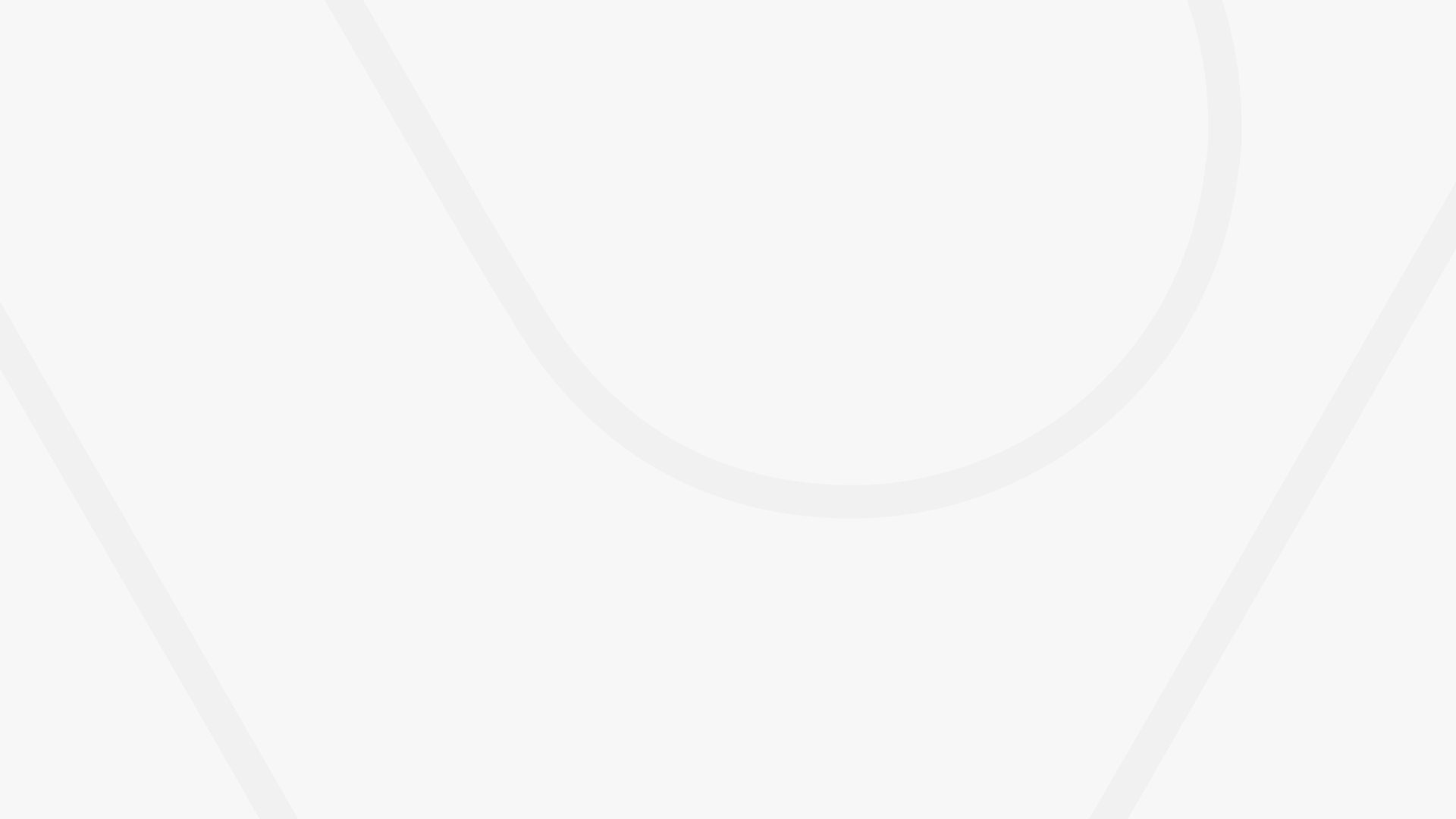
Pick a starting point for your custom Vivaldi browser appearance.
The sheer range of settings can be overwhelming, especially to brand new users, so Vivaldi offers 6 layout presets you can choose as a starting point in your customization journey.
You can pick a layout, either:
- During onboarding when you’ve opened Vivaldi for the first time (revisit onboarding from the Vivaldi menu > Help > Vivaldi Welcome Tour).
- From Settings > Appearance > Layout Presets.
The Saved layout is your custom configuration, which gets updated with each restart.
Tip #820
June 2, 2026
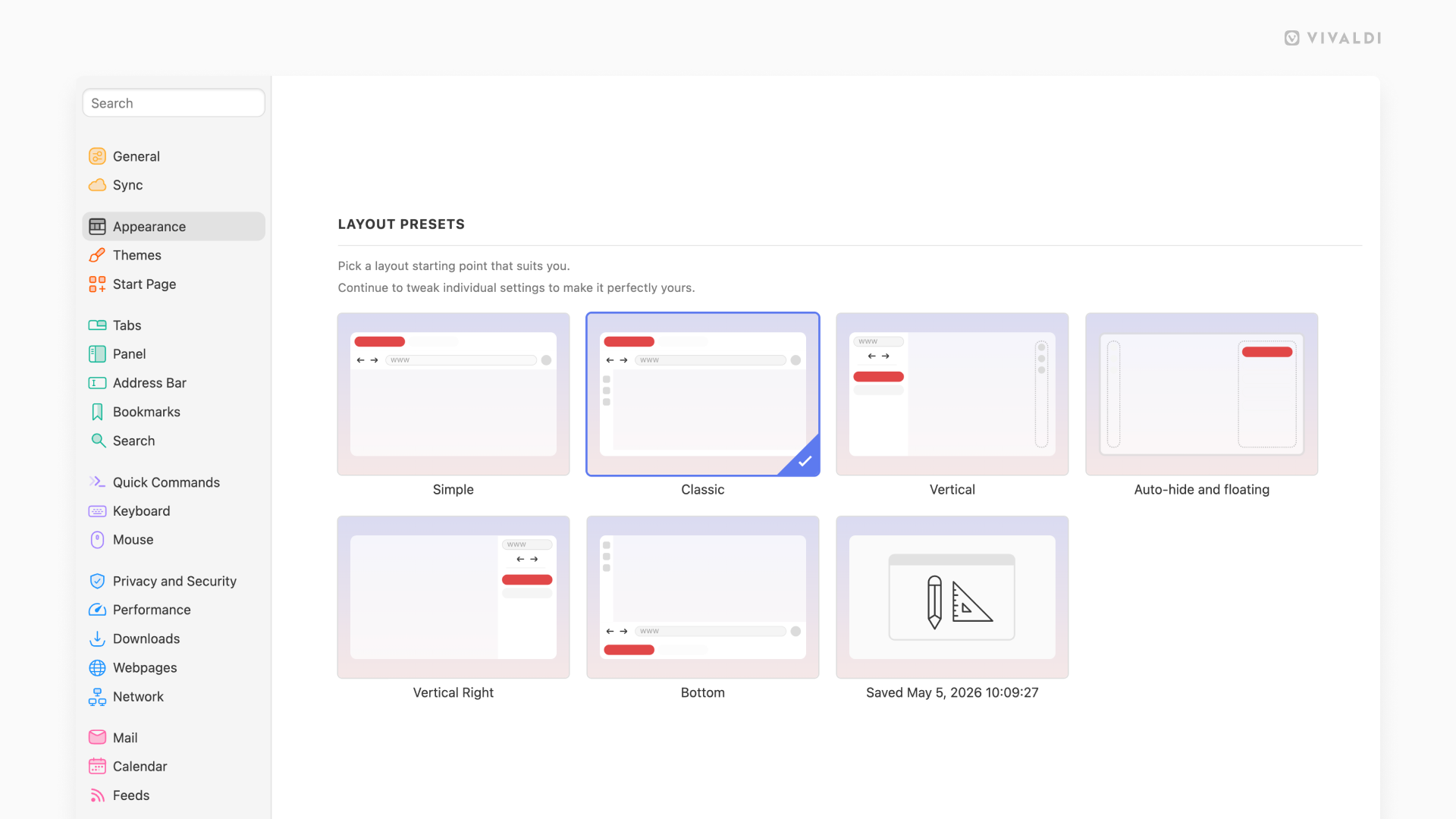
Sort tabs by relation in the Windows and Tabs Panel for a tree-style view.
If you have a ton of tabs open, viewing them in a tree-style layout allows you to get a hierarchical overview of all your browser windows, Workspaces, Tabs Stacks and Tabs. See the child-parent relation, reorder tabs, collapse/expand groups, and more.
To switch to a tree-style view in the Windows and Tabs Panel:
- Open the Windows and Tabs Panel.
- Click on the sorting menu between the search field and the list of tabs.
- Select “Sort by Related Tab Tree”.
Tip #818
May 26, 2026
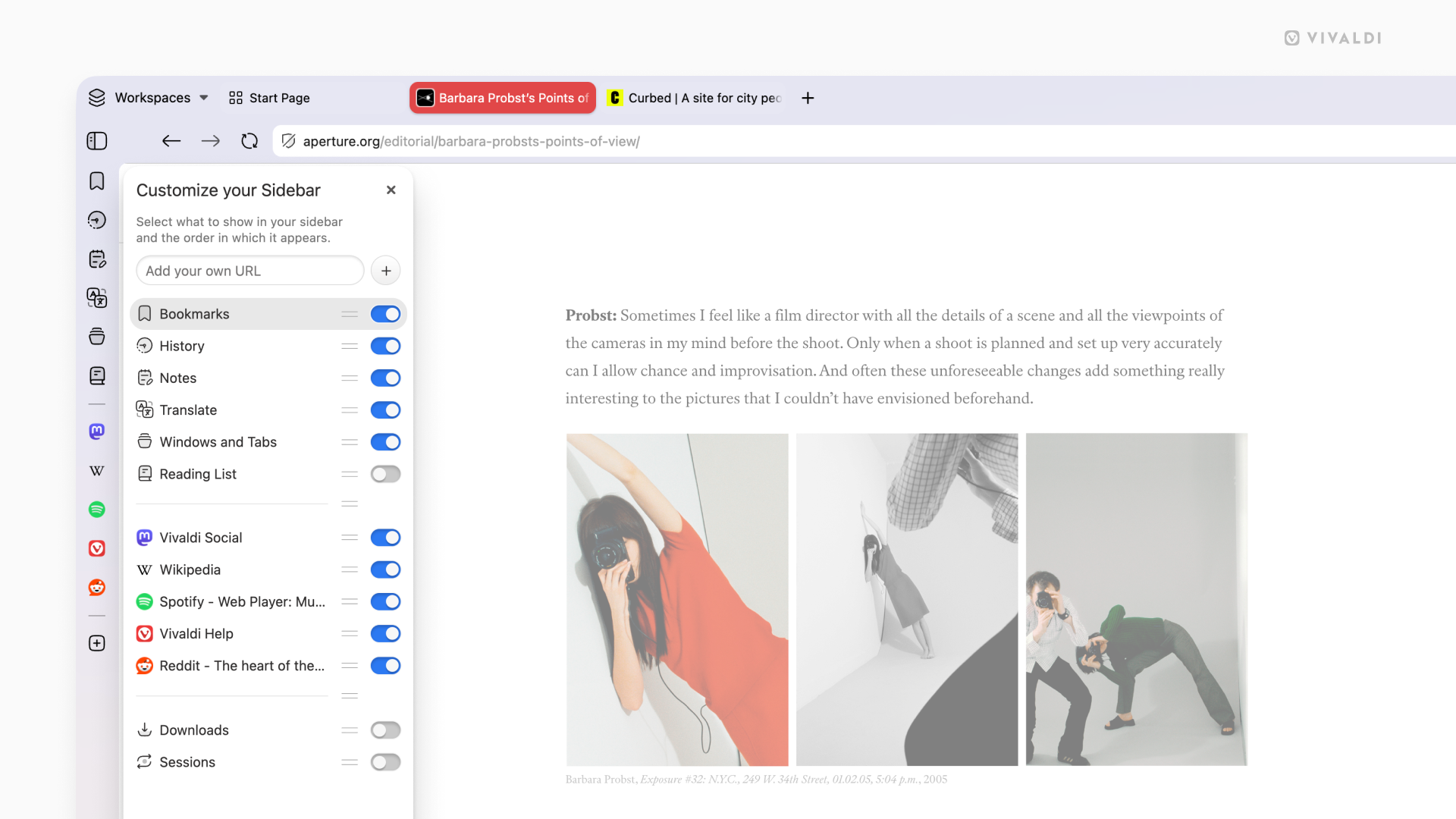
Choose which Panels to display on the browser’s sidebar.
The sidebar gives you quick access to important tools without pulling you away from the tabs you’re working in. It’s up to you to decide which Panels to display there and which to hide.
To customize the list of Panels:
- Click on the
+“Customize Panel” button on the sidebar. - Toggle the visibility of the panels on and off.
Tip #817
May 21, 2026
Choose the Coloring Mode that feels right for your browser theme.
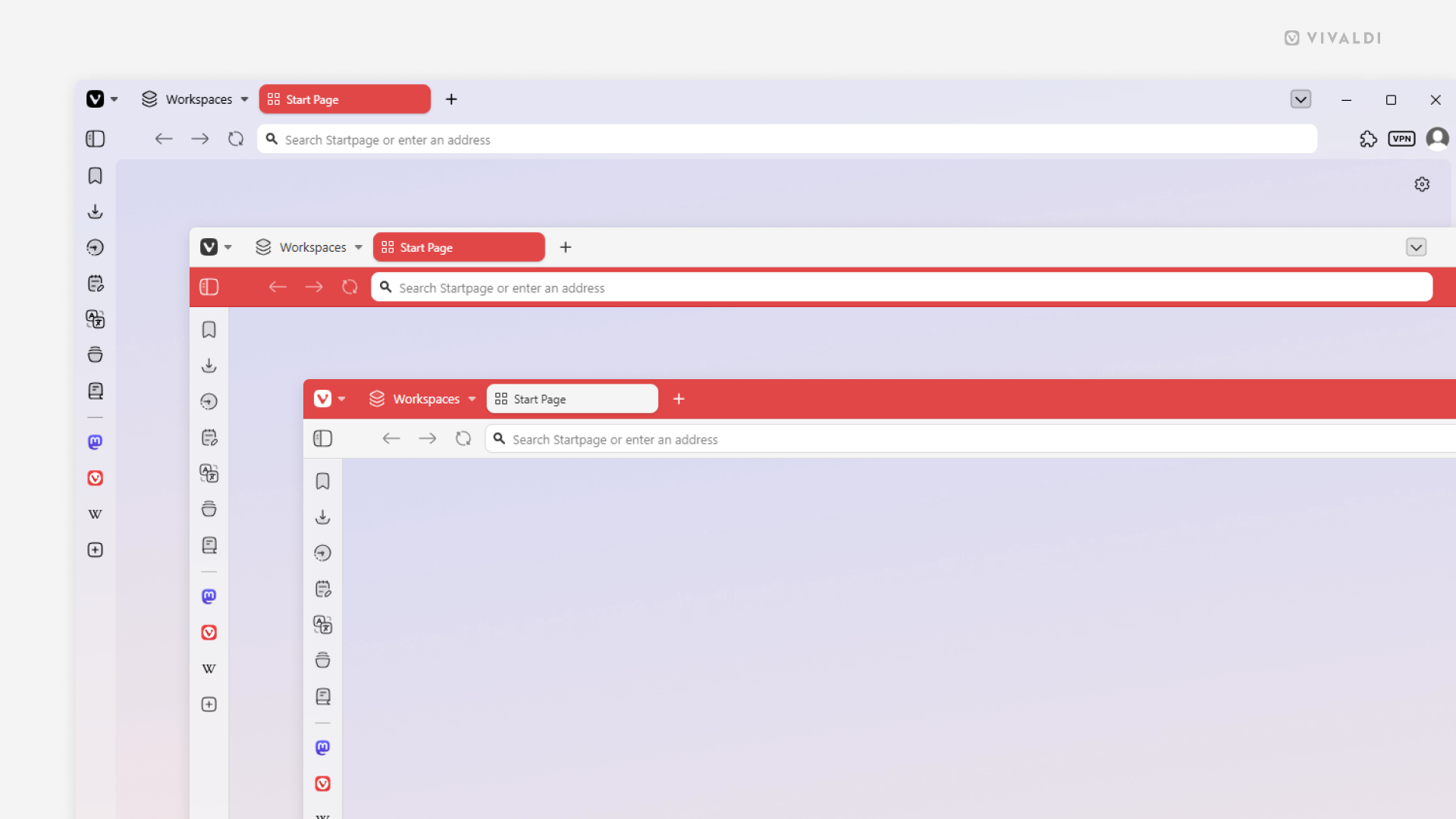
With Themes you can give your browser a unique look. You can pick a ready made theme, edit one or create a completely new theme. When changing the theme’s settings, the Coloring Mode setting will have a big impact on how your browser will look, as it determines how the colors are applied to the toolbars.
There are 3 options to choose from in Settings > Themes > Editor > Colors > Coloring Mode:
- Accent Color on Tab Bar (window in the foreground)
- Accent Color on Address Bar (window in the middle)
- Unified (window in the background)
Tip #816
May 19, 2026
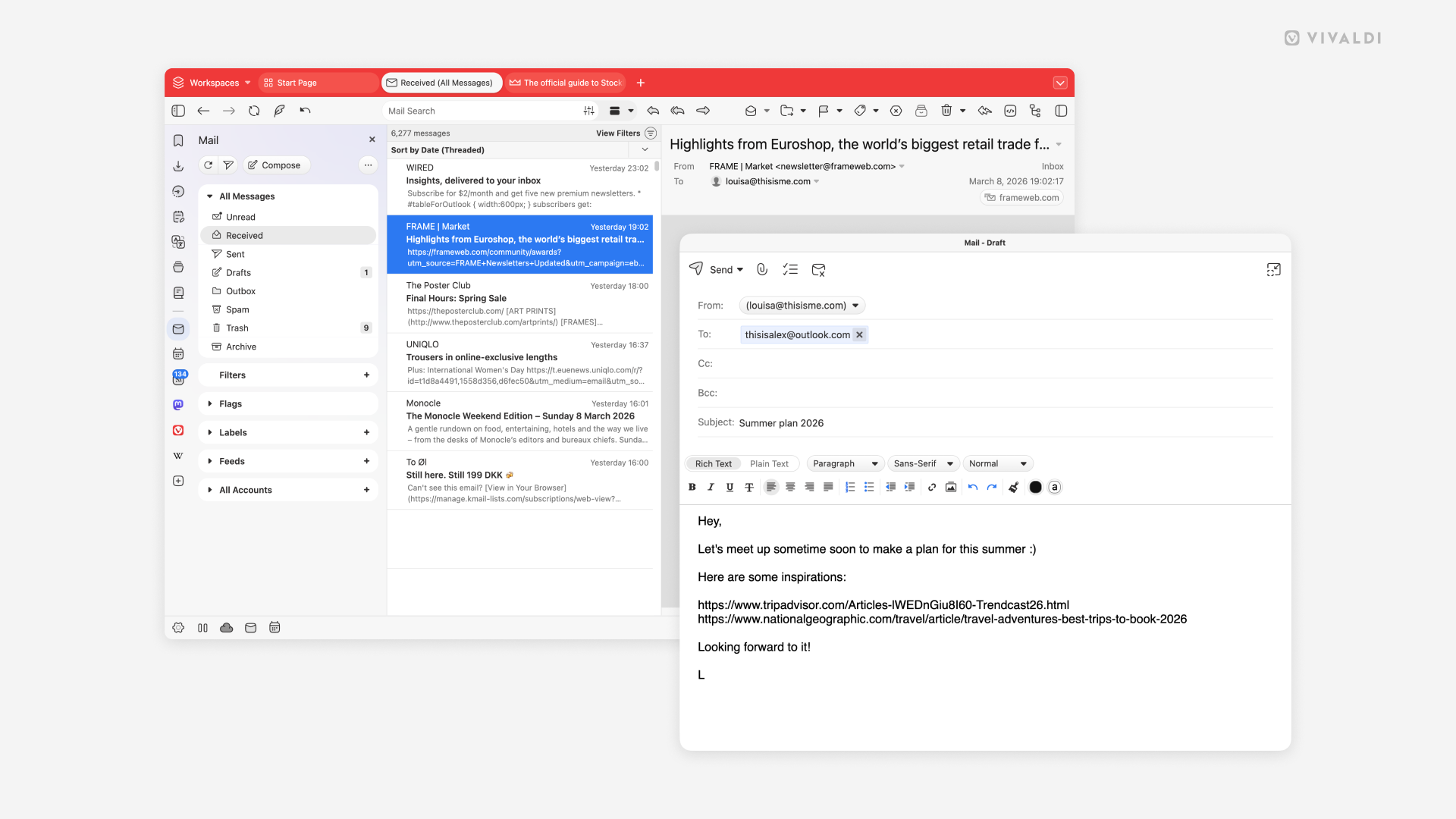
Click on email addresses on web pages to start composing messages in Vivaldi Mail.
When you see an email address on a web page that looks like a link, you can click on it to open a mail client and start composing an email to that address.
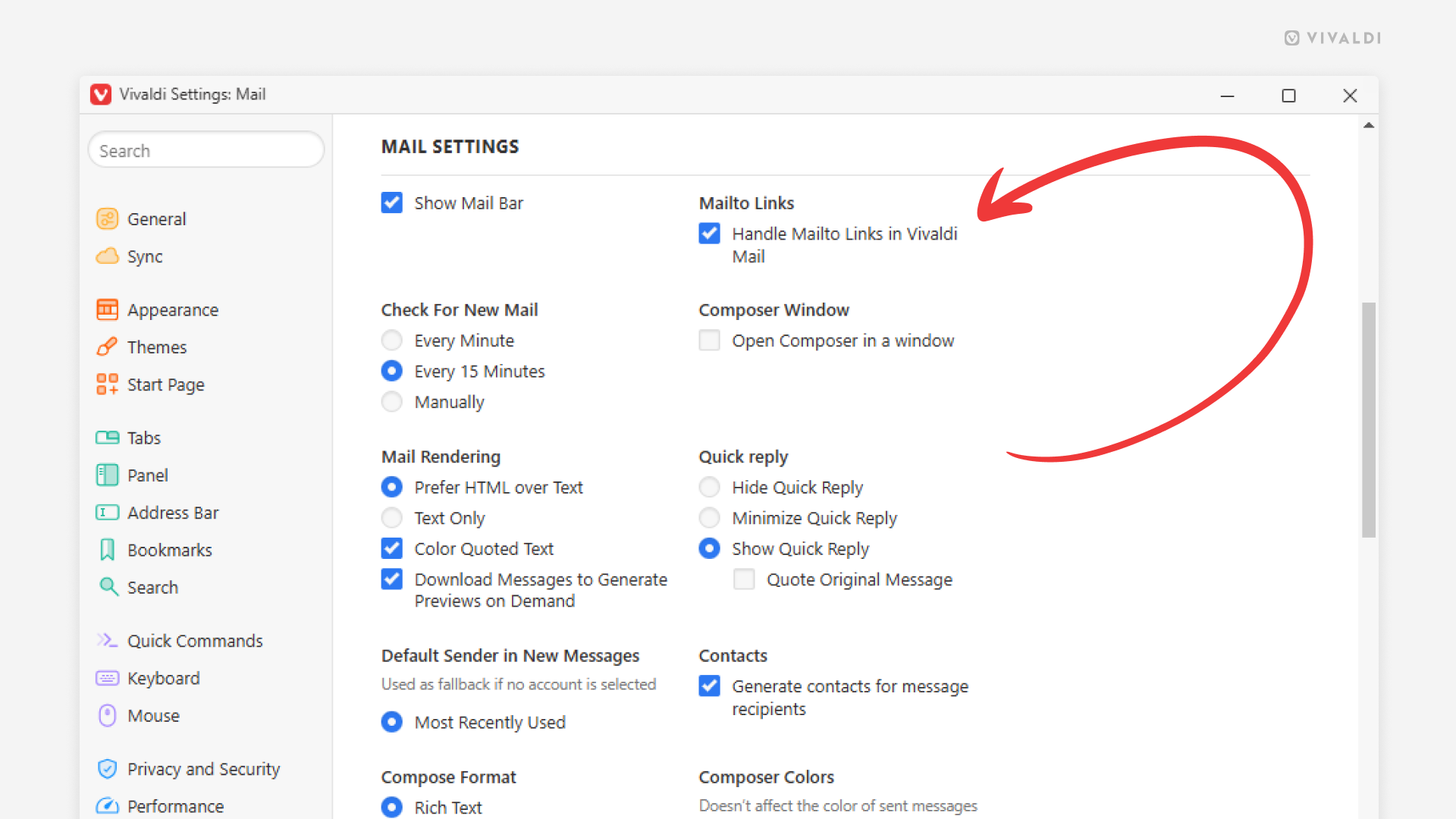
If Vivaldi Mail is your main mail client, you should allow the browser’s built-in mail client to handle these Mailto links.
To review your preferences:
- Go to Settings > Mail > Mail Settings > Mailto Links.
- Enable “Handle Mailto Links in Vivaldi Mail” to compose messages in Vivaldi Mail.
Keep it disabled, if you prefer to open a different mail client.
Tip #815
May 14, 2026
View and edit User Profiles from the Profile Manager.
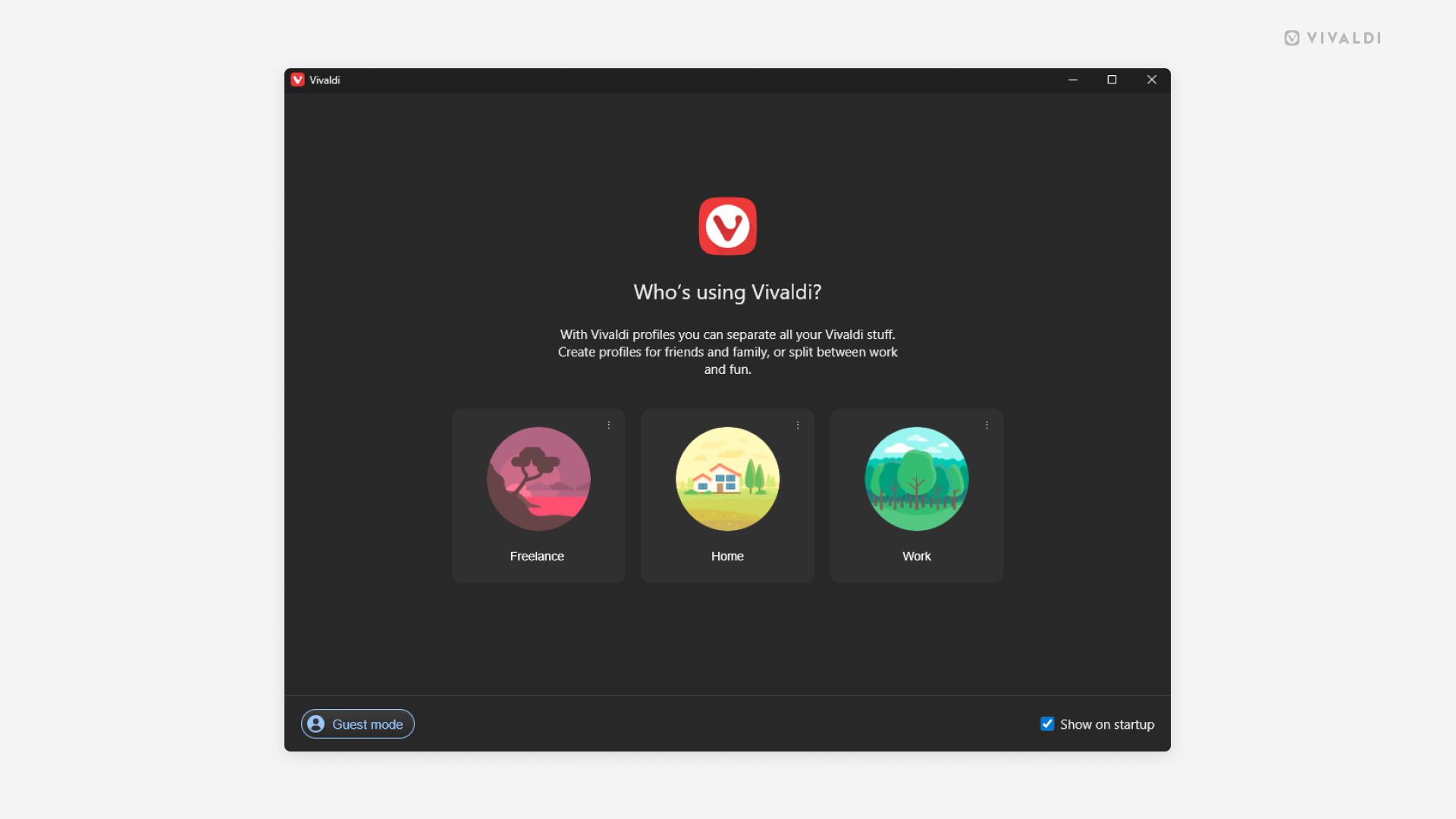
User Profiles are a great way to compartmentalize your browsing data (Bookmarks, Passwords, etc.) based on use case (personal, school, work, etc.) or when sharing the computer with someone.
When you’ve created multiple profiles, every time you open Vivaldi, you’ll first see the Profile Manager, which allows you to pick the profile you want to use. Naturally, you can disable it, if it doesn’t fit your workflow.
To view the Profile Manager when the browser is already open:
- Go to Settings > General > Startup > Profile Management, and click on “Manage Profiles”.
- Type “Manage Profiles” in Quick Commands.
- Create a Keyboard Shortcut or a Mouse Gesture for the action.
Additionally, you can switch and manage profiles from the User Profiles button on the Address Bar.
Tip #813
May 5, 2026
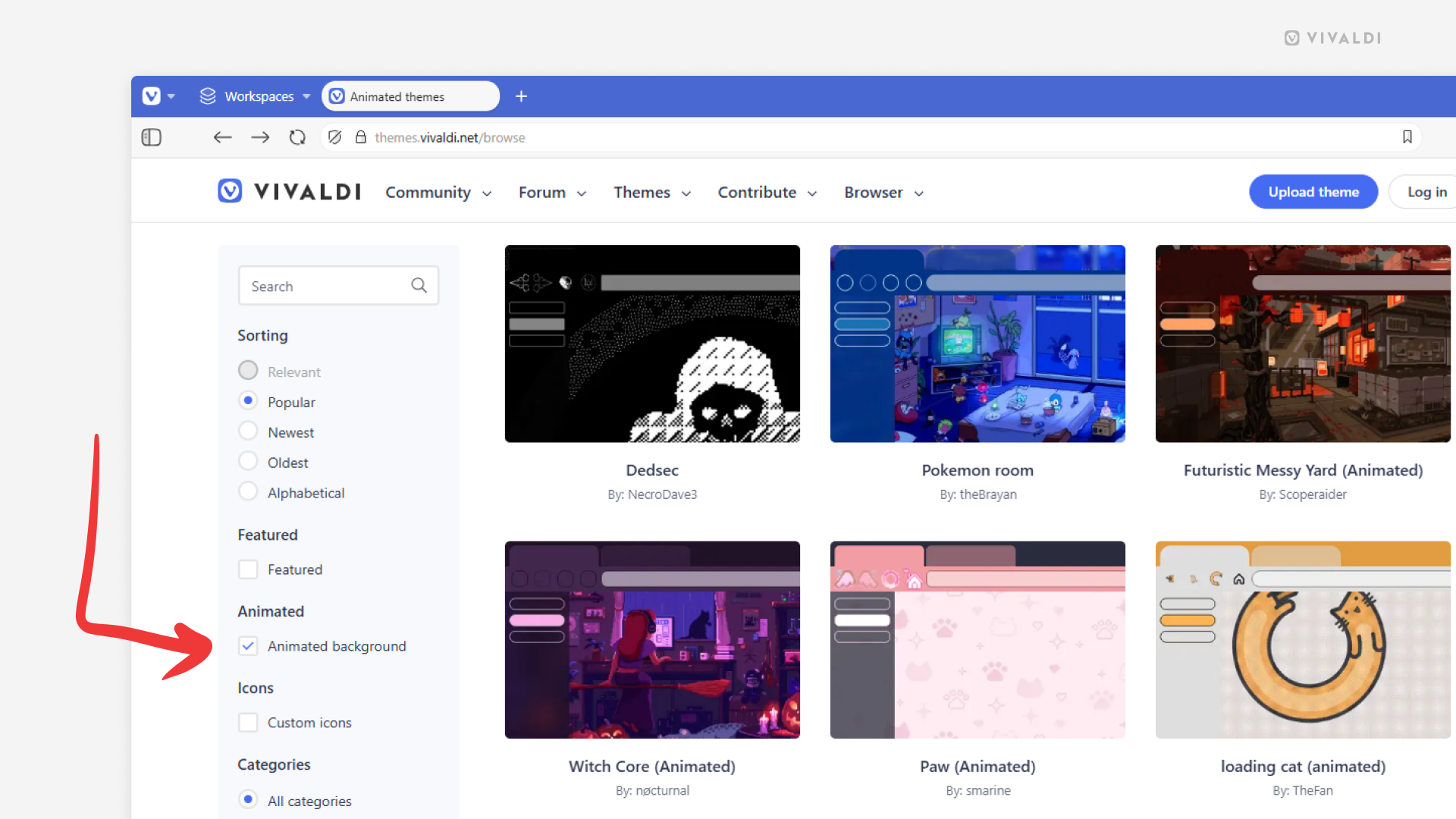
Browse and download themes with animated backgrounds from Vivaldi Themes.
If you want to bring some life onto your Start Page, you can do it with an animated background. You can add your own file to a custom theme in Vivaldi’s Settings > Themes > Editor > Background > Select Image, or download a complete theme with a matching animated background from Vivaldi Themes.
To find and install animated themes:
- Go to https://themes.vivaldi.net.
- Go into one of the categories (Featured, Popular, Latest, etc.).
- In the menu on the left, tick the box for “Animated background”.
- Click on a theme you like.
- On the theme’s profile, click “Download” to preview the theme.
- If you want to use the theme, click “Install” in the dialog window. If not, click “Cancel” and keep browsing.
Since large animated backgrounds can affect the browser’s performance, choosing lighter, smaller files is usually a better option.
Tip #811
April 28, 2026
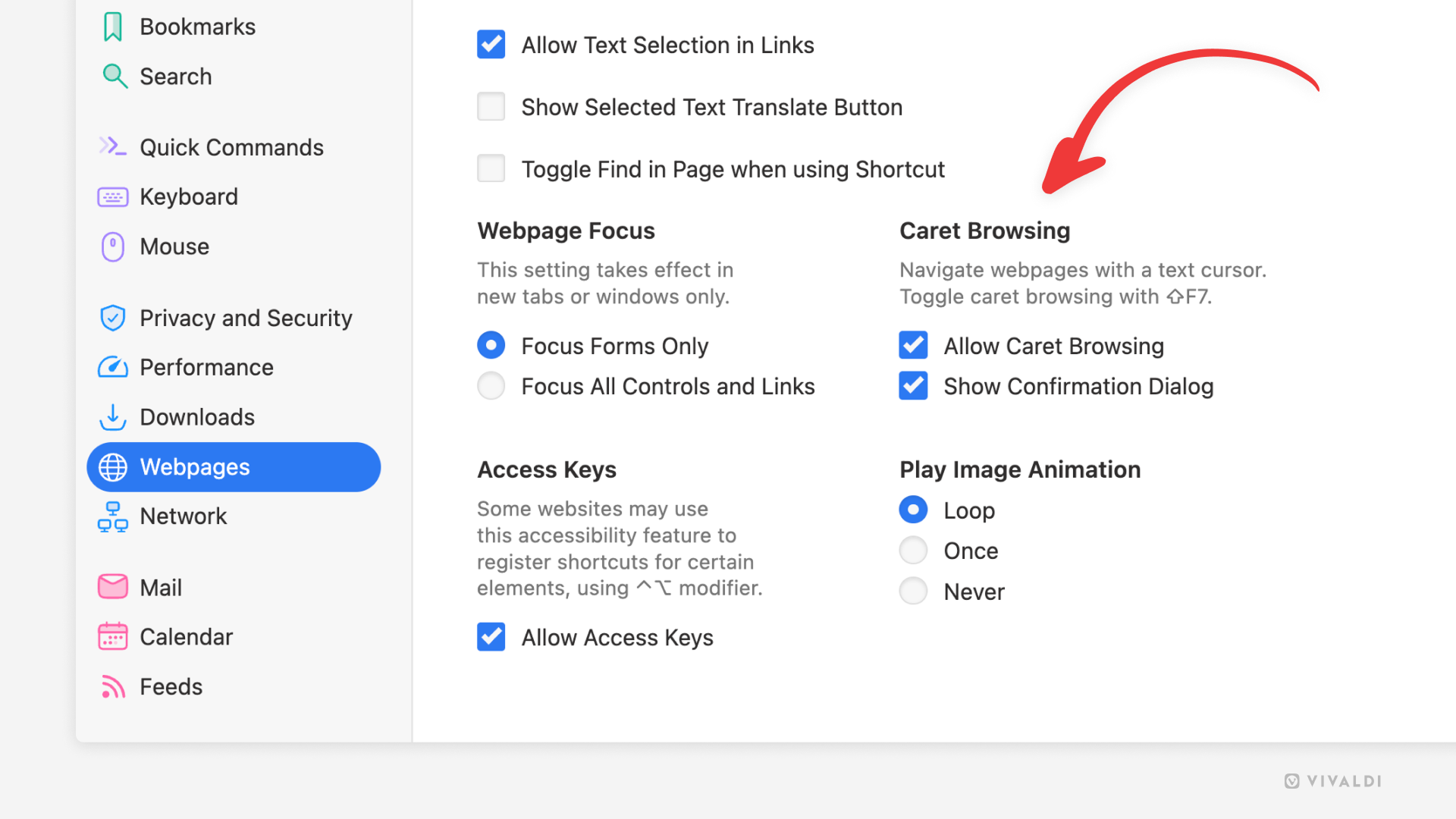
Navigate and select text on web pages just like in text editors using Caret Browsing.
Caret browsing allows you to navigate through web pages with the arrow keys on keyboard similarly to Spatial Navigation. The difference is that your place on the page is shown by a visible text cursor (caret) similarly to how it’s done in text editors.
To enable Caret Browsing:
- Go to Settings > Webpages > Caret Browsing.
- Enable “Allow Caret Browsing”.
To quickly toggle the feature on and off, use the Keyboard Shortcut Shift+F7 / ⇧F7.
When enabled, use the arrow keys to move around on the page. Hold down the Shift / ⇧ key and press the arrow keys to select text.
Tip #810
April 23, 2026
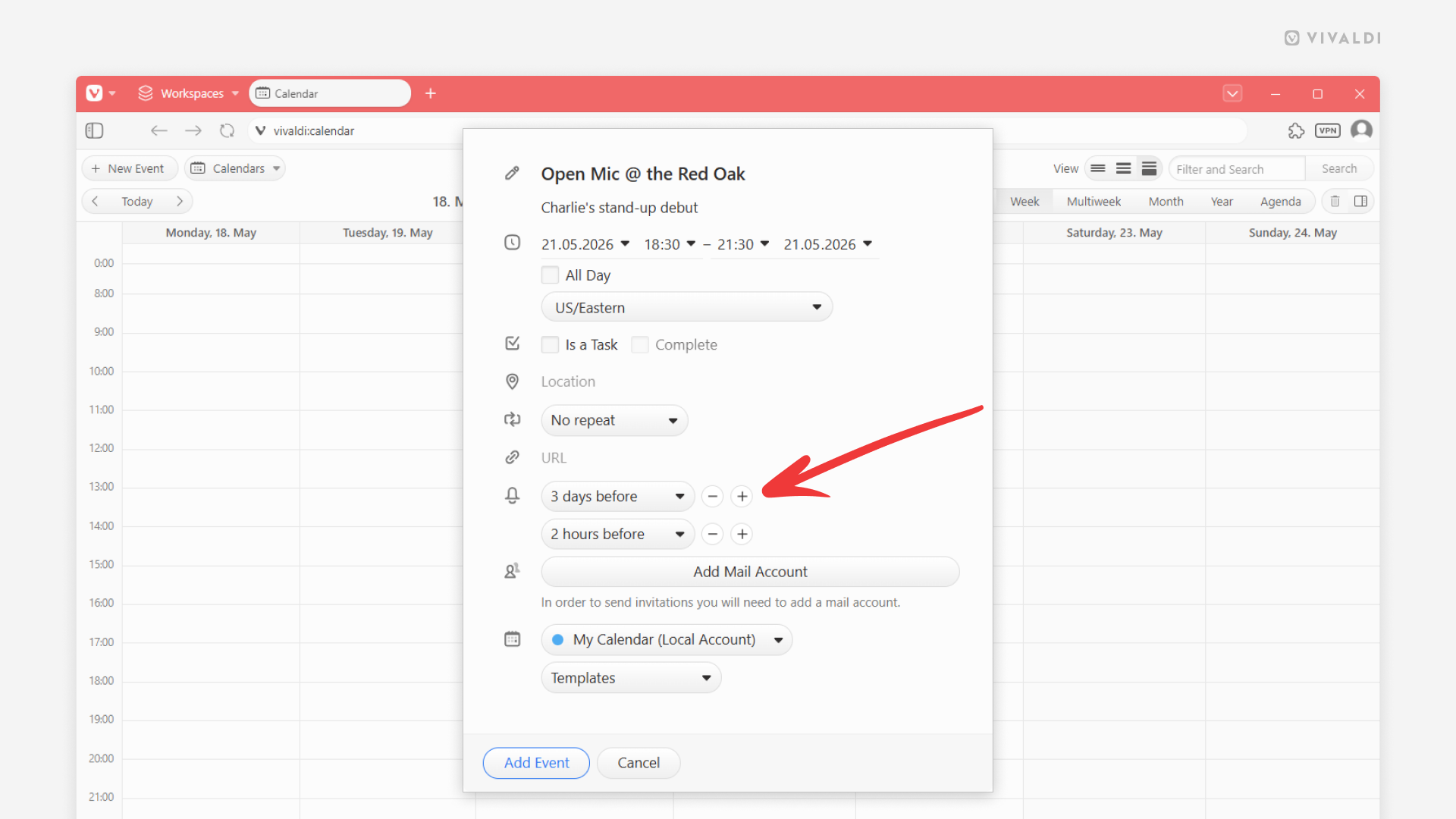
Never miss a commitment by adding multiple reminders in the Vivaldi Calendar.
Got an important event or a deadline coming up that you just can’t miss? Make use of reminders in the Vivaldi Calendar and add as many alarms as you need to ensure that you remember your upcoming responsibilities.
To add reminders:
- Create or edit an event/task.
- In the Reminders section, select the first time you want to be notified.
- Once the first reminder is added, click on the
+“Add another alarm” button next to it. - Pick a time for the additional reminder.
Tip #808
April 16, 2026
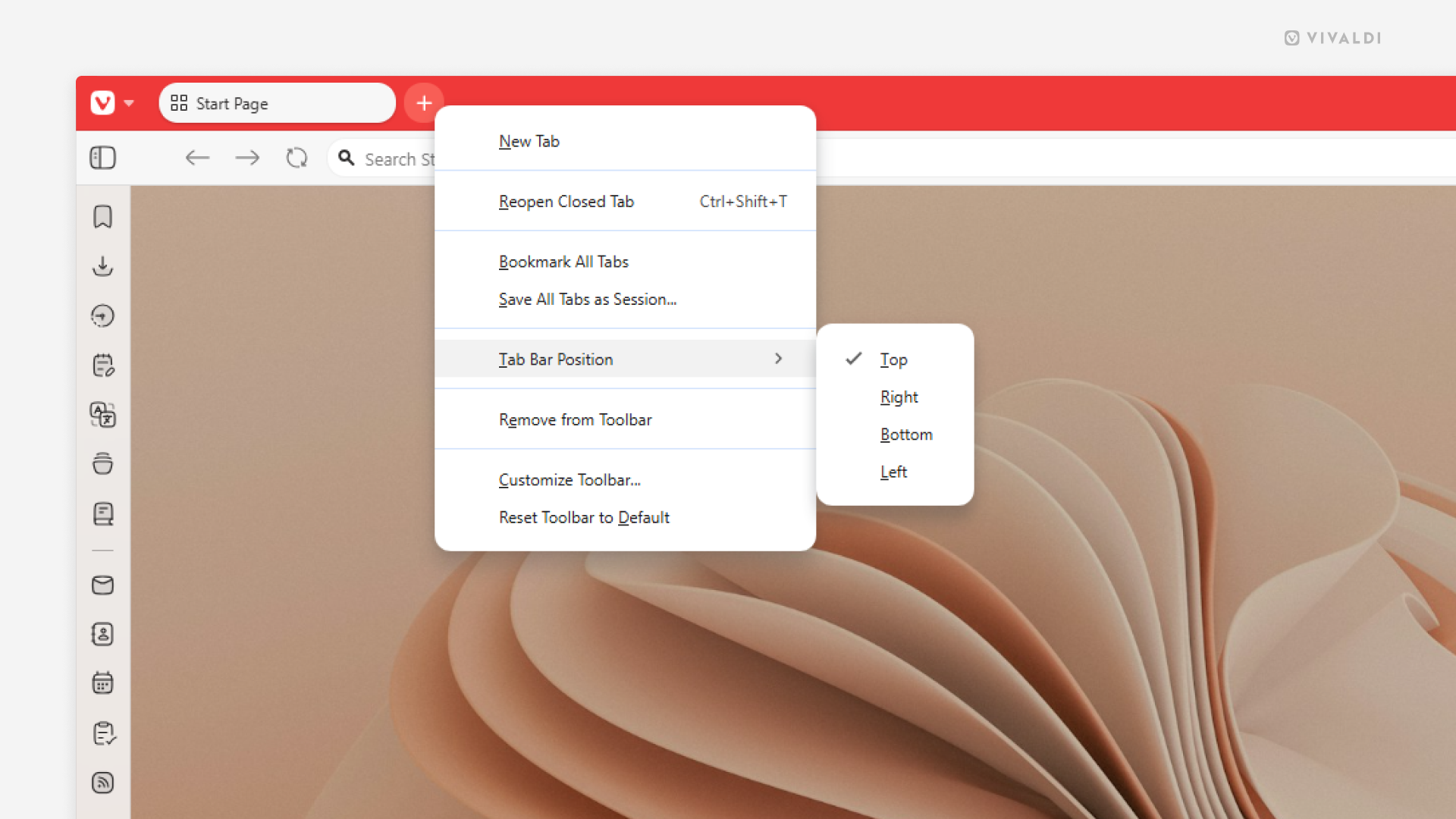
Change the Tab Bar’s location directly from the Tab Bar.
While you can always go rummaging in the Settings to change the Tab Bar‘s location, there’s also a quick way to do it directly from the Tab Bar.
To move the Tab Bar:
- Right-click on the
+“New Tab” button on the Tab Bar. - Hover over the “Tab Bar Position” option in the menu.
- Select the Tab Bar’s new location – top, right, bottom, or left side of the browser window.
Tip #804
March 31, 2026
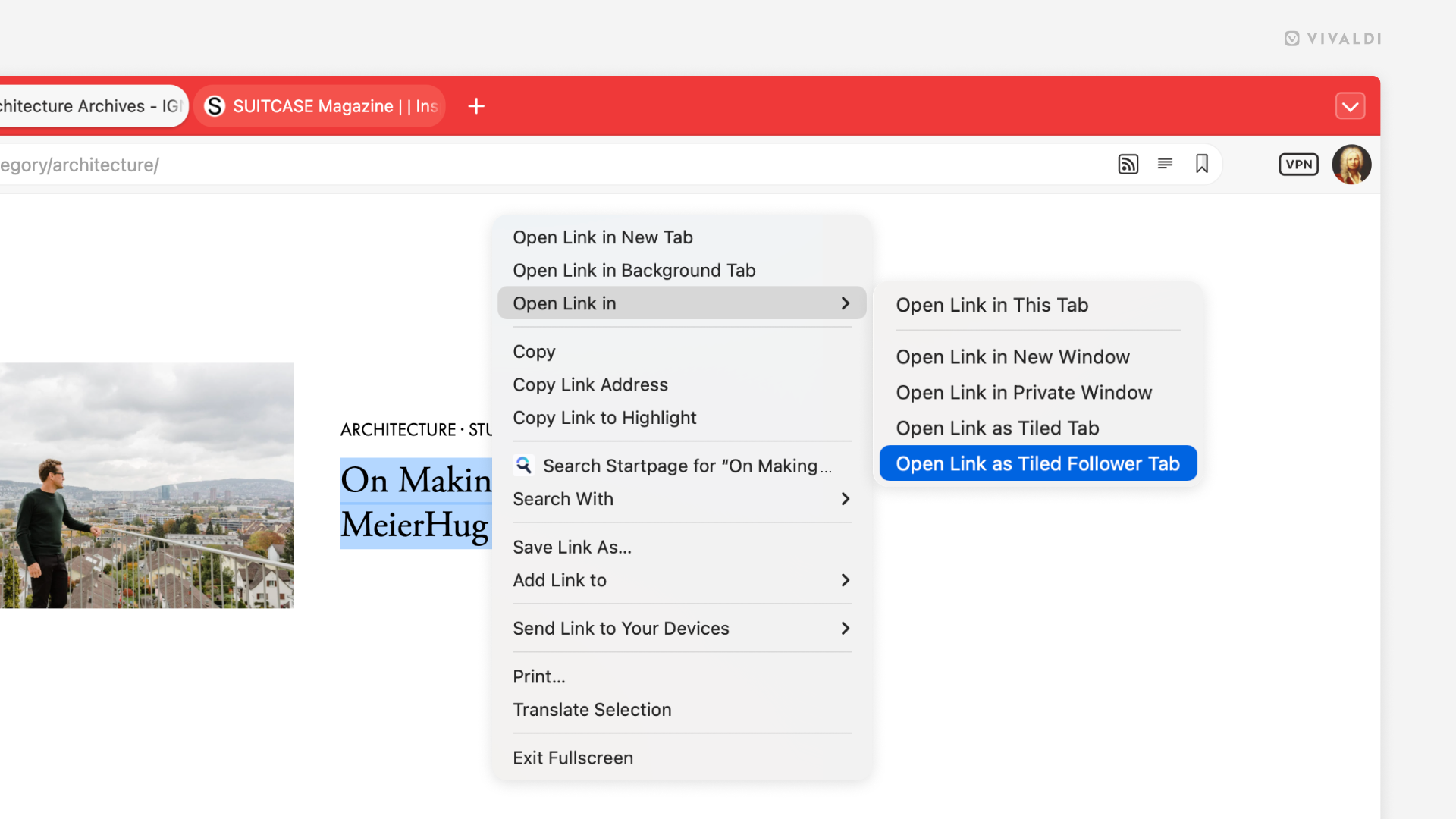
Explore links on a web page without losing sight of the original tab.
With the Follower Tab feature in Vivaldi, you can quickly preview everything you want and need to know about pages linked on the site you’re browsing. When you create a follower tab, it will open in a tiled tab next to the source tab and any other link you click in the source tab will replace the page in the follower tab.
To open the first link as a follower tab:
- Right-click on a link on a web page.
- Hover over the Open Link in option to open the sub-menu.
- Select Open Link as Tiled Follower Tab.
To open other links in the Follower Tab, simply click on a link on the web page as if you wanted to open it in the active tab.
Tip #802
March 24, 2026
A tab or a window – write your emails in the space you prefer.
By default when you start writing a new message, or replying or forwarding an email in Vivaldi Mail, the composer will open in a new browser tab. But there’s also a composer window option available.
To enable the window option:
- Go to Settings > Mail > Mail Settings > Composer Window.
- Enable Open Composer in a window.