Desktop Tips
Tip #844
September 17, 2026

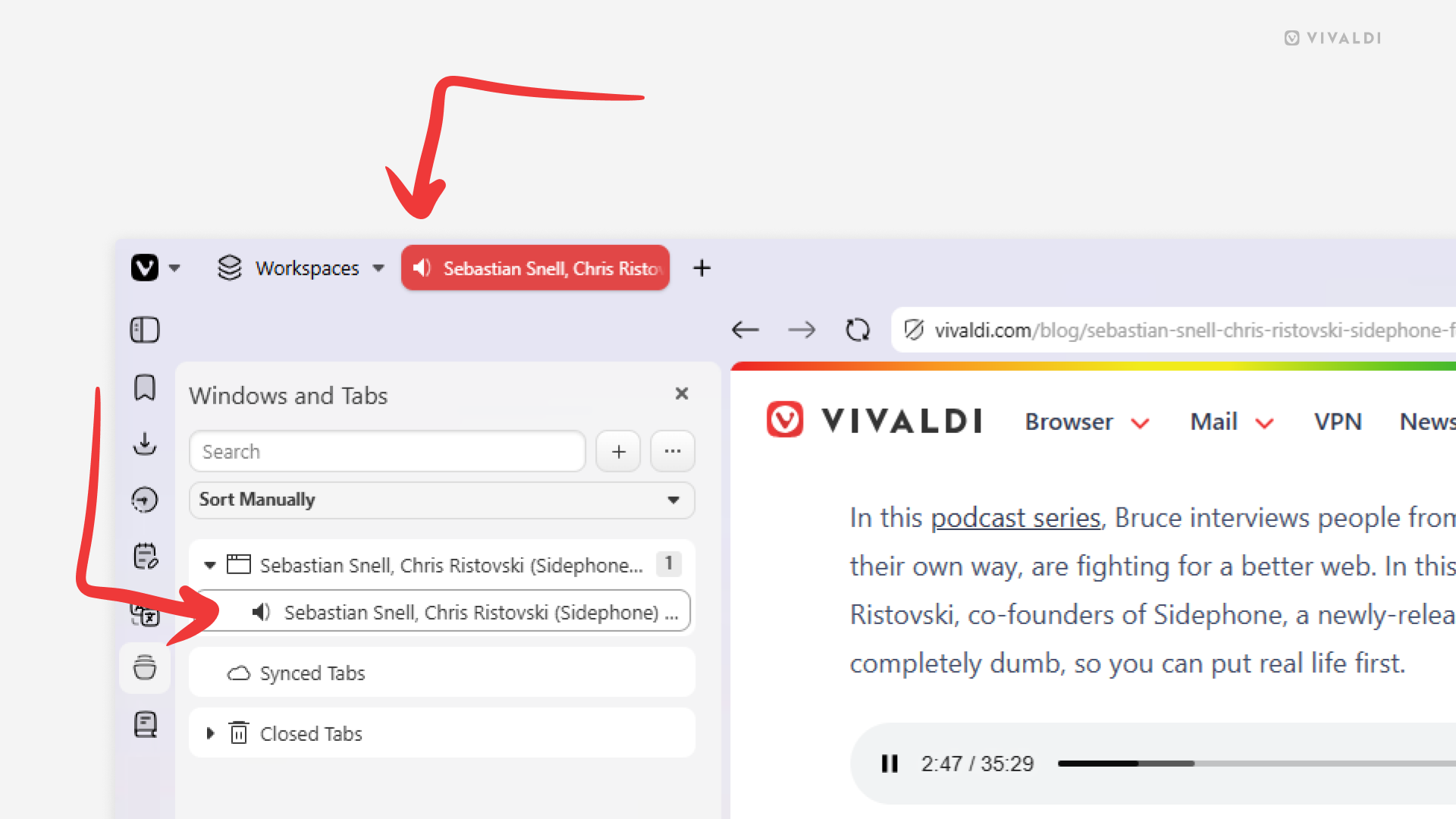
Find where the sounds come from by sorting tabs by audio status.
Tabs playing audio can be spotted by the speaker icon on the tab, but with tens if not hundreds of tabs open, it can still be cumbersome to find from which tabs the sounds are coming from. Vivaldi’s Windows and Tabs Panel comes in handy here by allowing you to sort tabs in a way that makes them easy to spot.
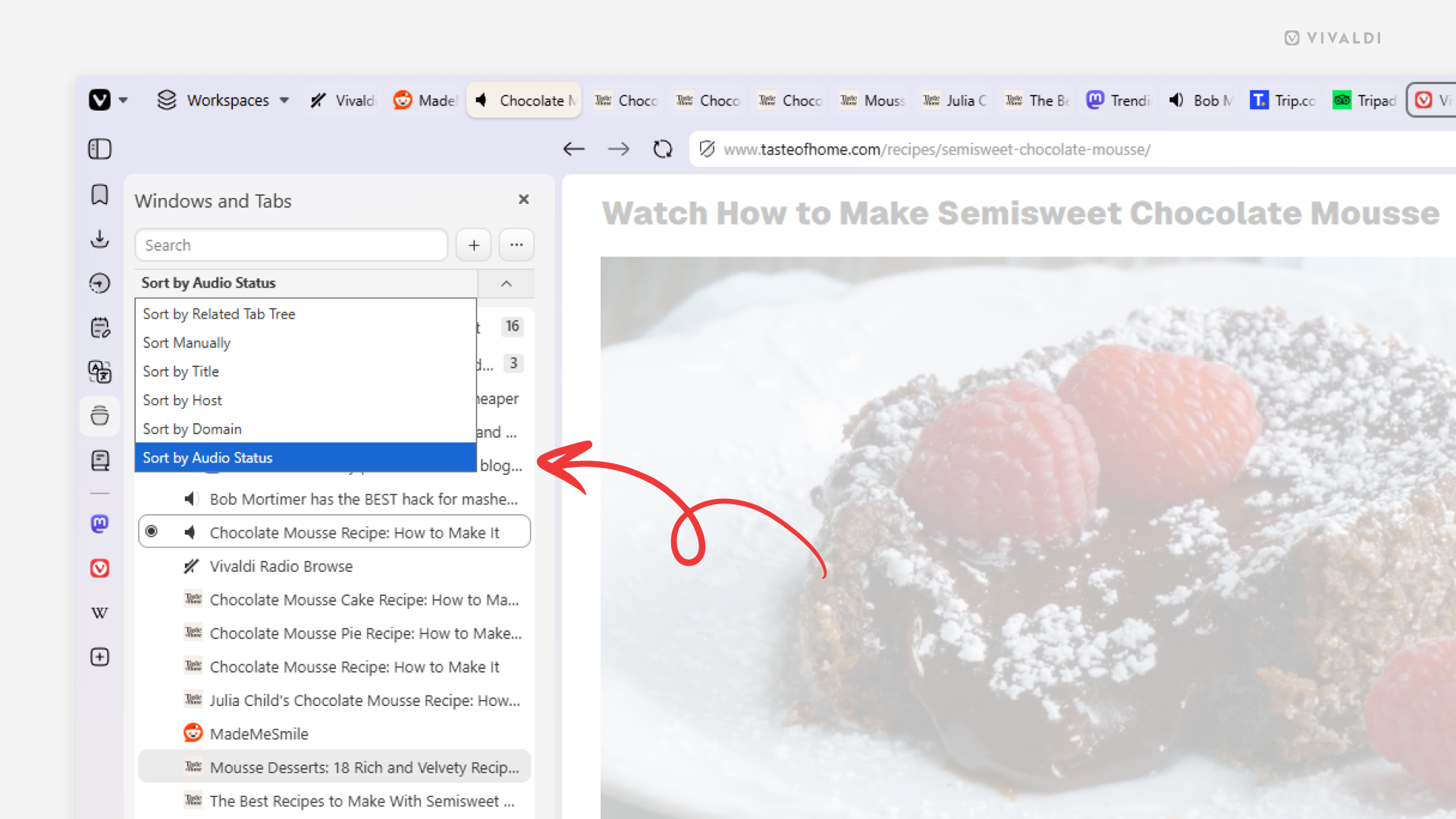
To sort tabs by audio status:
- Open the Windows and Tabs Panel.
- Click on the sort menu between the search field and the list of open tabs.
- Select “By Audio Status”.
Tip #843
September 15, 2026
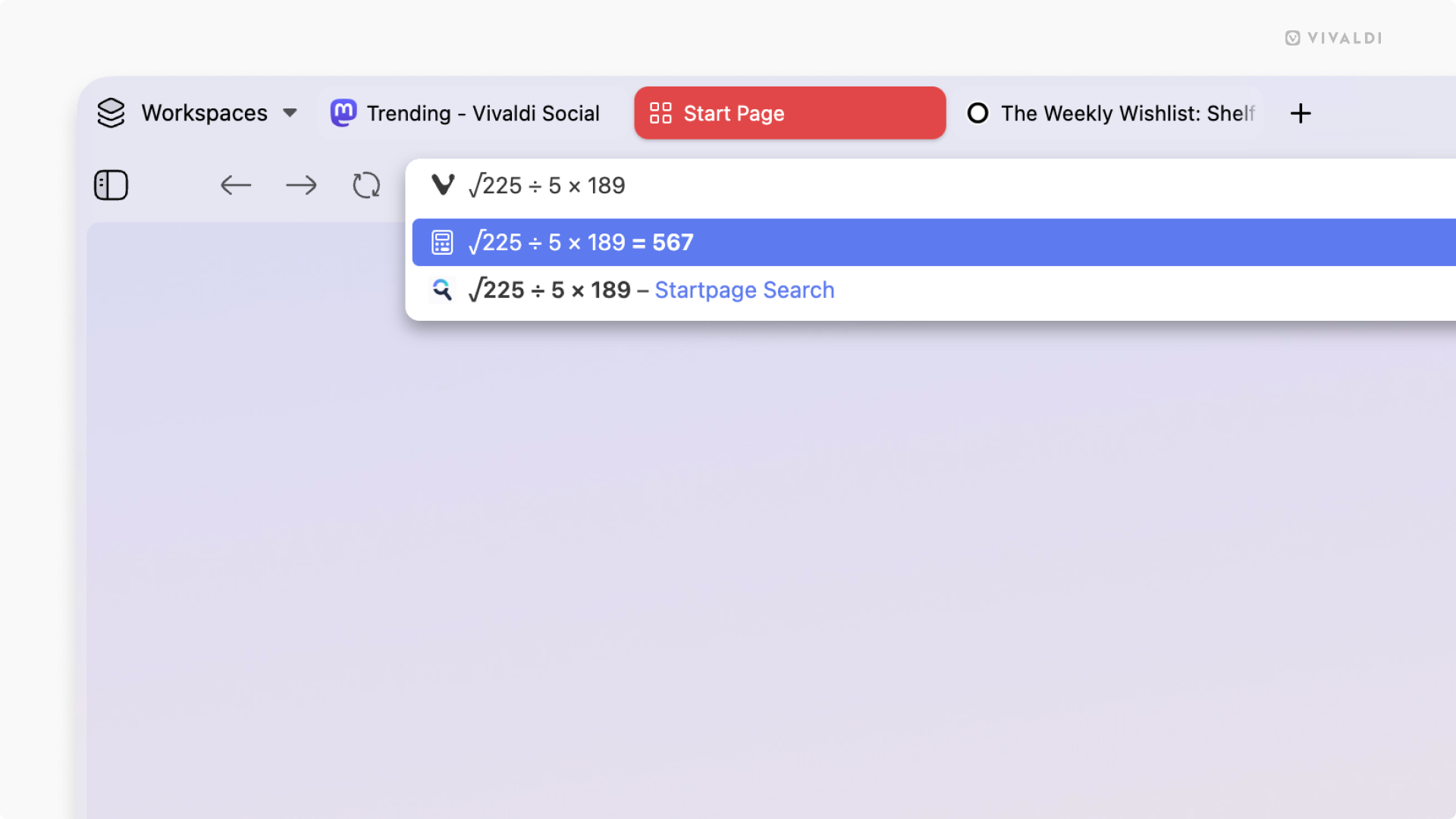
Solve a quick math problem using the Calculator in the Address Field.
With the Vivaldi browser on desktop, Android and iOS, you don’t need to switch apps or go to a website with a calculator to do a quick calculation. Simply use the calculator built into the browser’s Address Field.
To calculate something:
- Focus on the Address Field.
- Start typing the equation. For example, “888/37”, “sqrt 1764”, etc.
The result will be displayed automatically in the Address Field’s drop-down menu. If you need to use the result, press Enter or click the Copy button on the right side.
Tip #840
September 3, 2026
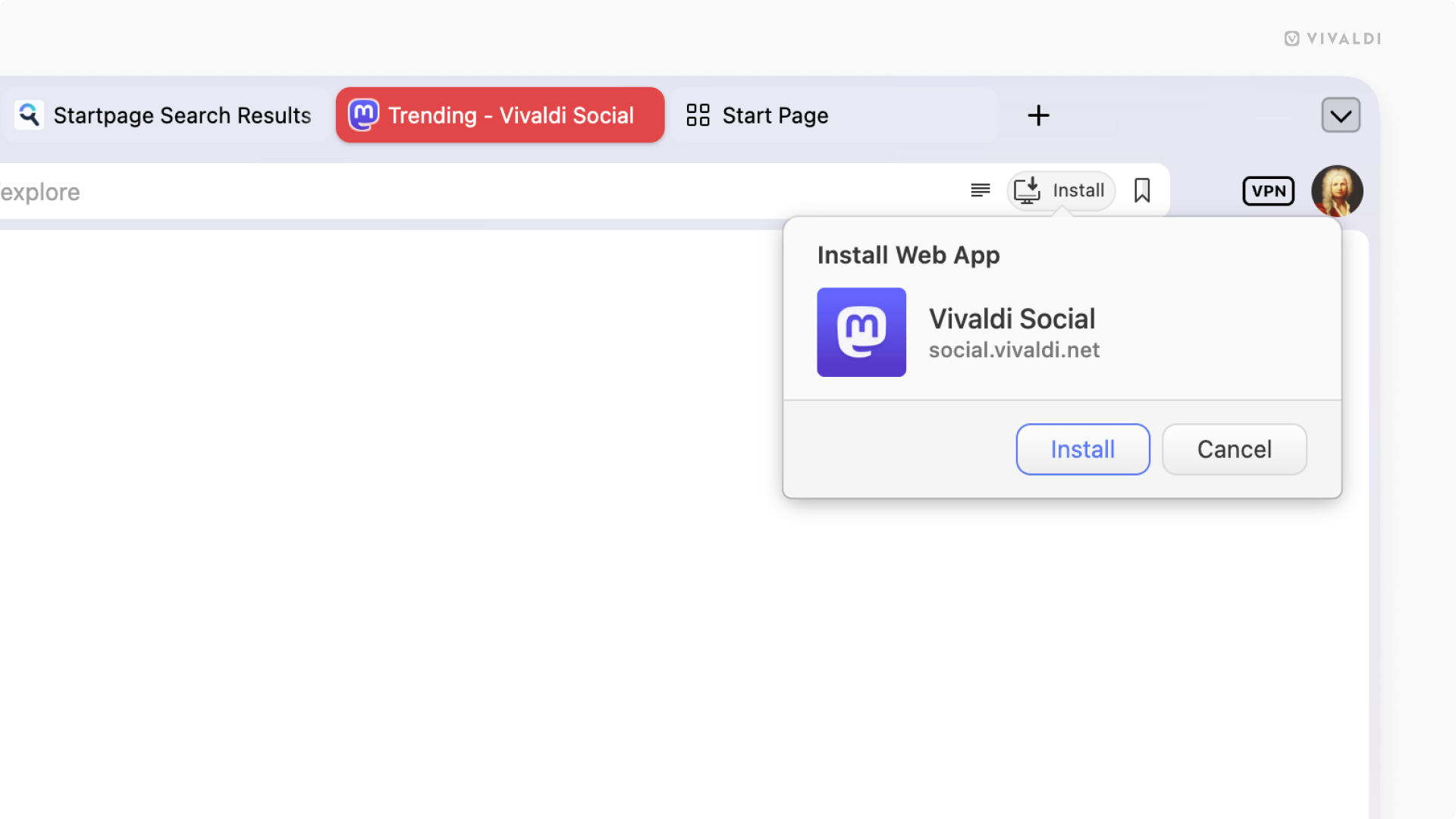
Check the Address Bar to see if the website can be installed as a Progressive Web App.
When you use a website often enough that you wish it were its own app, look no further than the Vivaldi browser’s Address Bar. If you see an “Install” button on the right side of the Address Field, the website is also available as a Progressive Web App (PWA).
To install a website as a PWA:
- Click the “Install” button on the right side of the Address Field.
- Click “Install” in the small menu asking you to confirm your action.
Alternatively, right-click on the tab and select Progressive Web Apps > Install [website name].
Tip #837
August 25, 2026
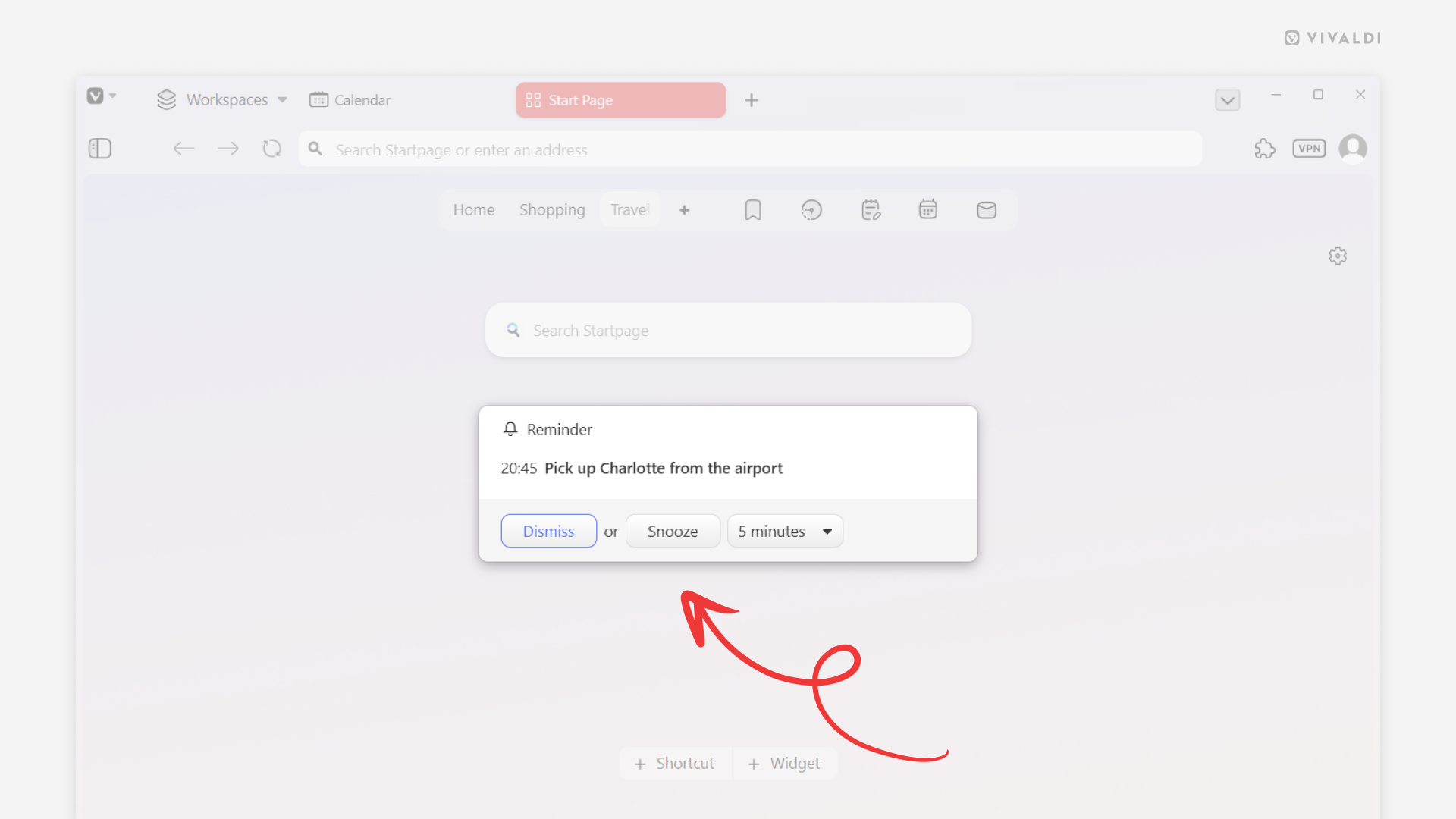
Click Snooze to postpone calendar reminders.
If you’re in the middle of something when you receive a reminder from the Vivaldi Calendar about an upcoming event or an approaching task deadline, you can simply click the “Snooze” button. It will temporarily dismiss the reminder and you’ll receive a new notification after a short while, giving you more time to finish what you’re doing without losing track of the event or task.
To receive a new reminder:
- From the drop-down menu, select how much you want to postpone the reminder.
- Click “Snooze”.
Tip #836
July 30, 2026
Find more images from the authors of Daily Images.
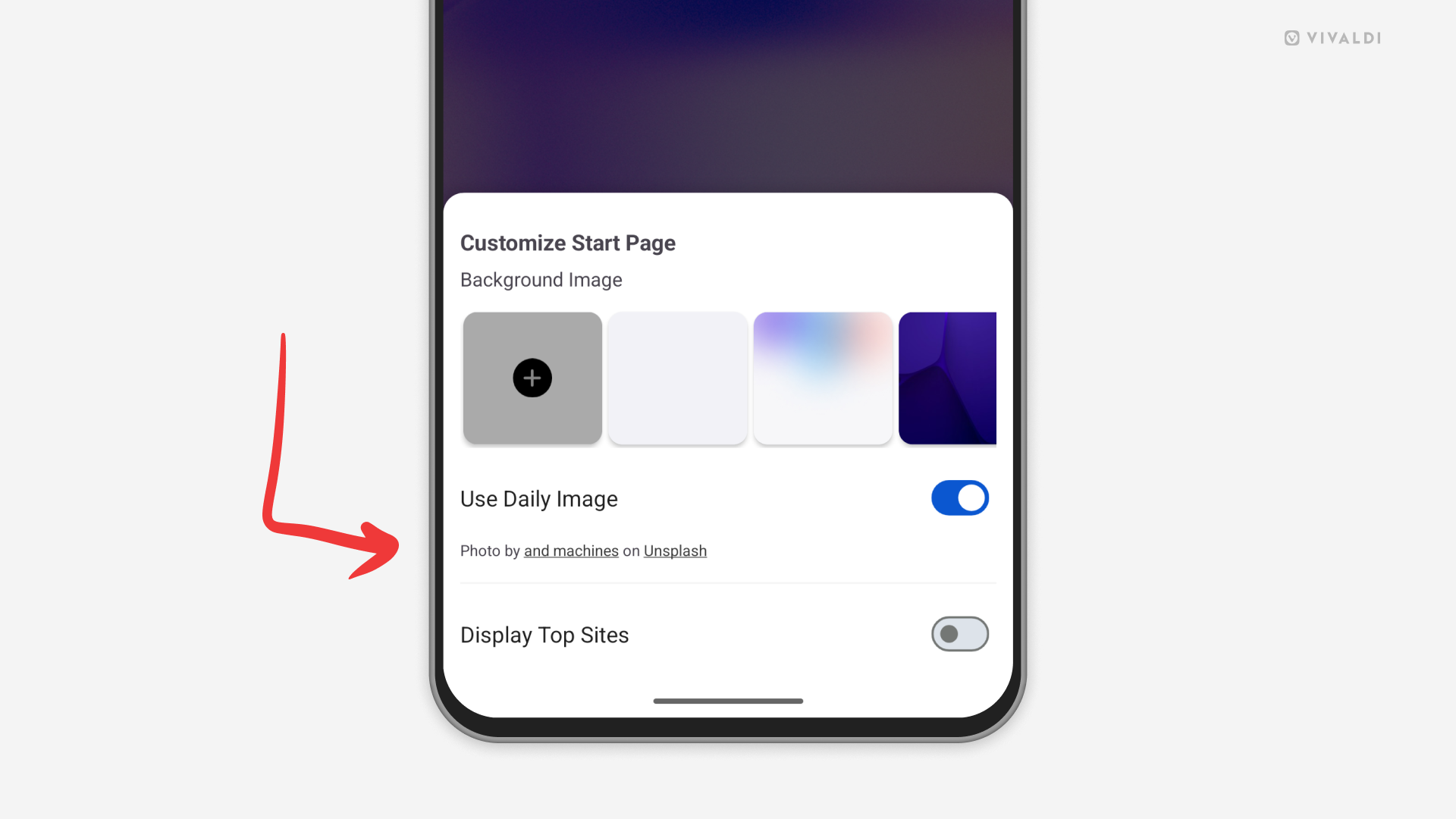
When you enable Daily Images as Start Page background images in Vivaldi, you’ll be treated with a new wallpaper every day. If there’s a picture that catches your eye and you want to see more works from the same author, check the image credits.
To view more images from the same author:
- On desktop, look in the bottom right corner of the Start Page and click on the author’s name.
- On Android and iOS, open the Customize menu (from the button at the bottom of the Start Page or from the 3-dot menu in the top right corner of the Start Page). Tap on the author’s name below the setting.
Tip #835
July 28, 2026
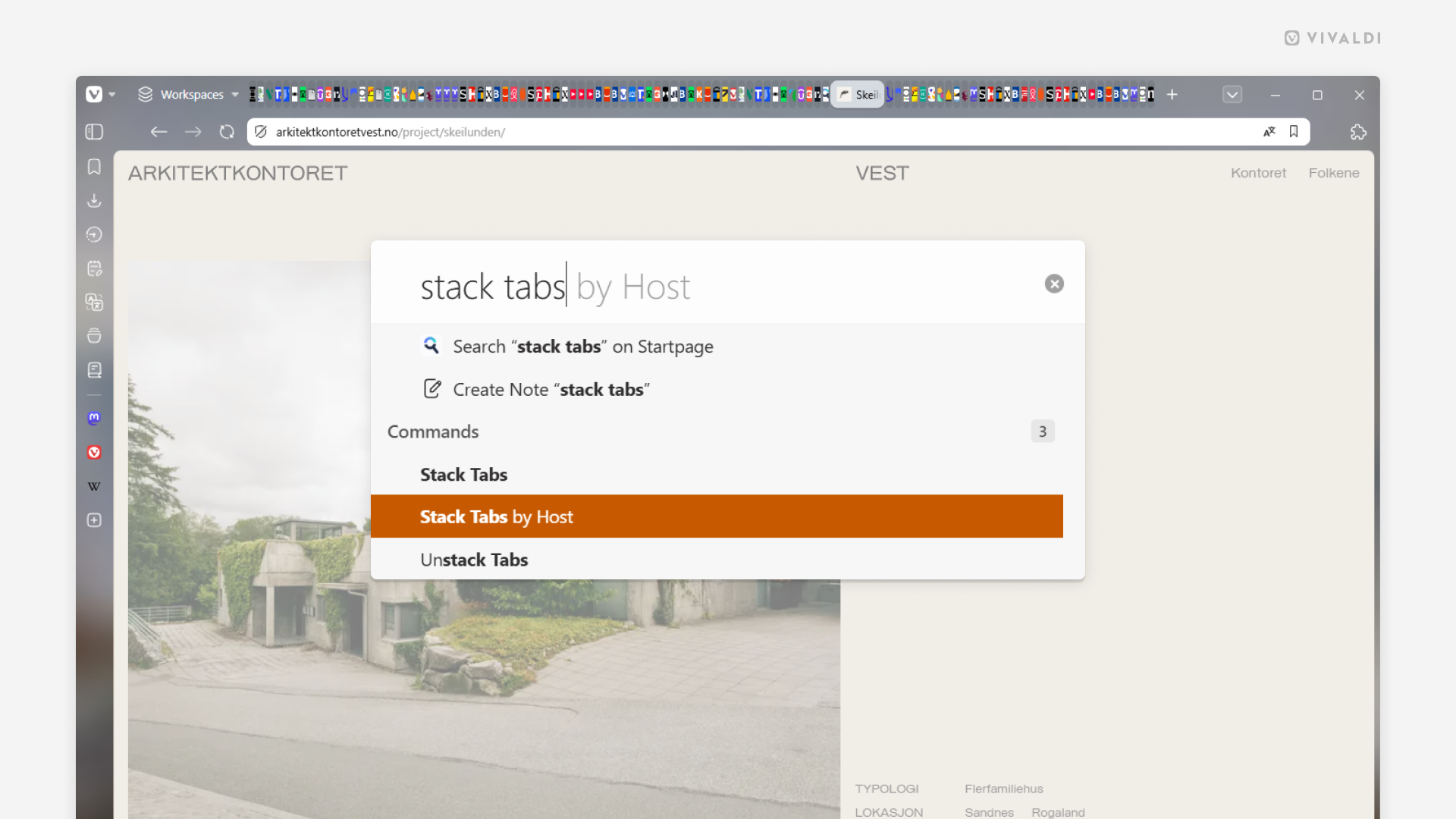
Declutter a crowded Tab Bar by stacking all tabs by hosts.
Time to revisit an old tip since things have changed since it was posted a few years ago.
Seeing your Tab Bar go from a complete mess to one that’s neatly organized in a blink of an eye is super satisfying. So, if your Tab Bar contains multiple tabs from the same site that could all be grouped into their own stacks, try the following:
- Open Quick Commands (
F2/⌘ E). - Type “Stack Tabs by Host”.
- Press
Enter.
Alternatively, assign a Keyboard Shortcut or a Mouse Gesture for the “Stack Tabs by Host” command, or customize the menus and add the command to a Tab menu.
Tip #833
July 21, 2026
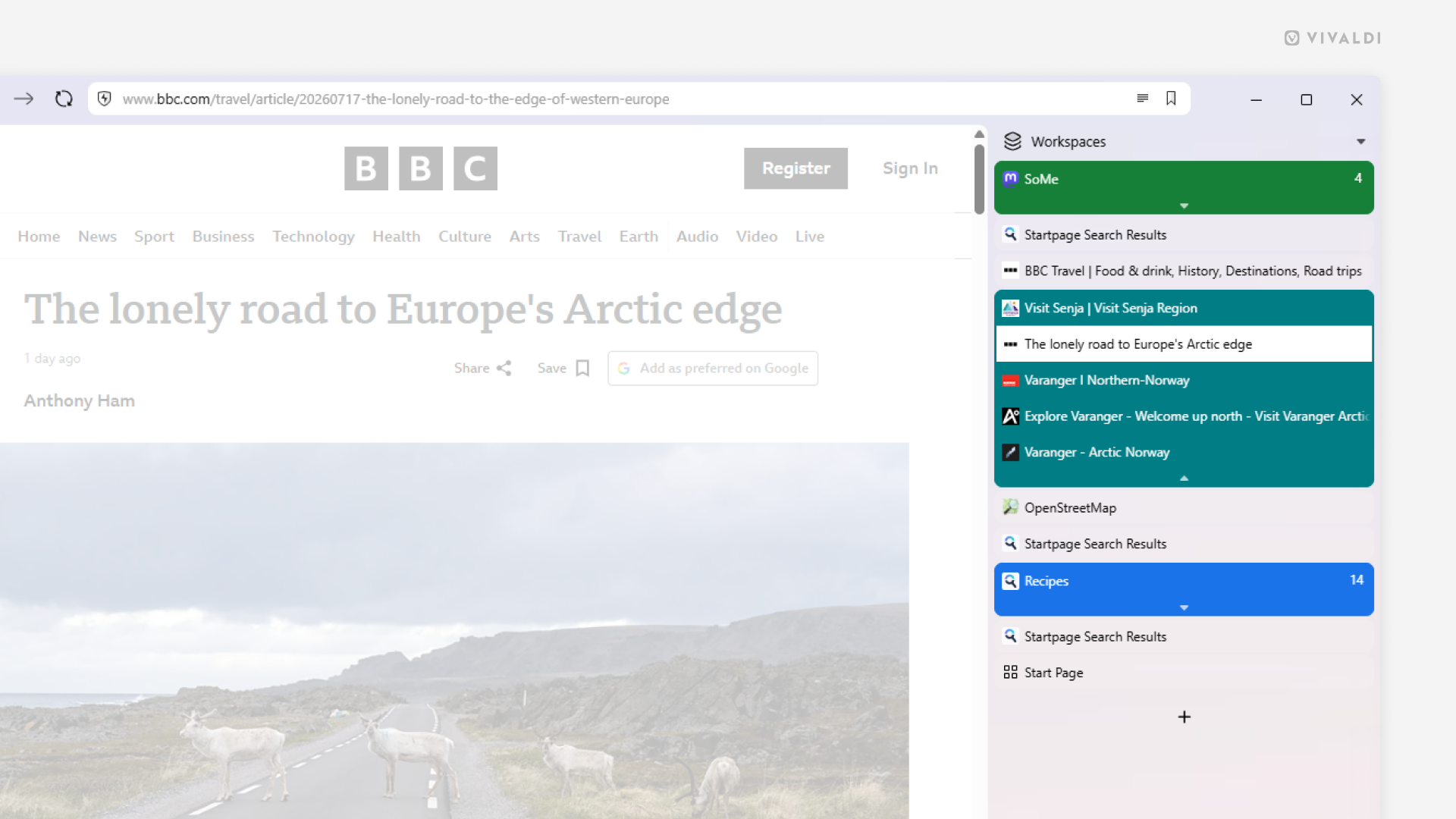
Combine the vertical Tab Bar with Accordion Tab Stacks to create an organized and space-efficient browser layout.
There are many benefits to moving your Tab Bar to the side of the browser, such as better readability of tab titles, better use of widescreen displays, larger click areas when switching tabs, and more. When you group tabs though, by default, the tabs in the stacks will be displayed on the Tab Bar’s second level, giving you essentially two Tab Bars, which take more space vertically than they do horizontally. You can win back the space by opting for Accordion style stacking on the vertical Tab Bar, which will keep your stacks on the same level as unstacked tabs.
To create this configuration:
- Go to Settings > Tabs.
- Set the Tab Bar position to either left or right side of the window.
- In the Tab Features > Tab Stacking section, select Accordion.
Tip #831
July 14, 2026
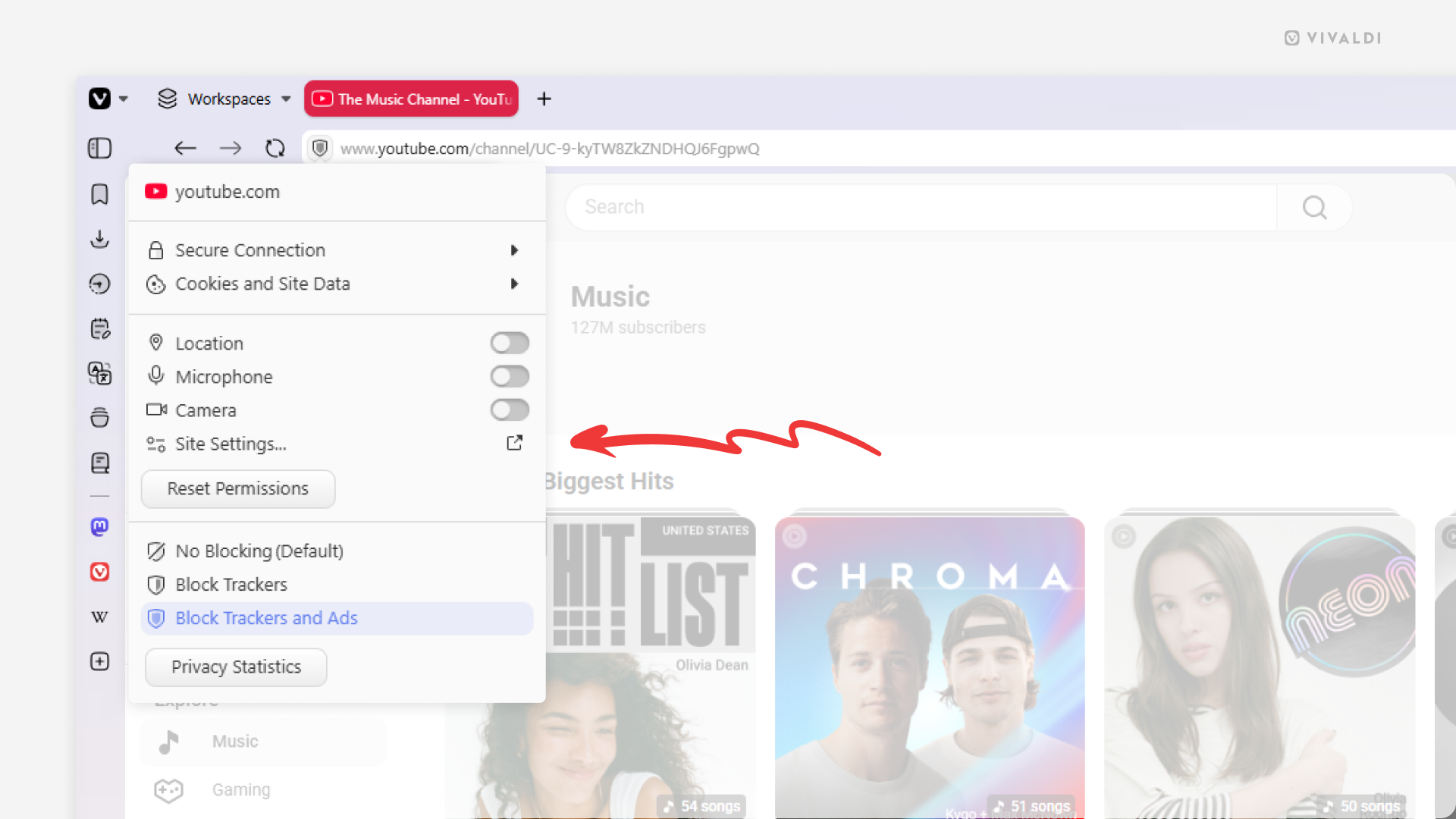
Review and update website’s permissions from the Site Info menu.
When browsing the web, you might find yourself needing to grant the website access to your camera and microphone in order to join a video call, to your location in order for the site to offer relevant content, or maybe you want to block the site’s annoying notifications and prevent it from auto-playing videos. All this and more can be managed in Website Permissions. You can view and manage global and website specific permissions in Settings > Privacy and Security > Website Permissions, but when you have the website open in a tab, you can also manage permissions the following way.
To manage website permissions:
- Open the website in a tab.
- Click on the Site Info button (shield icon) on the left side of the Address Field.
- If there already are some permissions differing from the global settings, you can change them in the same menu.
- Click “Site Settings” to view and manage all permissions.
Tip #830
July 9, 2026
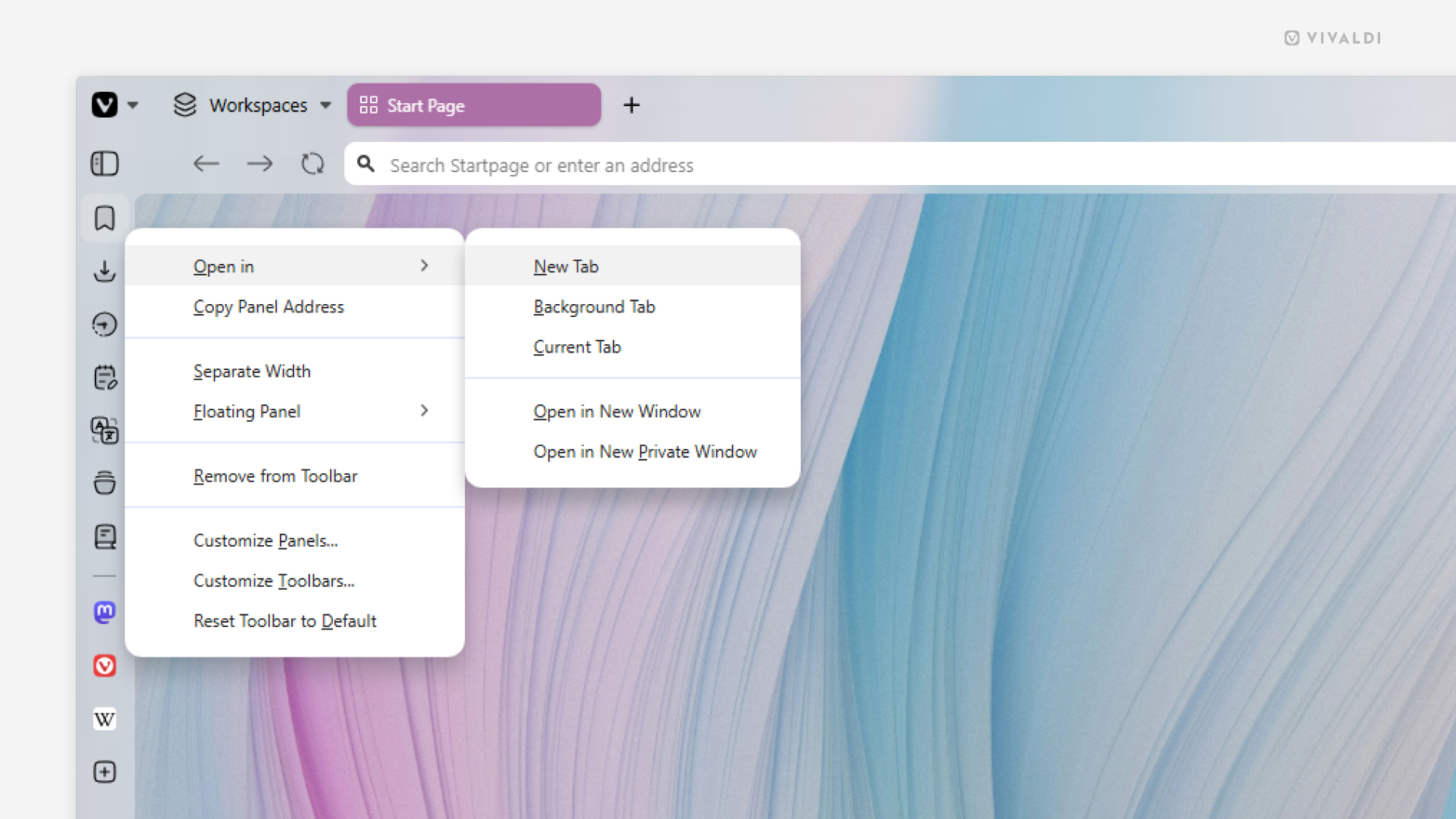
When the narrow sidebar view doesn’t cut it, open the panel in a tab.
In addition to the Panels, Bookmarks, History, and Notes can all be viewed and managed in a full tab view. And since Web Panels are just small mobile versions of websites, they can logically be opened in a tab as well. While there are many ways to open each of them in a tab, the following option is probably one of the quickest ways.
To open a panel in a tab:
- Right-click on the panel’s button on the sidebar.
- Hover over “Open in” and select your preferred option. For example, open in new tab or in a new window.
Tip #829
July 7, 2026
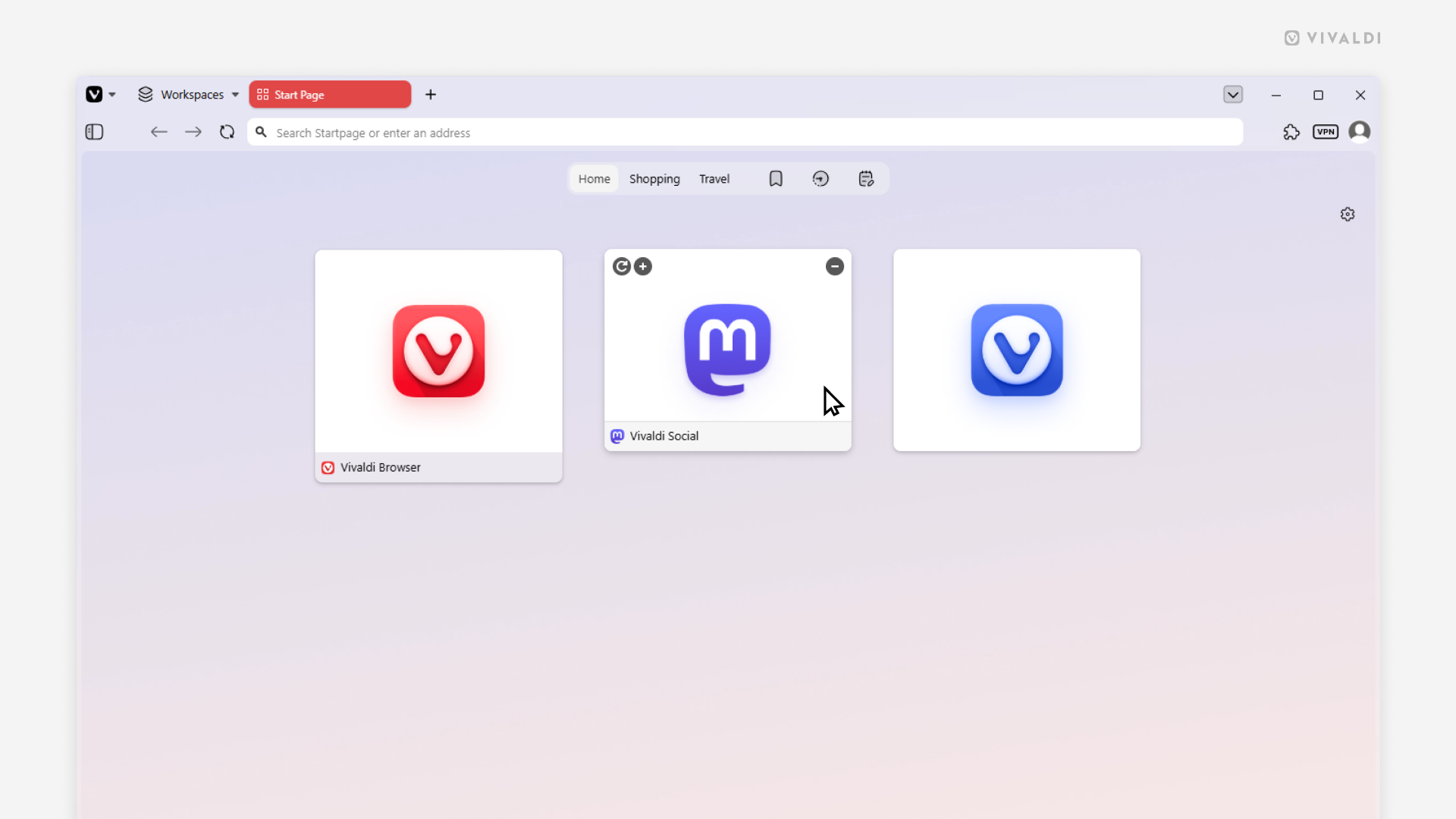
Choose whether to display Speed Dials with or without titles.
Speed Dials in Vivaldi allow you to quickly access your favorite websites from the Start Page. On desktop you can customize Speed Dials to display the title or not, or only show it when you hover over the Speed Dial.
To pick your preferred Speed Dial look:
- Go to Settings > Start Page > Speed Dial > Speed Dial Appearance.
- Choose between:
- Show Title
- Show Title on Hover
- Hide Title
Tip #826
June 25, 2026
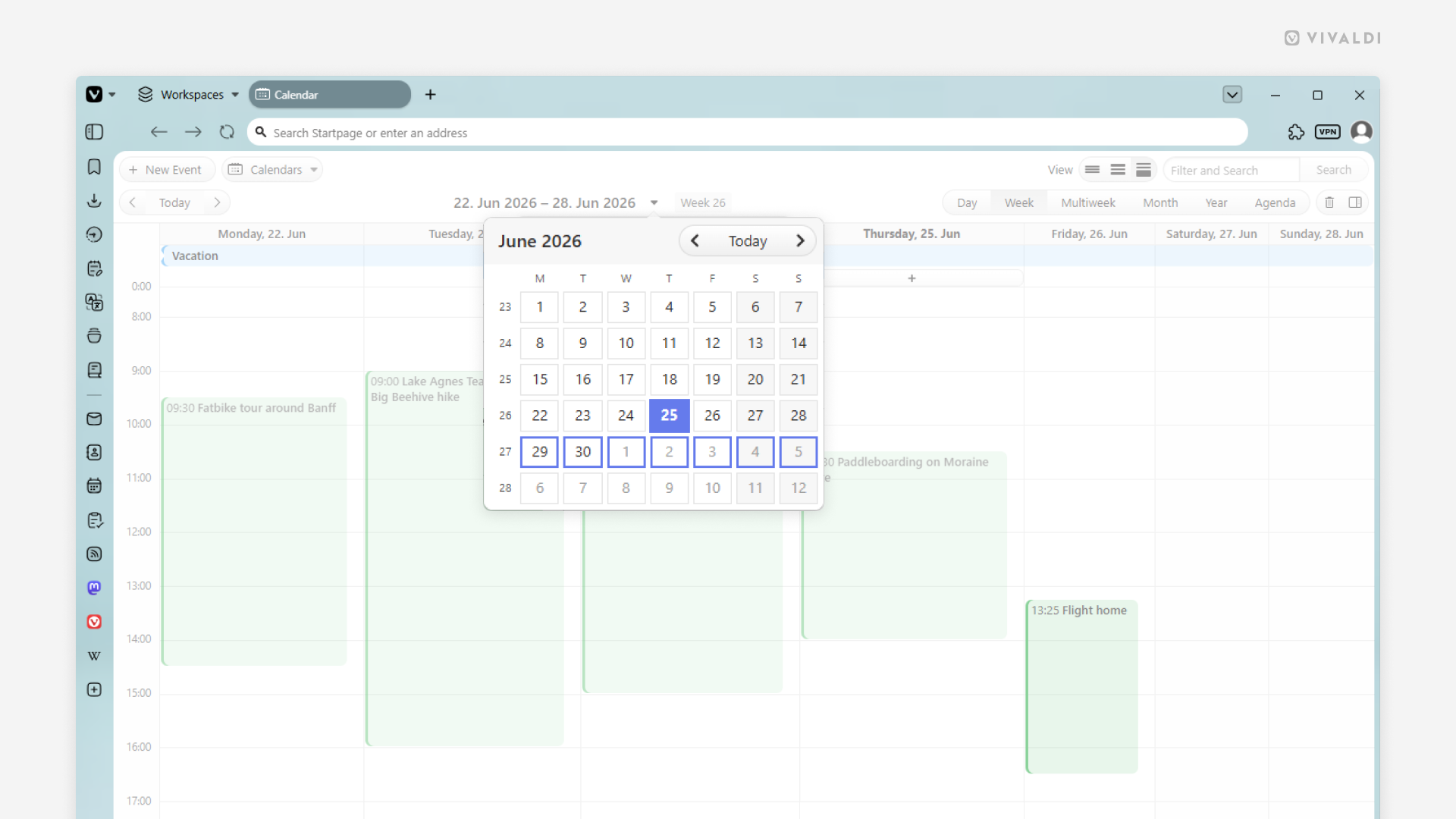
Press G to open the date picker in the Vivaldi Calendar.
While working in the Vivaldi Calendar, you may occasionally need to jump far beyond the current day/week/month. In such cases, it’s easier to use the date picker to go directly to the target date. You can click on the current time range shown at the top of the calendar, or you can simply press a key on your keyboard to instantly bring up the date picker.
To jump to a specific time range using your keyboard:
- Make sure Single Key Shortcuts are enabled in Settings > Keyboard > Keyboard Shortcuts.
- Press
Gwhen the calendar is open in the active tab. - Use arrow keys to find the date(s) you want to jump to.
- Press
Enter.
Tip #824
June 16, 2026
Find the tab playing audio by looking for the speaker icon.
Whenever a tab in Vivaldi on desktop plays audio from, for example, a video, a speaker icon will be displayed in various places in the user interface, helping you see which tab the sounds come from.
You can find the speaker icon in the following locations:
- In place of the site’s favicon:
- On the Tab Bar
- In the Windows and Tabs Panel
- In the Tab Button menu
- In the Workspaces menu next to the space’s name the audio playing tab is in.
By clicking on the speaker icon you can (un)mute the tab.