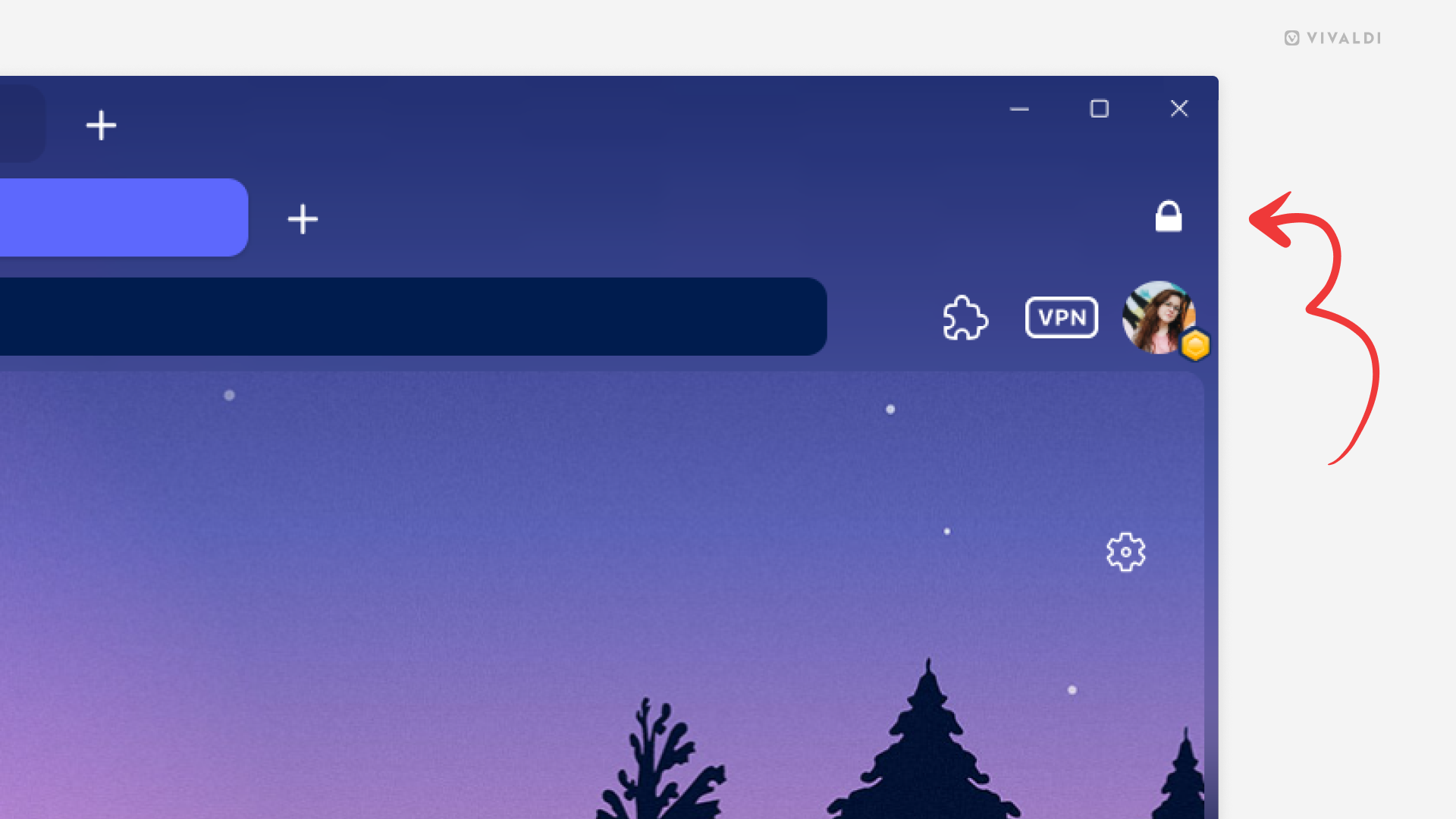
Lock the Tab Bar’s second level to keep the user interface consistent.
When you’ve opted for the Two-Level Tab Stacks display option for your grouped tabs, you’ve probably noticed that the second level pops up only when you’re viewing stacked tabs. It keeps the user interface from moving around and the page area always the same size. Additionally, if the first level is so full of (unstacked) tabs that you can hardly see the active tab’s title, you can check it on the second level instead, where it has plenty of room.
To lock the Tab Bar:
- Go to a tab in a stack to display the Tab Bar’s second level.
- Click the “Lock second tab level’s” padlock button on the far side of the Tab Bar.